Configure Knowledge Base Filters
In Deepser you can configure how the search across various articles is performed, allowing you to obtain better results. Various filter types are used to accomplish this. This page covers the standard filters available for article suggestions.
The proposal of articles related to the scope of a Service Operation takes place through the appropriate configuration of search filters. The order in which articles are proposed is degressive compared to the number of positive matches between the current model and the article.
Filter on Article Tags
This is the standard filter. The search looks for a match between the title of the Service Operation and the tags defined in the Knowledge Base articles.
Filter on Article Description
To search within the article body (Description field), you need to change the configuration from System > Configuration > Knowledge Base > Configurations > Search in the Deepser Backend.
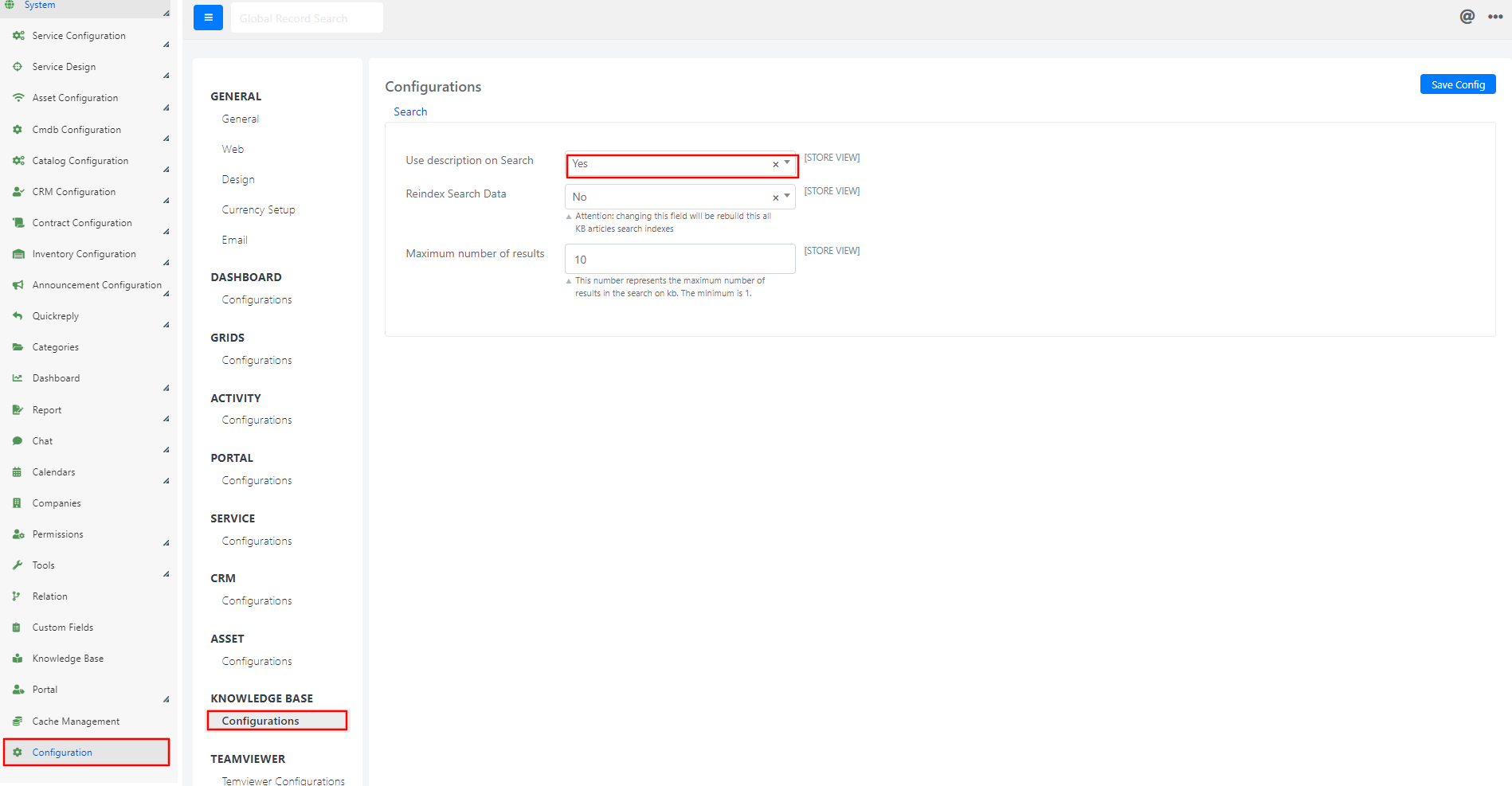
The form fields have the following meaning:
| Field | Description |
|---|---|
| Use Description in Search | If set to YES, the search content (for example, the title of a Service Operation) is searched in the body of articles. |
| Redirect the Search Data | If set to YES, the KB search indexes are re-created. |
| Maximum Number of Results | Maximum number of articles proposed in the search results. |
Enable Use Description in Search if your articles have detailed body content but minimal tags. This broadens the search to match against the full article text.
Knowledge Base Advanced Filters
In addition to standard filters, you can use category-based filtering to further refine which Knowledge Base articles are suggested. This filter evaluates the correspondence between the category set in the Service Operation and the category assigned to each KB article.
To configure this filter, you need to modify the configuration of the custom field of type Kbtips, which offers the articles in the form.
Configure the Category Filter
-
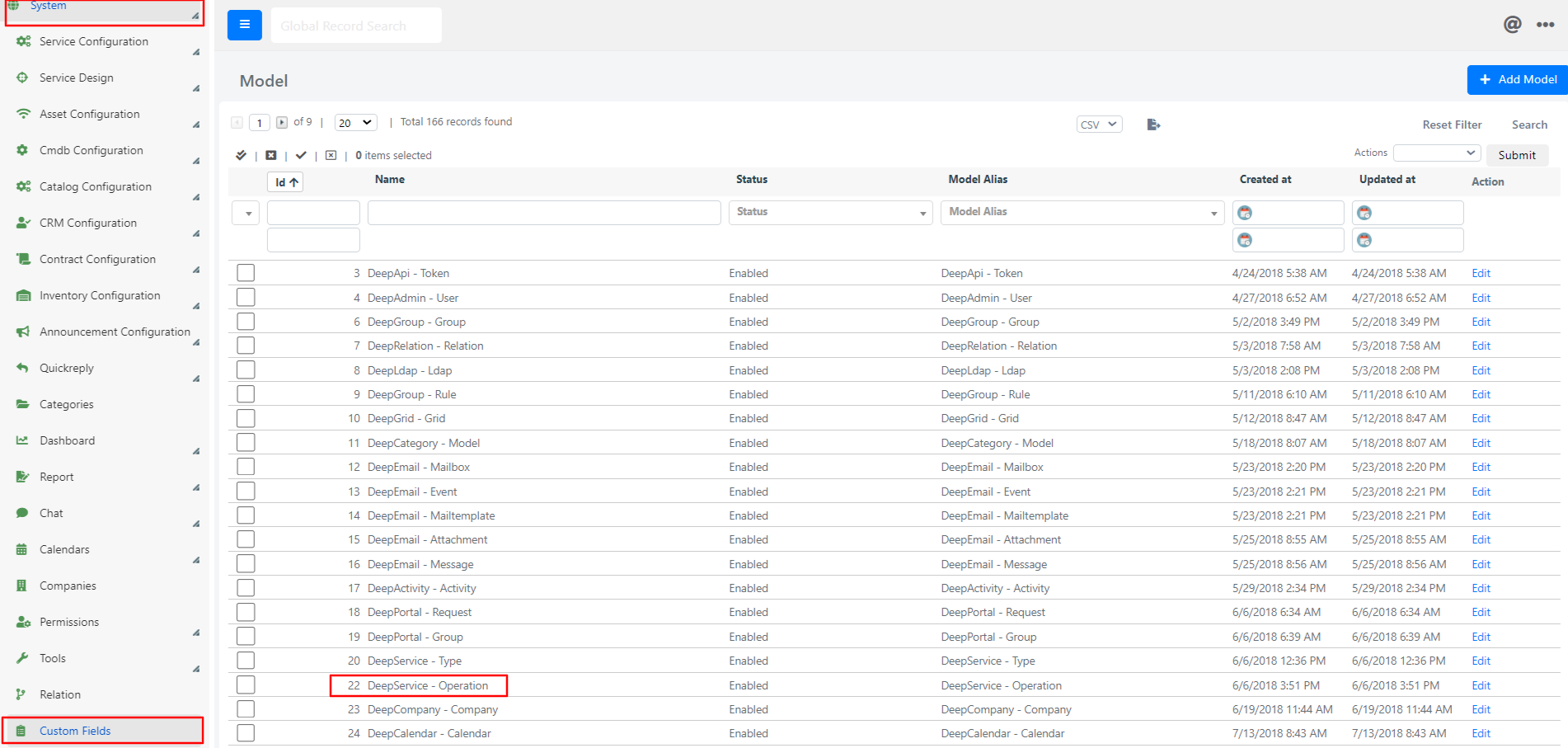
Go to the System > Custom Fields section of the Deepser Backend and select the Deepservice -- Operation model.
-
Click on the Fields tab and on a Kbtips type field (e.g., Knowledge Base) to access the configuration form.
-
Add the following PHP code to the Custom Element scripting area and click the Apply button at the top right.
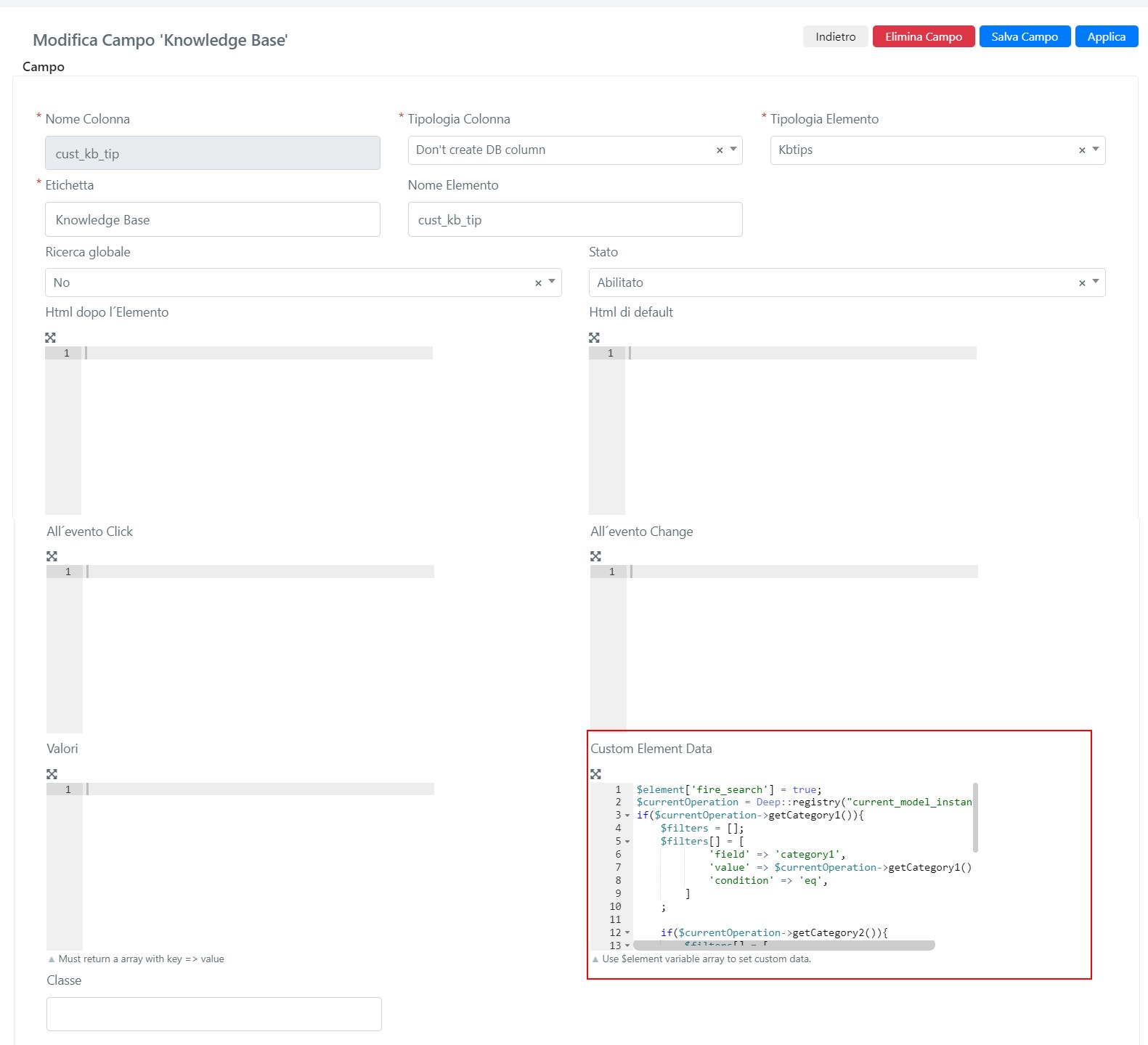
$element['fire_search'] = true;
$currentOperation = Deep::registry("current_model_instance");
if($currentOperation->getCategory1()){
    $filters = [];
    $filters[] = [
        'field' => 'category1',
        'value' => $currentOperation->getCategory1(),
        'condition' => 'eq',
    ];

    if($currentOperation->getCategory2()){
        $filters[] = [
            'field' => 'category2',
            'value' => $currentOperation->getCategory2(),
            'condition' => 'eq',
        ];
    }
    if($currentOperation->getCategory3()){
        $filters[] = [
            'field' => 'category3',
            'value' => $currentOperation->getCategory3(),
            'condition' => 'eq',
        ];
    }

    $element['filters'] = $filters;
}
Now the articles will be filtered based on the correspondence between categories set in the Service Operation and those set in the article.
Articles without a category are always proposed, but because they have no positive matches in the category comparison, they will appear lower in the suggested order.
Filtering Behavior Examples
-
If you have selected only Category 1 = "Category A" in the Service Operation, all articles that have Category 1 = "Category A" will be displayed in the following order: first those with only Category 1 set, then others with any Category 2 or Category 3, and finally those without any assigned category.
-
If you have selected Category 1 = "Category A" and Category 2 = "Category B" in the Service Operation, all articles matching both Category 1 = "Category A" and Category 2 = "Category B" will be displayed in the following order: first those with both Category 1 and Category 2, then those also having Category 3, and finally those without an assigned category.