Create a New List
This guide walks you through the steps to create a new list in Deepser and populate it with values. Lists provide reusable sets of options that you can attach to custom fields across your system.
-
Go to the menu: System > Tools > Lists in the Deepser Backend.
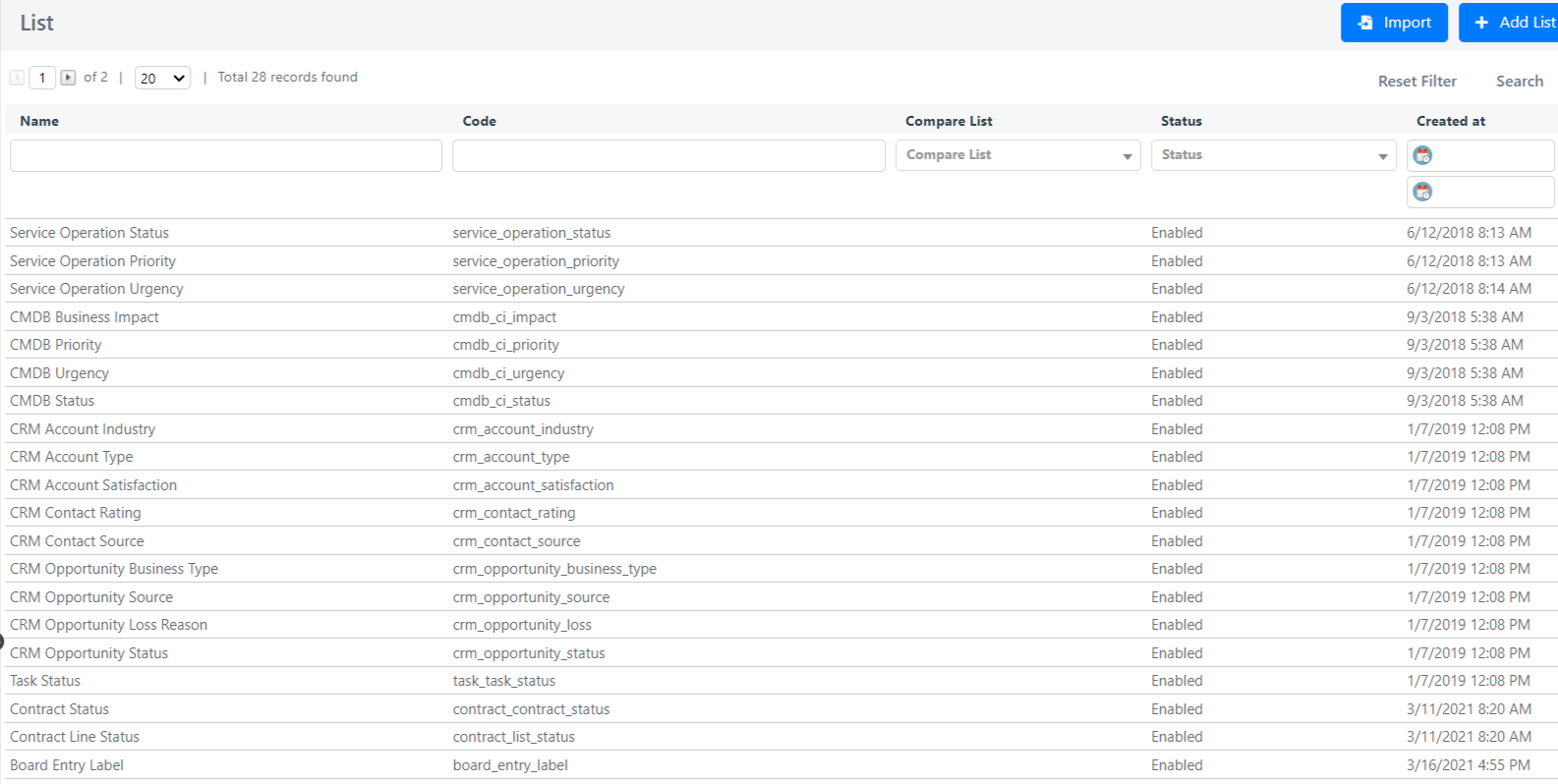
-
Click on the Add List button at the top right. The following screen will open:
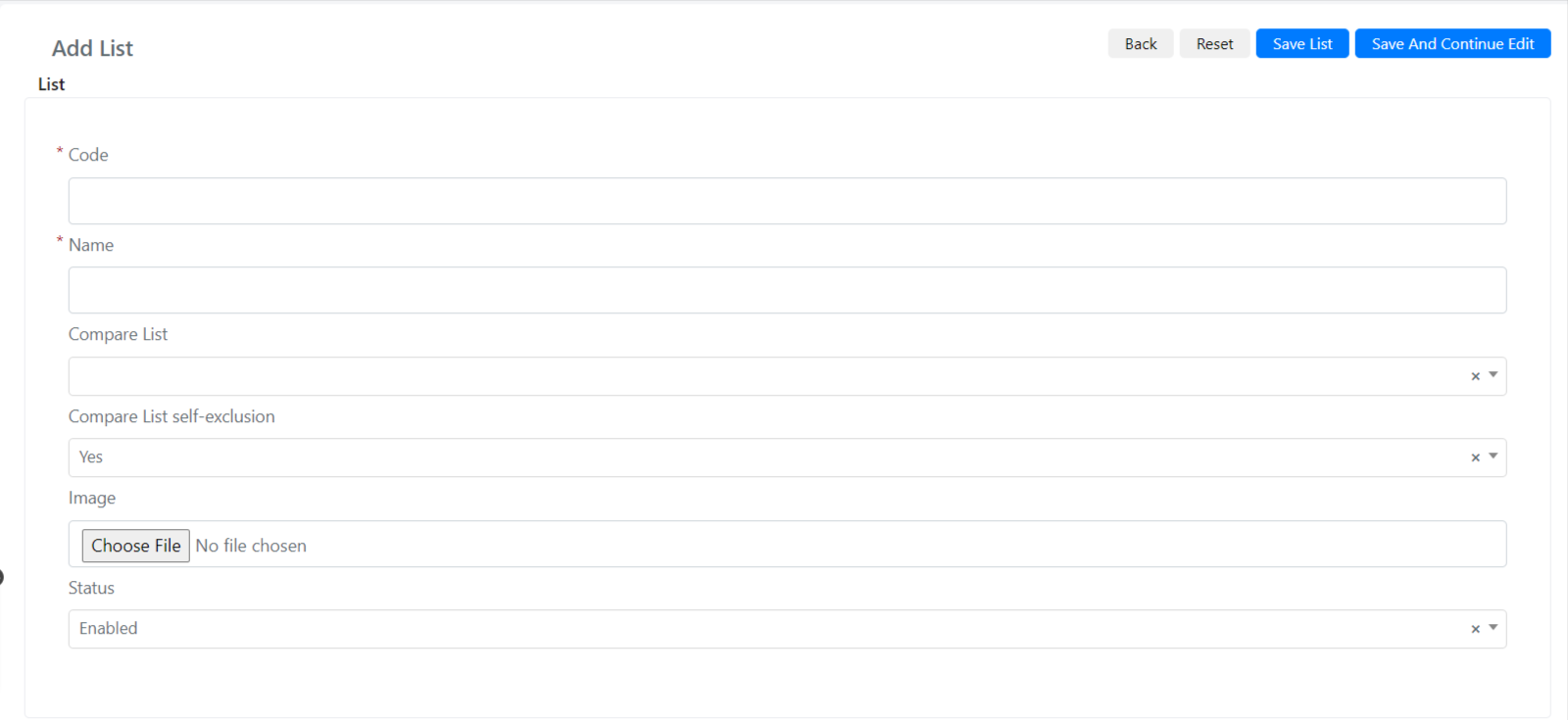
Below are the fields with their associated descriptions:
| Field | Description |
|---|---|
| Code | Unique code name of the list. |
| Name | Name of the list you are creating. |
| Compare List | This field is a system field; you can ignore it in normal Deepser usage. |
| Compare List self-exclusion | This field is a system field; you can ignore it in normal Deepser usage. |
| Image | Image associated with the list you are creating. |
| Status | Status of the list you are creating. |
- Fill in the fields and click Save List or Save And Continue Edit List. The list will now be created.
Example: Creating a List
Suppose you want to create a list named "Demo List" that contains different demo versions to present to the customer. In particular, you will create an In-Presence demo option and a Remote demo option.
To do this, go to the menu: System > Tools > Lists, then click the Add List button.
Fill in the Code field with the code of the list. By convention, this field should be all lowercase with underscores instead of spaces.
In this example, enter demo_types in the Code field.
Now give the list a name by filling in the Name field. In this example, enter Demo Types.
Leave all other fields at their default values and click the Save List or Save And Continue Edit List button.
Creating List Items
To create the elements that will become options in a list-based select:
-
Navigate to the list where you want to add the elements.
-
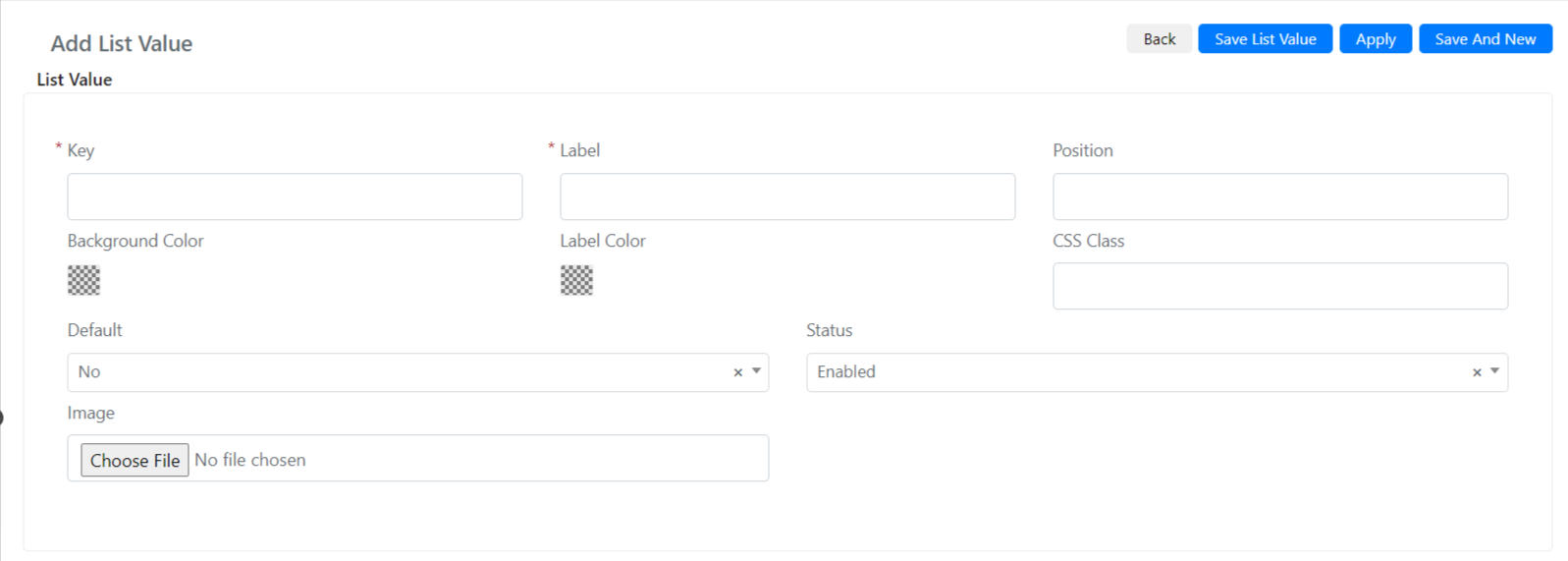
Go to the Values tab and click the Add Value button. The following screen will open:
-
In the Key field, enter a number that is unique within the list (e.g.,
0). In the Label field, enter the display name (e.g.,Live Demo).
Click Save List Value if you are done adding values, Save And New if you need to create more, or Apply to save and continue editing the current value.
- Repeat the process to create additional entries (e.g.,
Online Demowith key1). - On the main screen of the list, click Save List to save the list with the created items.