Link a List to a Custom Field
After creating a list with values and configuring model visibility, you may want to reuse that same list across different models -- for example, in both the Service Module and the CMDB Module. This guide shows you how to set a list as the data source for a custom field.
Linking a List to a Custom Field
-
Go to the menu: System > Custom Fields in the Deepser Backend.
-
Select the template on which you want to create or modify the custom field. In this example, you will use the DeepService -- Operation model.
-
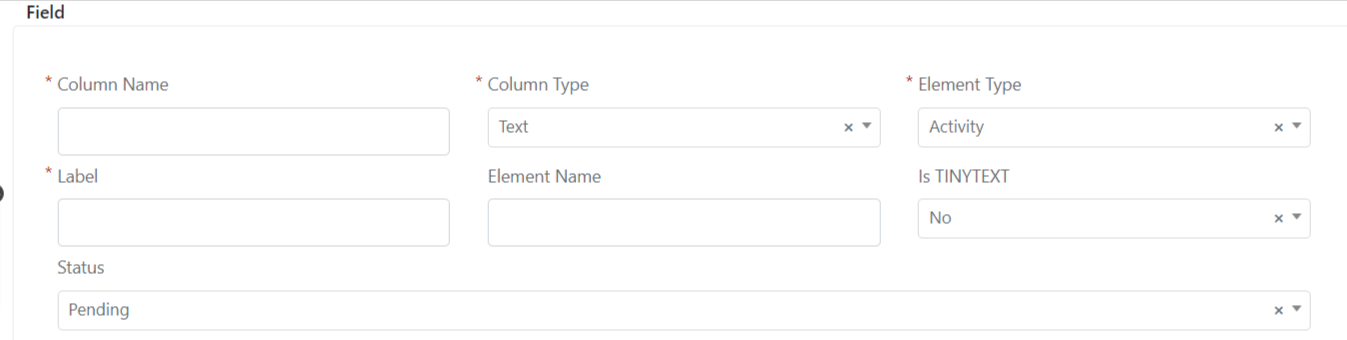
Go to the Custom Fields section and click the Add Field button. The following screen will open:
-
Configure the fields as follows:
- Set the Column Name field to
demo_types. - Set the Name field to
Demo Types. - Set Column Type to
integer. - Set Element Type to
List. - In the List Code field that appears, select the list you created previously.
- Set the Status field to
Enabled.
- Set the Column Name field to
-
Click the Save Field button or the Apply button.
After creating the field, add it to a form template to make it visible to your users. The values of the field will correspond to those of the linked list. For more details, refer to the guide on form templates.