Configure List Values and Model Visibility
After creating a list with its values, you may want to use those values to filter other fields and control autofill behavior within a Service Operation. The Model Visibility feature lets you define rules that determine when specific list values are available.
Setting Up Model Visibility
- Go to the menu: System > Tools > Lists and click on the Service Operation Status list. The following screen will open:
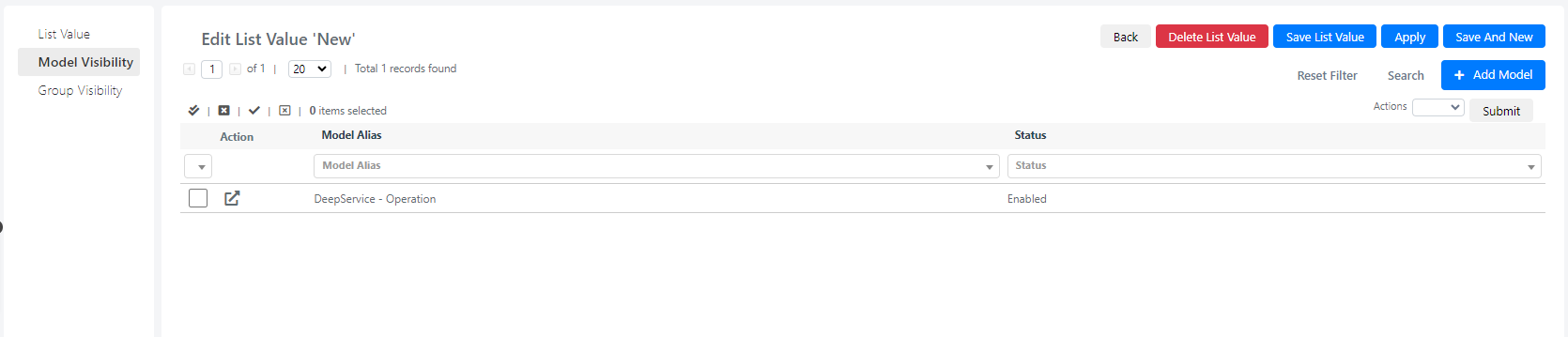
- To filter certain Service Types based on a selected value from that list (for example, the "New" value), click on the Add Model button. The following screen will open:
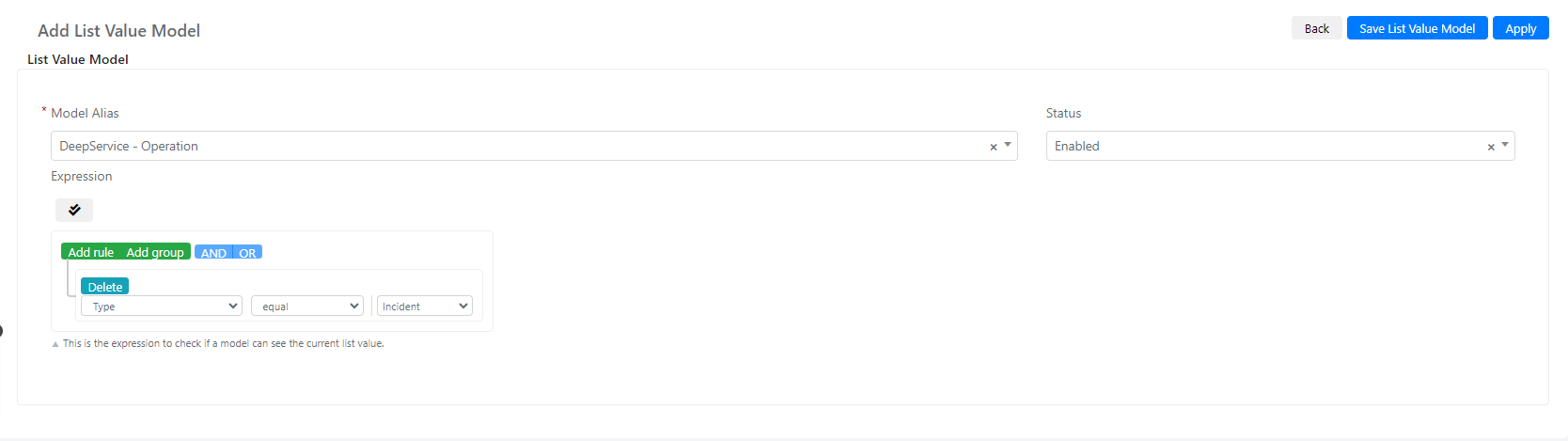
Here is a description of each field:
| Field | Description |
|---|---|
| Model Alias | The name of the model to which you want to apply the filter. |
| Status | Sets the status to enabled or disabled. |
| Expression with query builder | Use the query builder to set filters. Select the field you want to filter from the drop-down and set the condition. |
| Expression (Script) | Use custom code to set advanced filters. |
-
In this example, create a filter for the Status value "New" inside the Service Operation model. Inside the query builder, set that the Status value "New" can be displayed only for Service Type equal to "Incident".
-
Once you have filled in all the fields, click the Save or Apply button.
note
Model Visibility rules apply across all places where the list is used, so plan your filters carefully to avoid unexpected behavior.