Configure a Password
This guide walks you through the process of creating and configuring a new password entry in Deepser. You will learn how to access the Password module, fill in the required fields, and generate secure passwords.
Creating a Password
-
Access the Password module from the main Deepser menu, or alternatively through the drop-down menu of the User Portal.
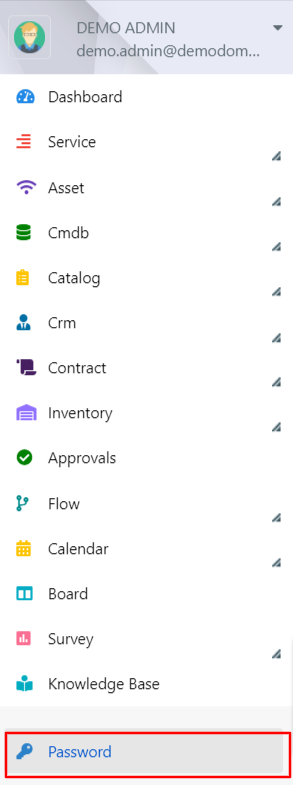
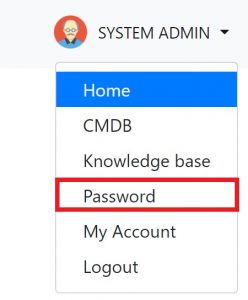
-
Click on the Add Password button.

-
You will see the form for password creation.
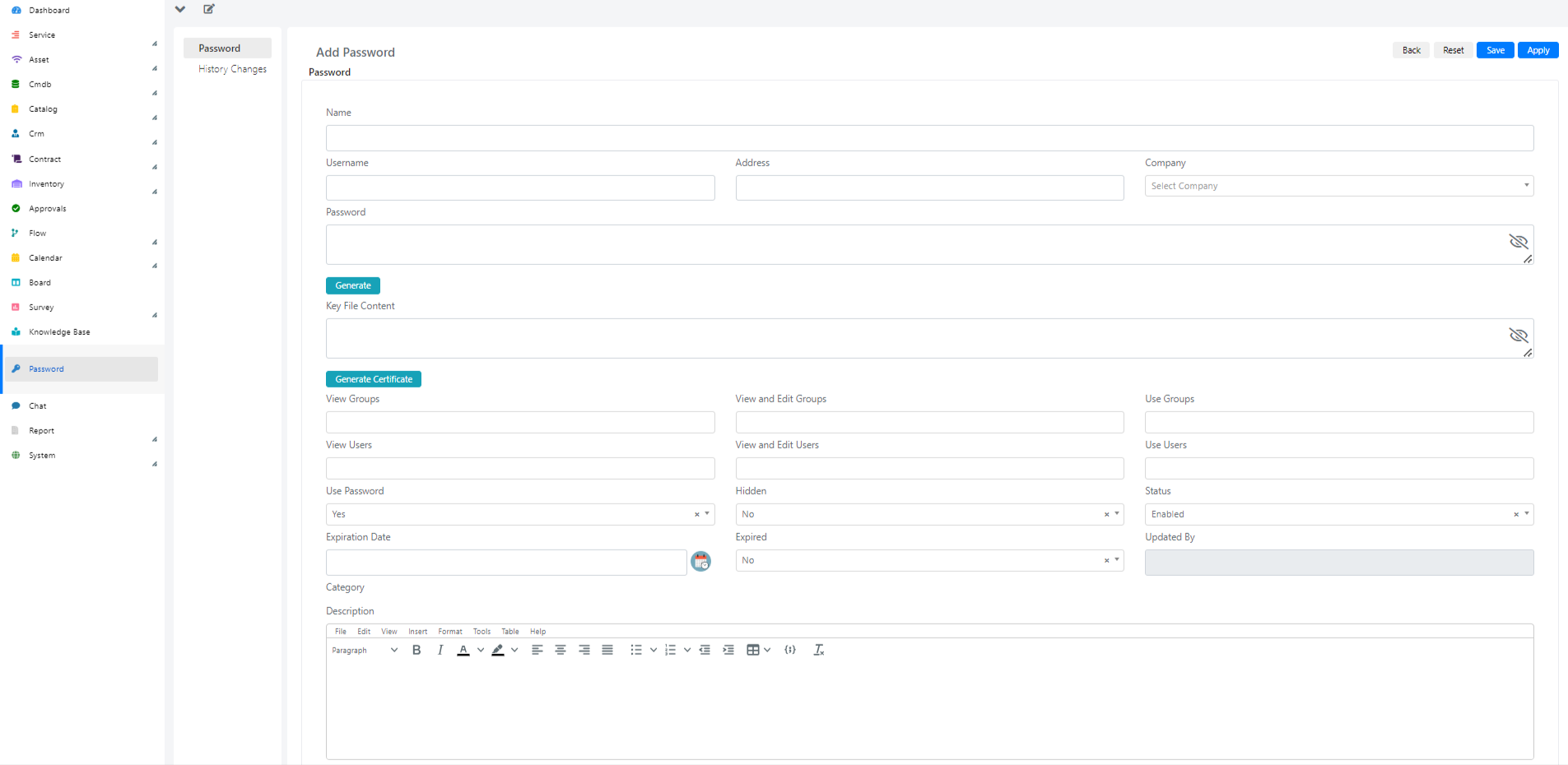
The fields have the following meaning:
| Field | Meaning |
|---|---|
| Name | Brief description of the password. |
| Username | Username. |
| Address | Address of the device or URL of the site. |
| Company | Field used to connect the password to an existing Deepser company. |
| Password | The password to store. |
| Generate | Button to generate a random password. |
| Key File content | Cryptographic key to be stored, inserted as text content (e.g., to store an API key). |
| View Groups/View Users | Allows you to select multiple groups or individual users who will be able to view the password. |
| View and Edit Groups/View and Edit Users | Allows you to select multiple groups or individual users who will be able to view and edit or delete the password. |
| Use Groups/Use Users | Allows you to select multiple groups or individual users who will be able to display the password in forms that use it, implemented through a custom Deeppassword field. |
| Use Password | Enables the display of the password within the modules that implement it. |
| Hidden | Makes the password not recoverable by passphrase from users, but still usable internally by the software (for example, for scanning). |
| Status | Indicates the status of the password (Enabled/Disabled). |
| Expiration Date | Defines an expiration date for the password, which can be used as a trigger for escalation rules. When the expiration date is reached, the Expired field is automatically set to "Yes". |
| Expired | Indicates whether the password has expired. |
| Updated by | Indicates which user last updated the password. |
| Is private | Indicates whether the password is private. |
| Description | Description and additional notes on the password. |
| Category | The category field can only be set if there are categories visible to the DeepPassword model. |
Generating a Random Password
-
To generate a random password, click the Generate button.

-
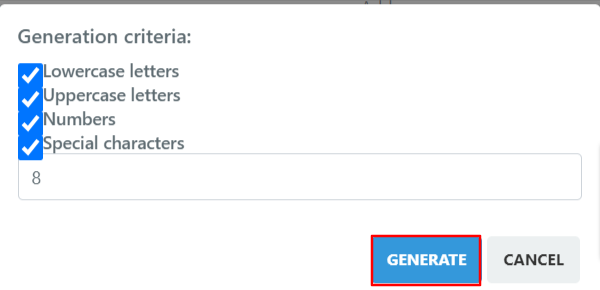
Select the relevant parameters, enter a length, and then click on Generate.
-
Fill in the relevant fields. In the example below, a password is configured for a cloud service, so the fields Name, Username, and Password are highlighted. This password will be visible to all groups, but only Second Level IT administrators can modify it.
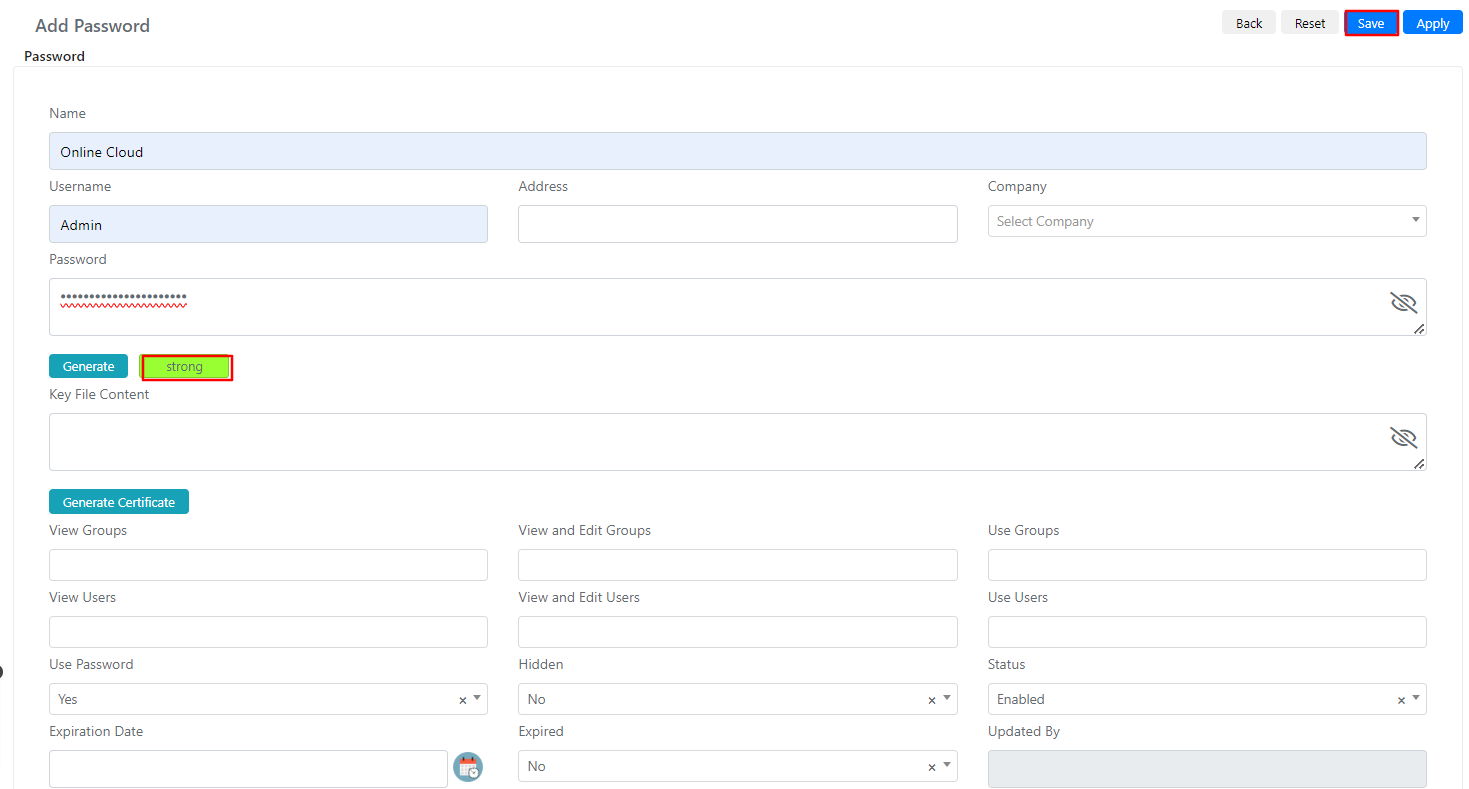
To the left of the Generate button there is a security indicator for the password you entered.
- Click Save to store the password. It is now viewable by the selected users and groups.