Configure Custom Deeppassword Fields
In Deepser, you can configure custom fields of the Deeppassword type. These allow you to associate one or more passwords with a particular module. This guide demonstrates how to associate passwords with Configuration Items (CIs) in the CMDB.
Creating a Deeppassword Field
-
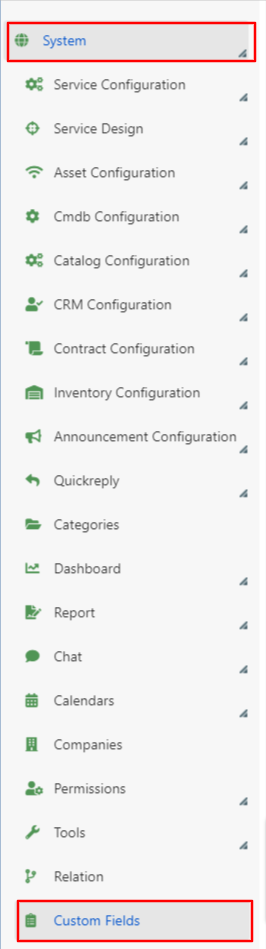
Access System > Custom Fields in the Deepser Backend.
-
Select the module where you want to make the passwords accessible (in this case, DeepCMDB -- CI).
-
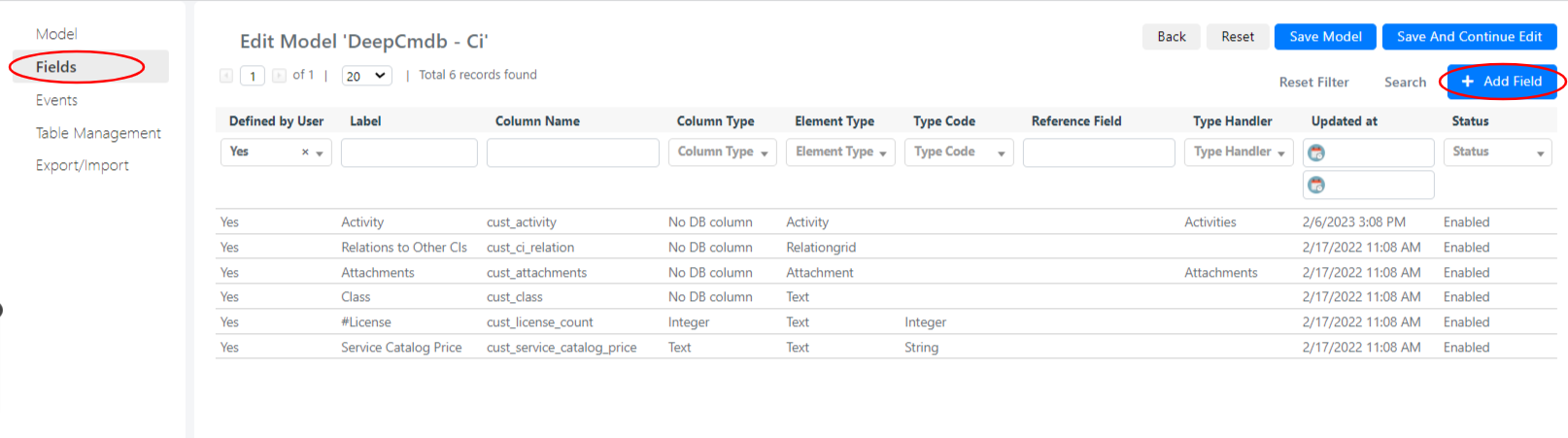
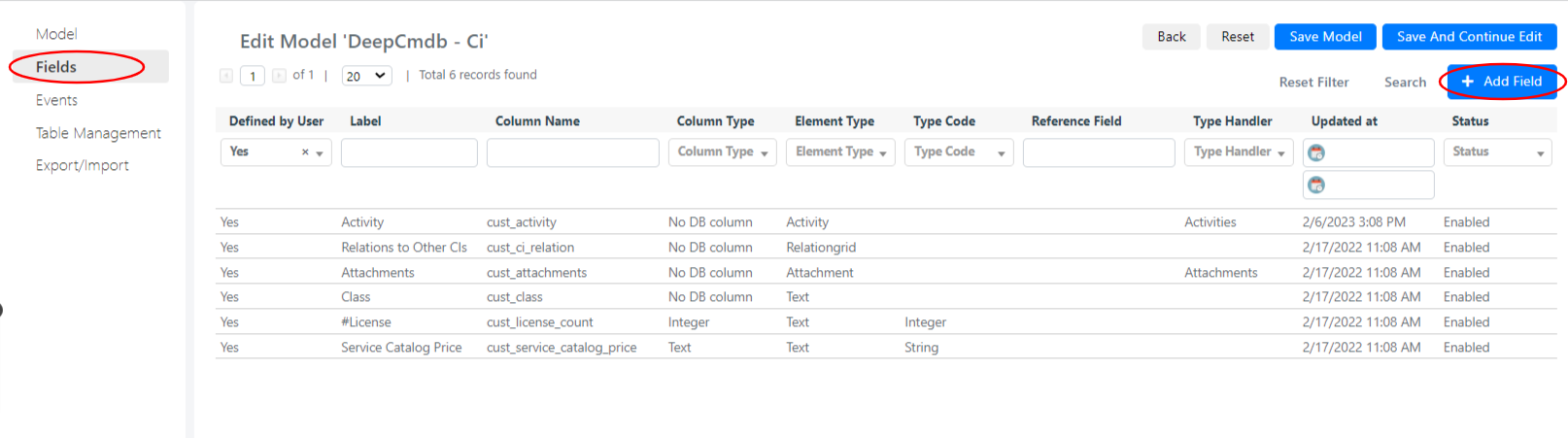
Create a new custom field by clicking on Fields > Add Field.
-
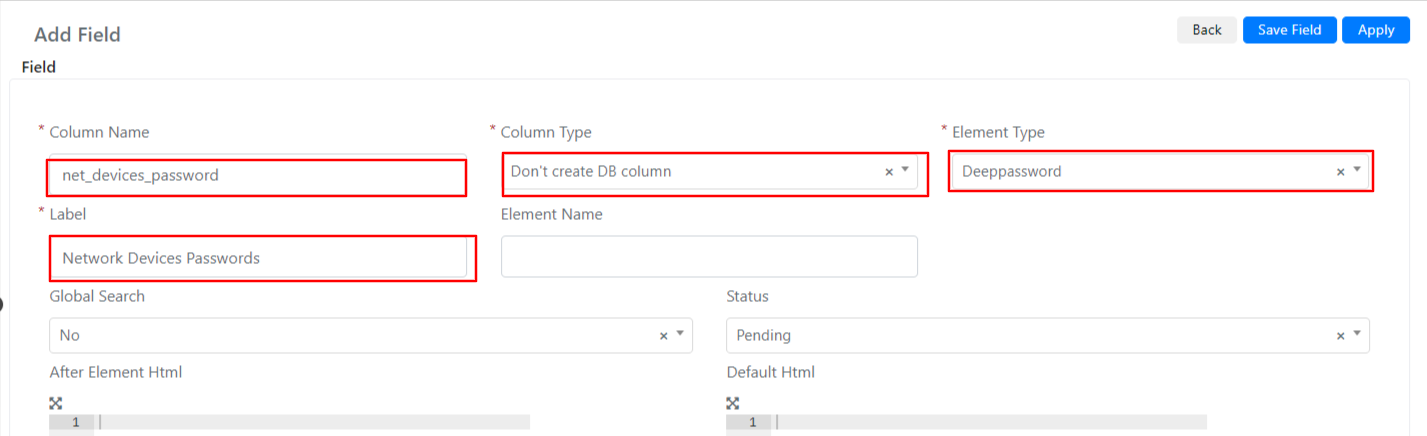
Fill in the form with a name and label of your choice, set Column Type to Don't create DB column and Element Type to Deeppassword, then save the field.
-
Edit the form template of the CIs in the CMDB to make the field visible, then press save.
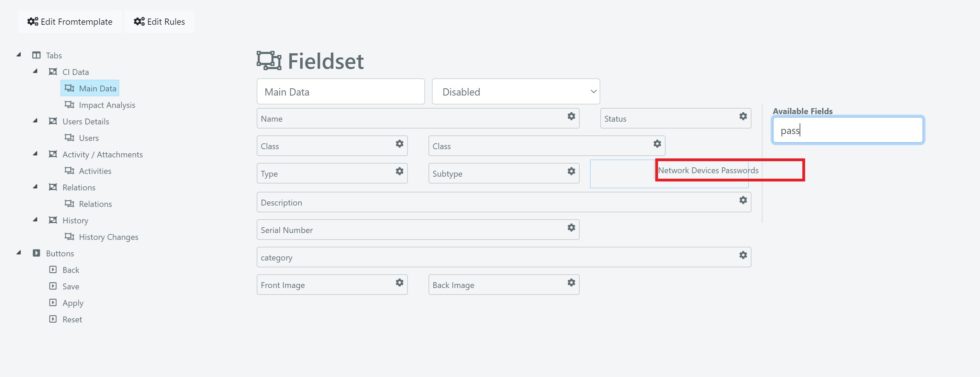
To learn more about editing template forms, refer to the appropriate section of the Academy.
-
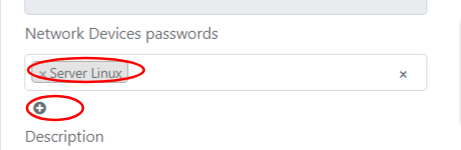
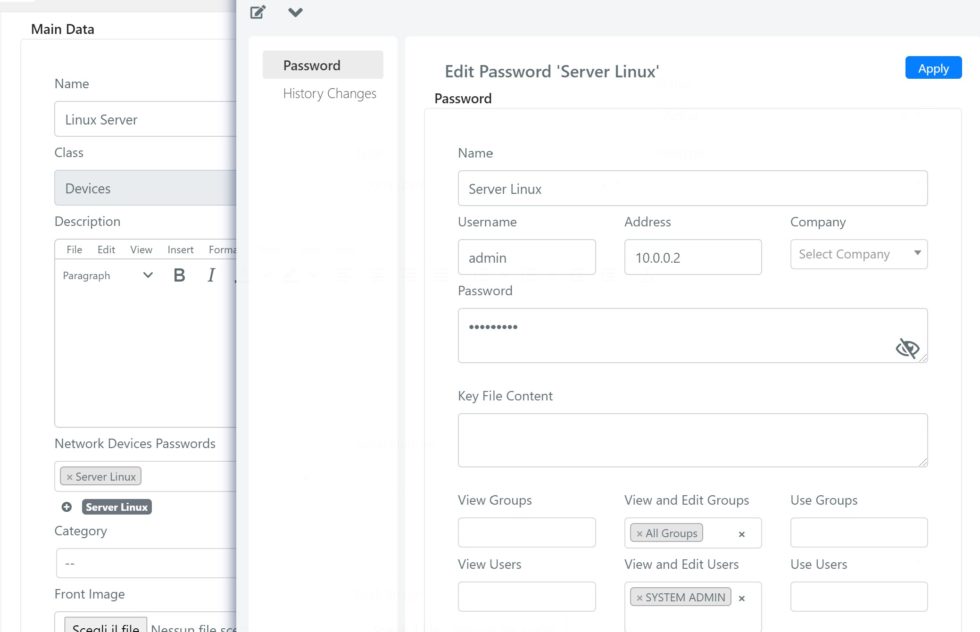
You can now select one or more passwords to connect. Once changes have been applied, click on the box below the select with the password name to view or modify it, or click the "+" symbol to add a new one.