Enable Password Manager in the User Portal
By default, the password manager is not visible in the User Portal. This guide shows you how to enable it so that end users can view shared passwords directly from the portal.
End users cannot change or create new public passwords through the User Portal. They can only view them.
Enable the Password Section
-
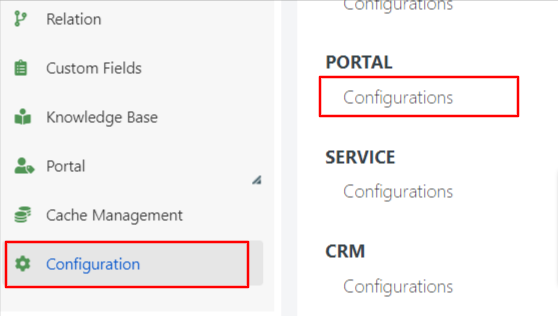
Go to the Deepser portal system configuration via System > Configuration > Portal > Configurations.
-
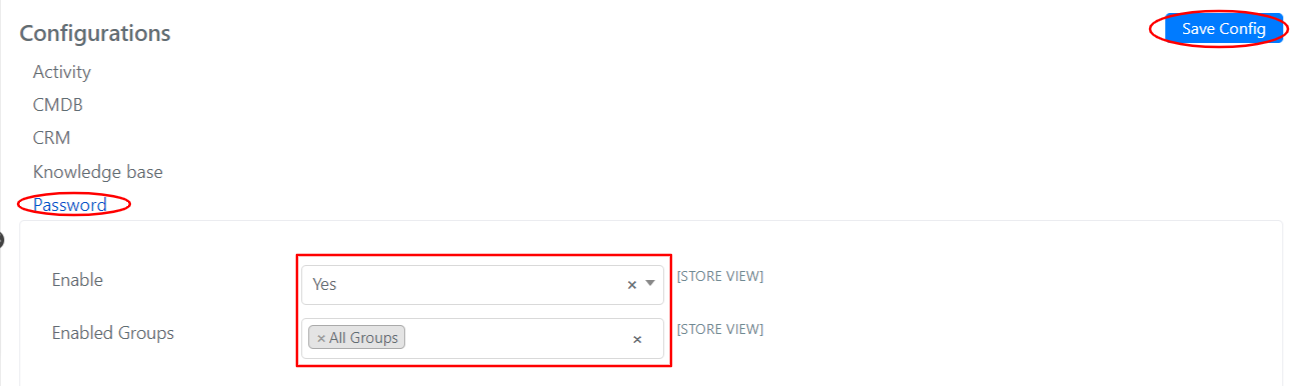
Expand the Password label, activate the display in the portal by setting Enabled to "Yes", and select the groups for which it should be enabled, then save.
-
The Password section is now available in the User Portal.
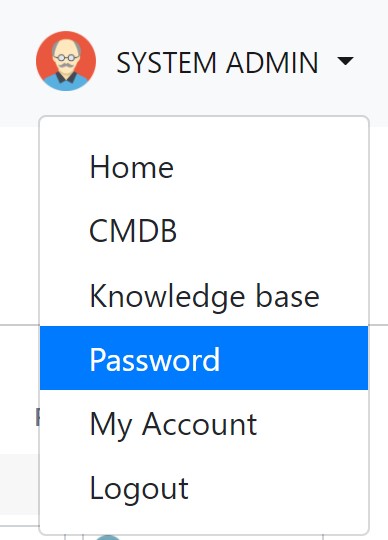
The password manager in the User Portal will look like this:

Customize the Portal Grid
To change the default grid or add a new one in the User Portal:
-
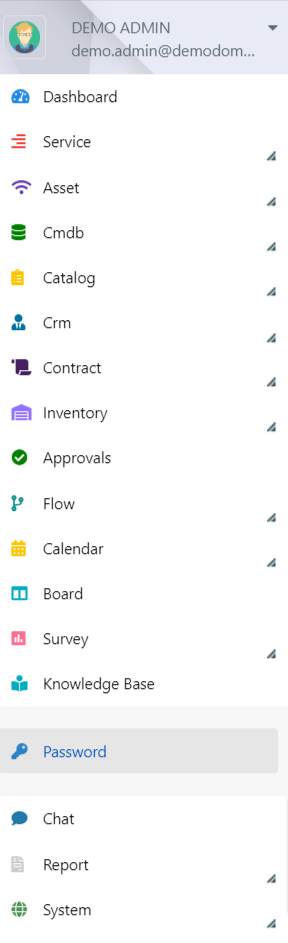
Go to the Password section of the main Deepser sidebar.
-
Add new grids by clicking the "+" button, or edit existing ones by clicking the edit icon.

To learn more about editing grids, see the dedicated section.