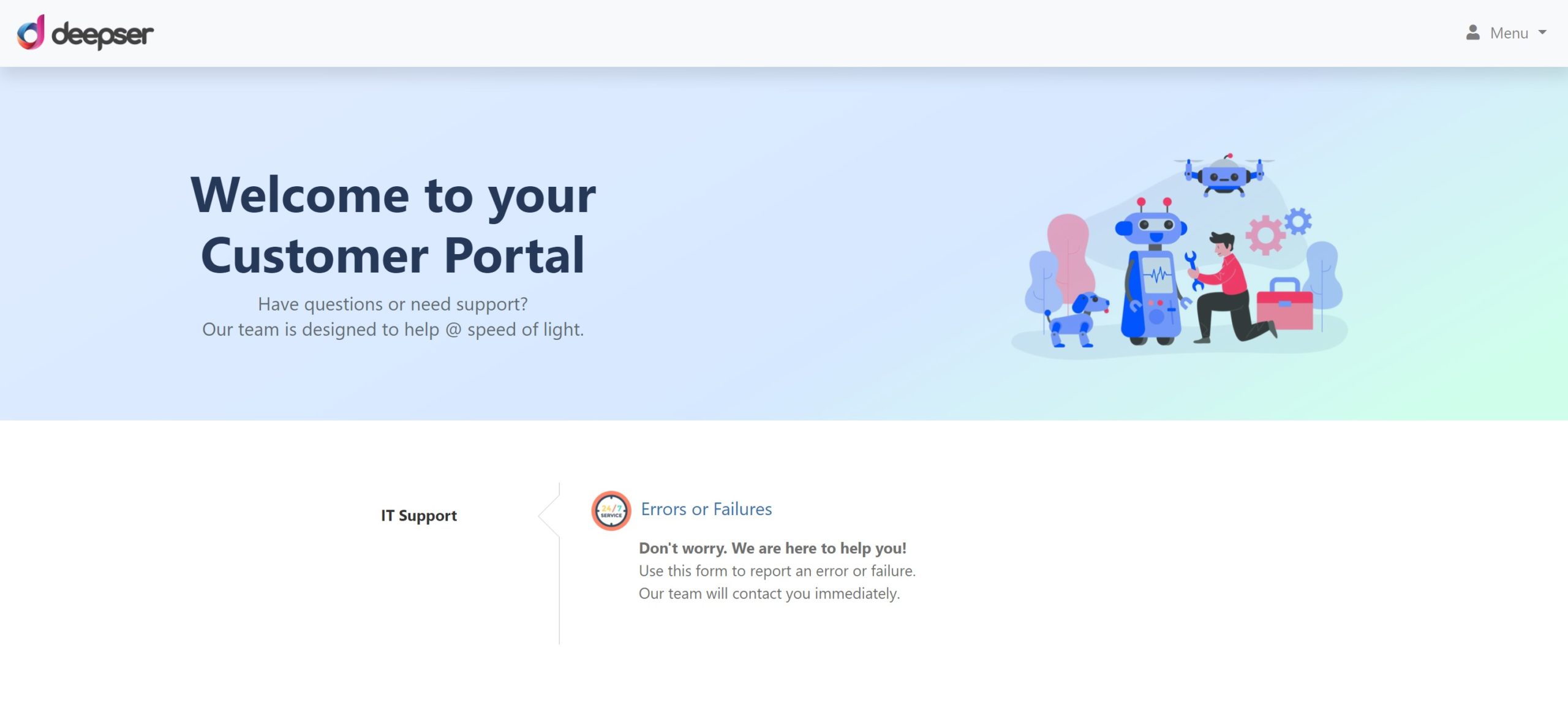
Configure Groups and Requests in the Guest Portal
Portal Groups and Portal Requests control which help desk services are available in the Guest Portal. This guide explains how to create these elements and make them visible to guest users.
For general information on creating Portal Groups and Requests, see the User Portal guides: Configure Portal Groups and Configure Portal Requests. The sections below focus on the Guest Portal-specific visibility settings.
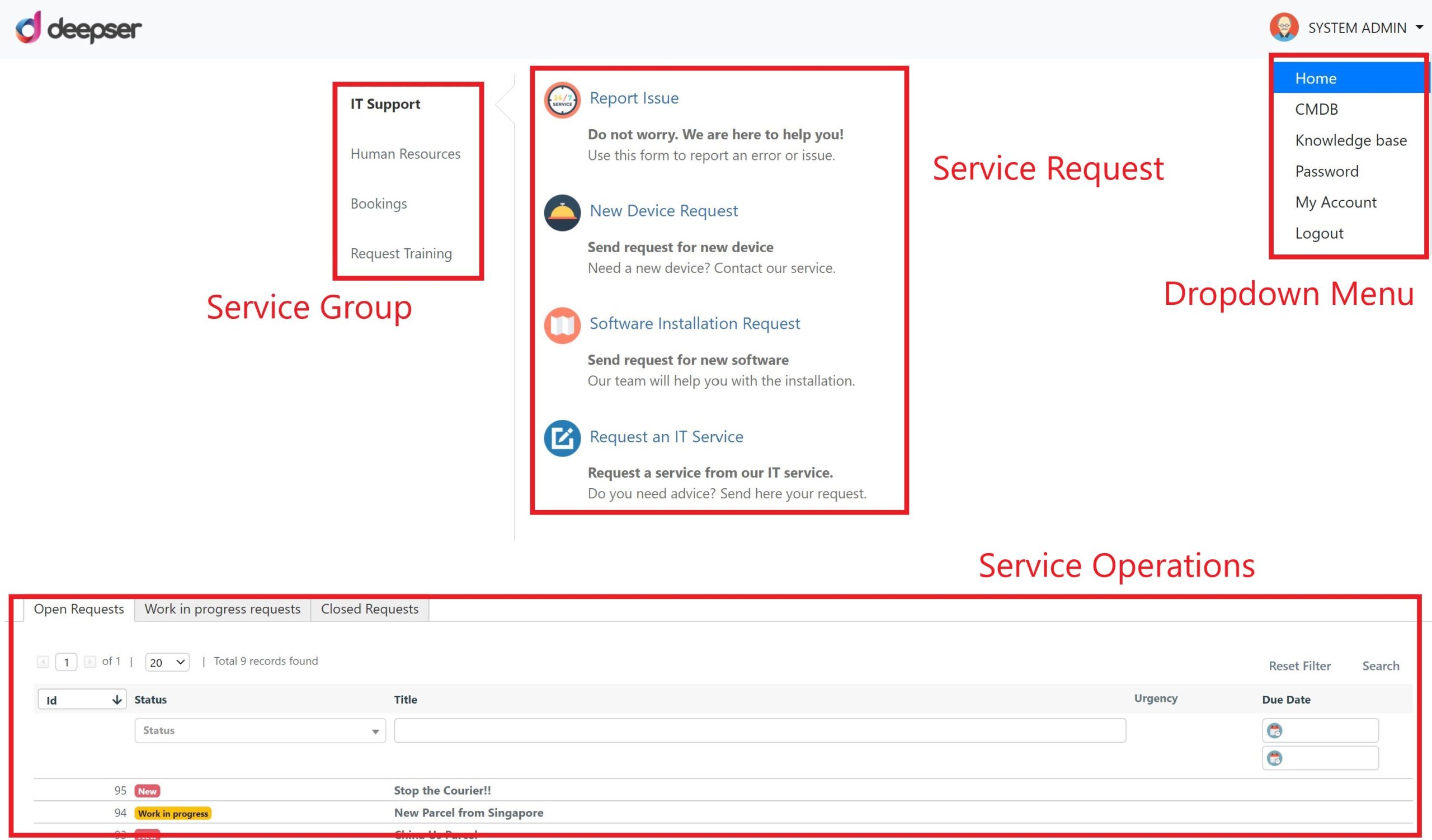
Portal Structure Overview
The Guest Portal organizes services into three levels:
| Section | Description |
|---|---|
| Service Group | The group to which a type of service belongs. For example, requesting a new device is part of the IT Support group. |
| Service Request | The type of Service Operation that will be created. For example, a new device request is part of the "Requests" type. |
| Service Operations | All Service Operations visible to the current user, organized into grids (e.g., open, in progress, closed). |
Add a Portal Group to the Guest Portal
To display services in the Guest Portal, at least one Portal Group must be visible.
-
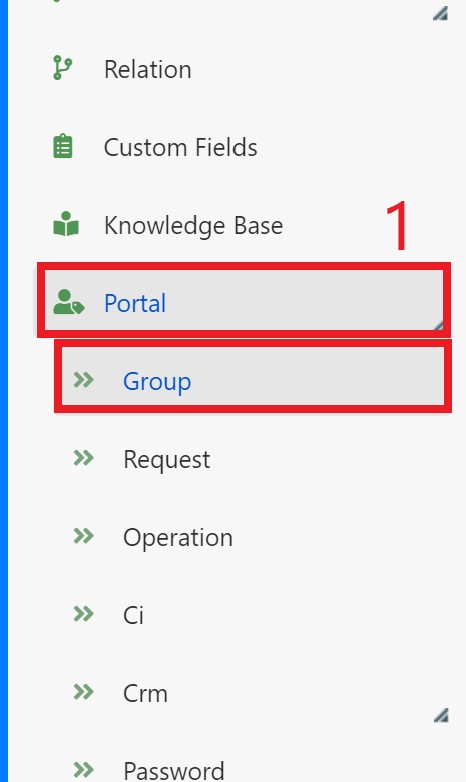
Go to System > Portal > Group in the Deepser Backend and click on the desired group.
-
Set the Frontend Visibility field to YES and save.
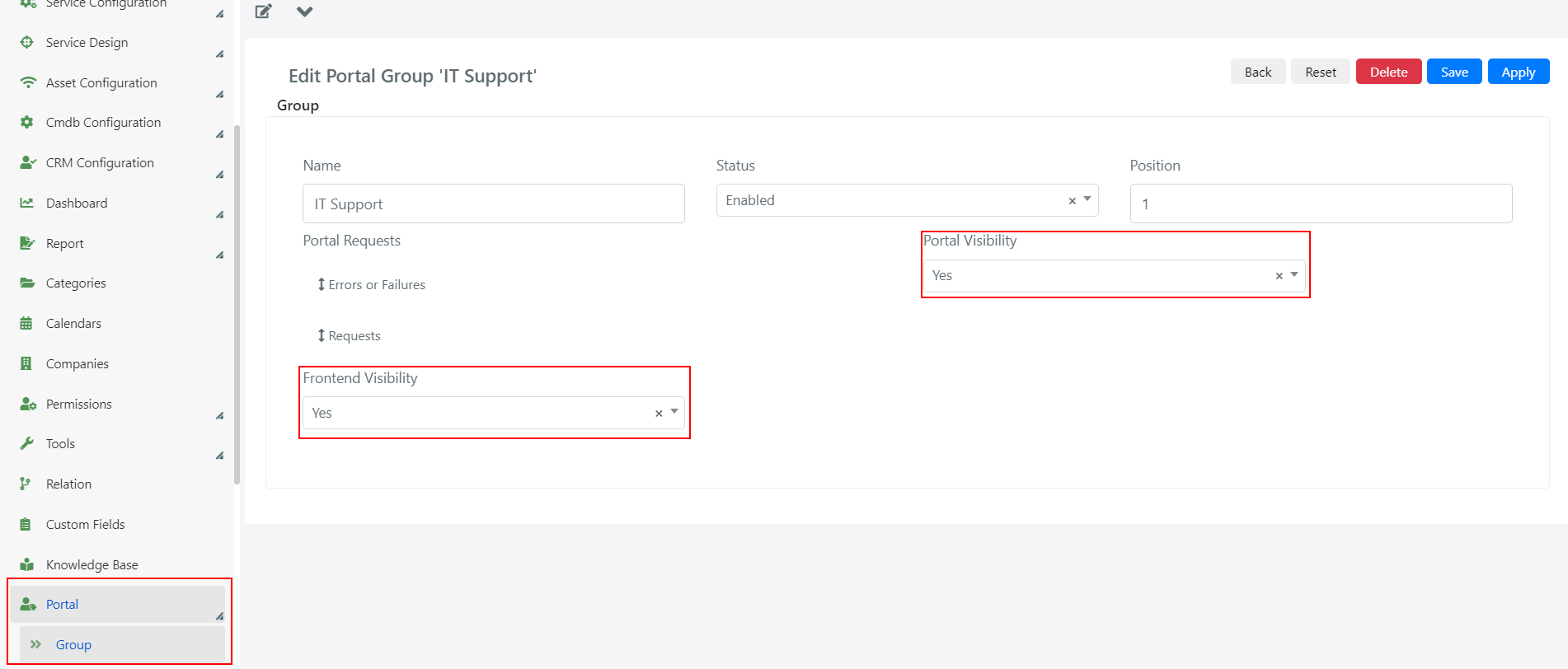
If the Frontend Visibility field is not present, enter form edit mode by clicking the pencil icon in the top left corner, then drag and drop the field into the form. Refresh the page after saving.
A Portal Group will be displayed in the Guest Portal only if it contains at least one Portal Request configured as visible in the Guest Portal, and that request is of a type enabled for the Guest Portal.
Add a Portal Request to the Guest Portal
Guest users create Service Operations through Portal Requests. Follow these steps to enable a request in the Guest Portal.
-
Go to System > Portal > Request in the Deepser Backend and click on the desired request. Set the Frontend Visibility field to YES.
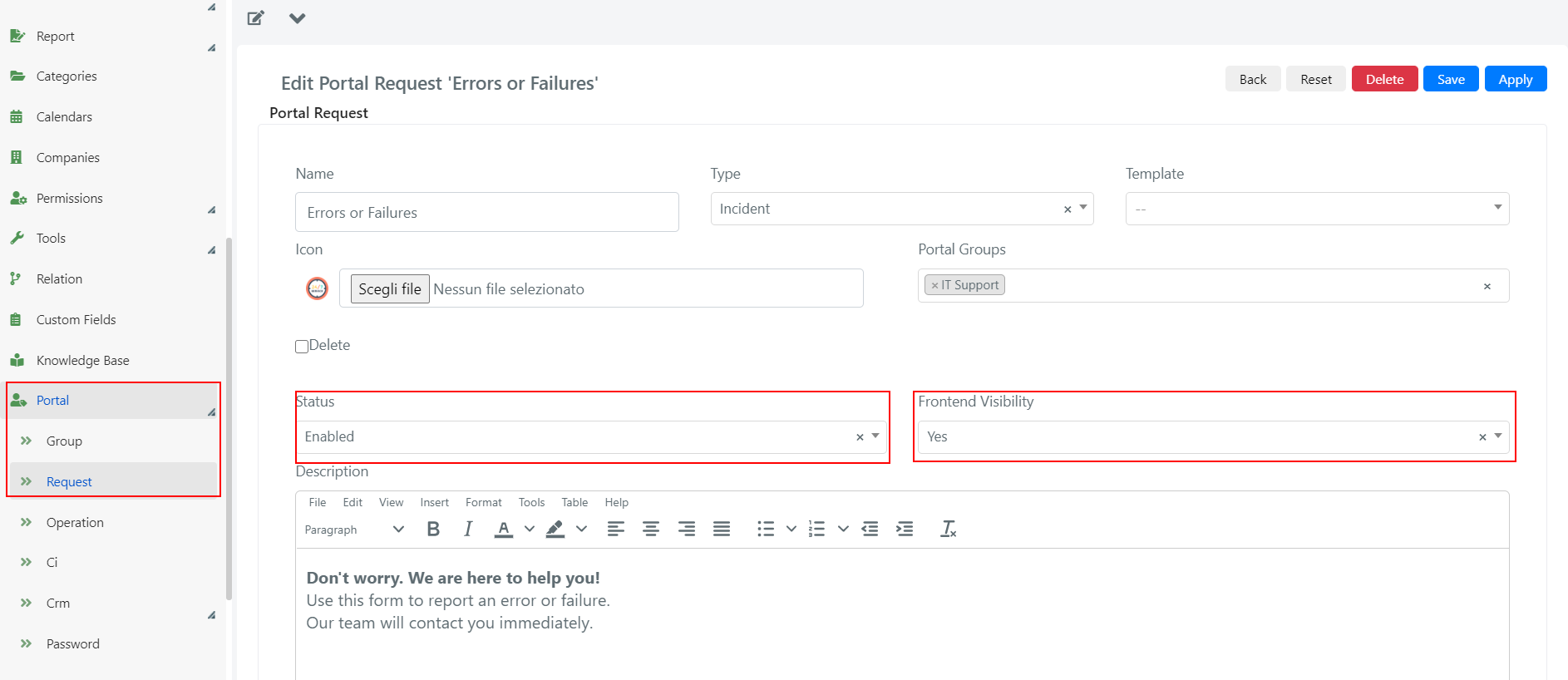
!!! note If the Frontend Visibility field is not present, enter form edit mode by clicking the pencil icon in the top left corner, then drag and drop the field into the form. Refresh the page after saving.
-
If the Template field has a value, remove it by pressing the "x" to the right. This allows the form template to load according to the configured rules.
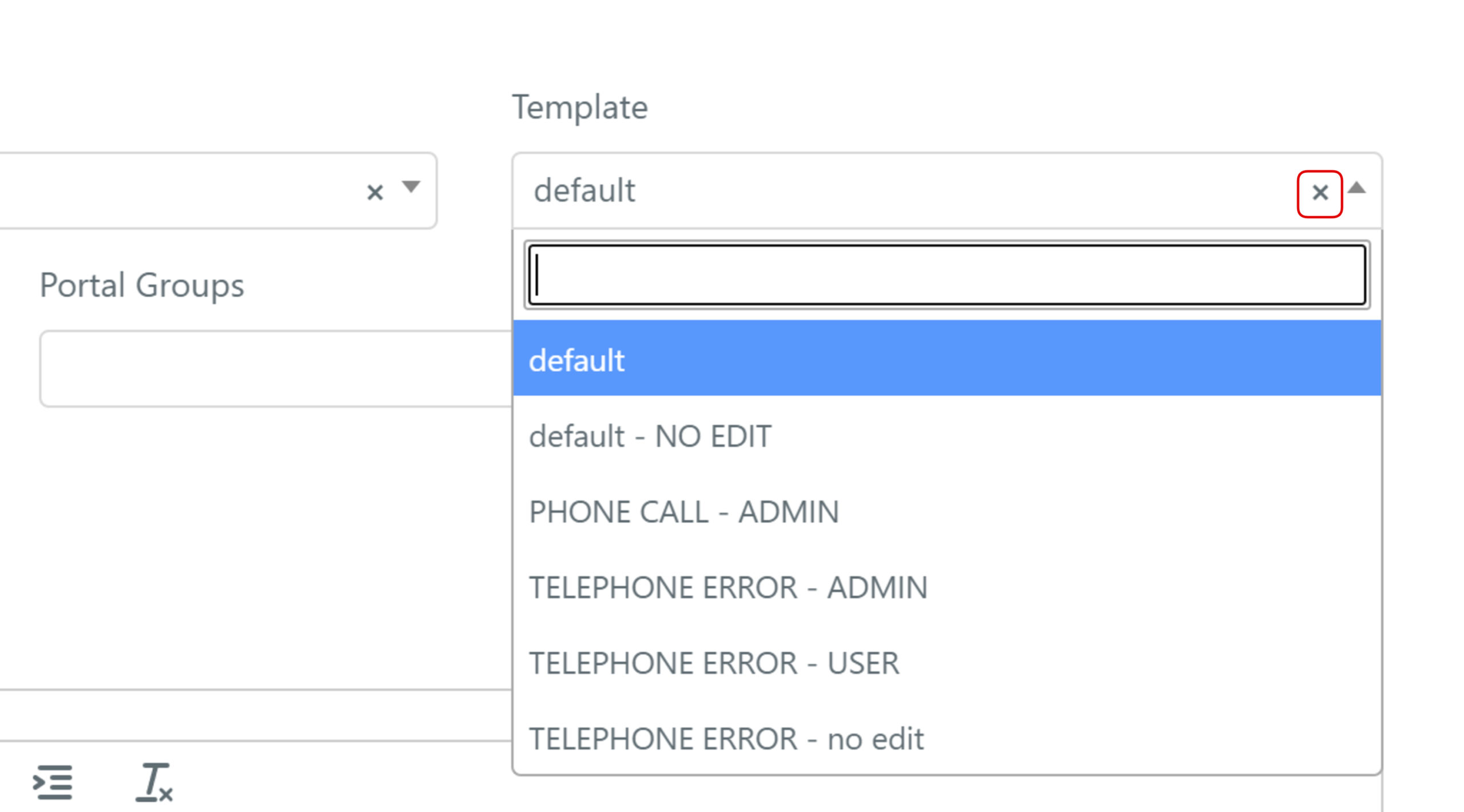
-
The Guest Portal will now show the requests of the configured type and group.