Configure Portal Groups
Portal Groups organize the help desk services displayed in the User Portal. To correctly display services, you must configure Portal Groups, Portal Requests, and Portal Operations.
Portal Structure Overview
The following example walks you through creating a new service group called Training, in which users can make training requests.
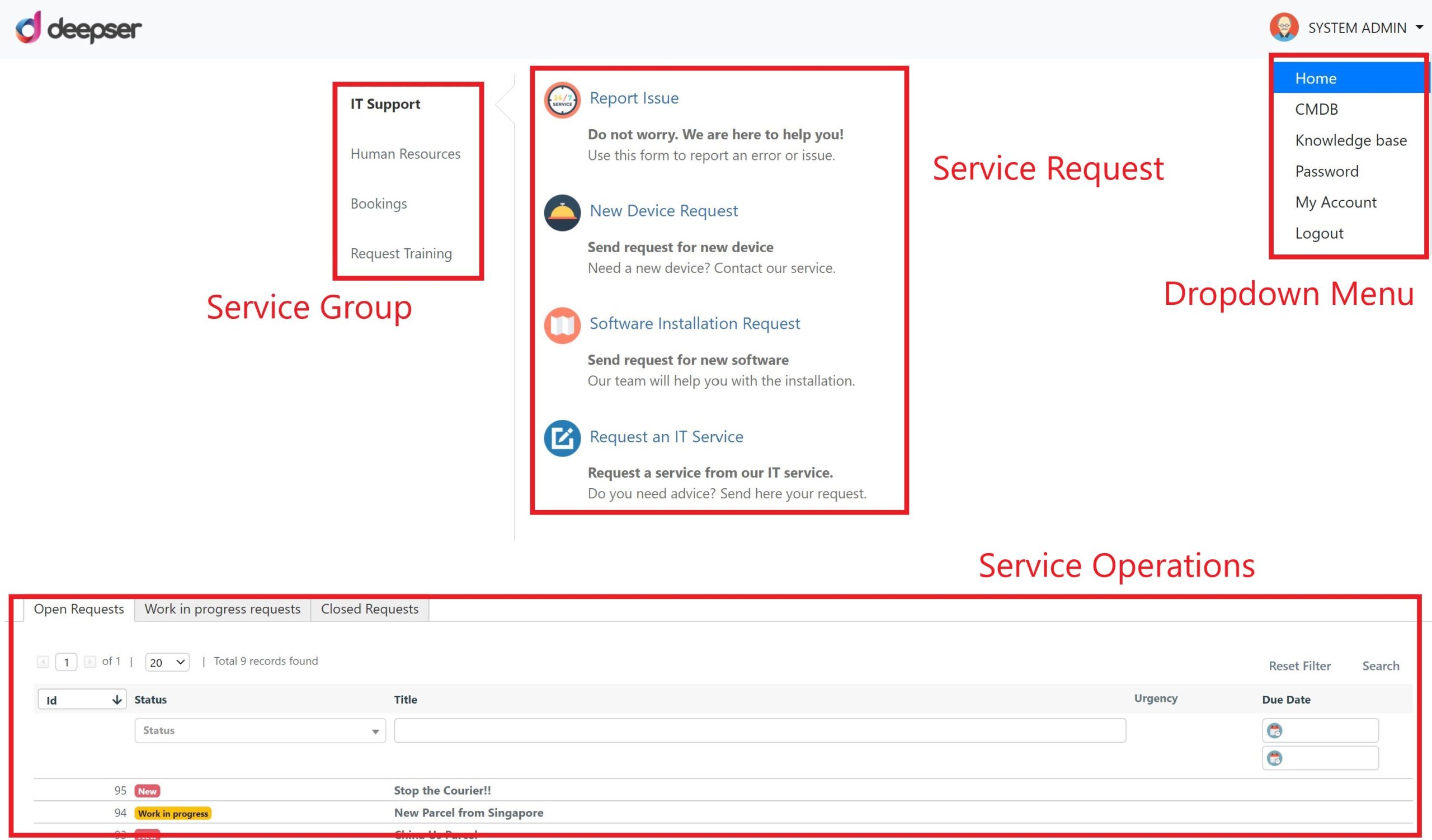
| Section | Description |
|---|---|
| Service Group | The group to which a type of service belongs. For example, requesting a new device is part of the IT Support group. |
| Service Request | The type of Service Operation that will be created. For example, a new device request falls under the "Requests" type. |
| Service Operations | All Service Operations visible to the current user, displayed in customizable grids (e.g., open, in progress, closed). |
Create a Portal Group
-
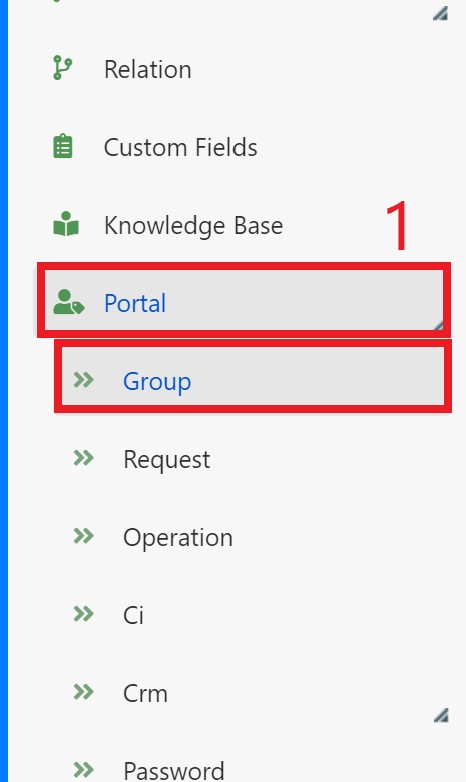
In the Deepser Backend, go to System > Portal > Group.
-
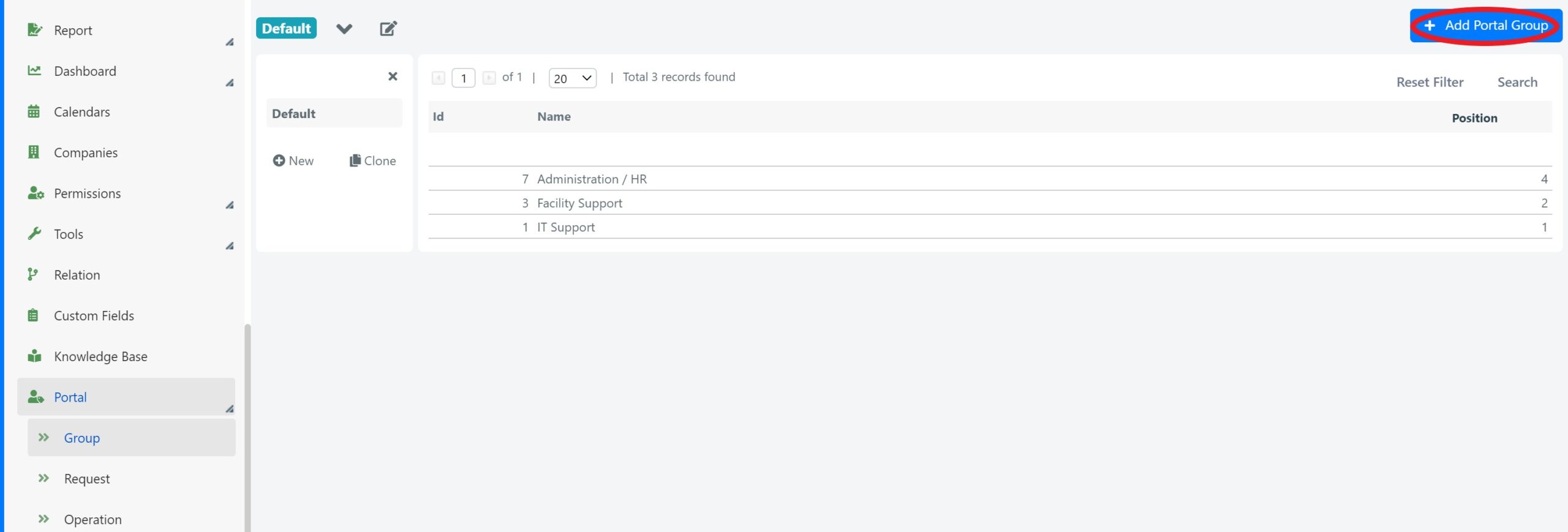
Click the Add a Portal Group button.
-
Enter a name, the position where it will appear among the portal groups, set visibility in the portal, and status to active. Click Save.
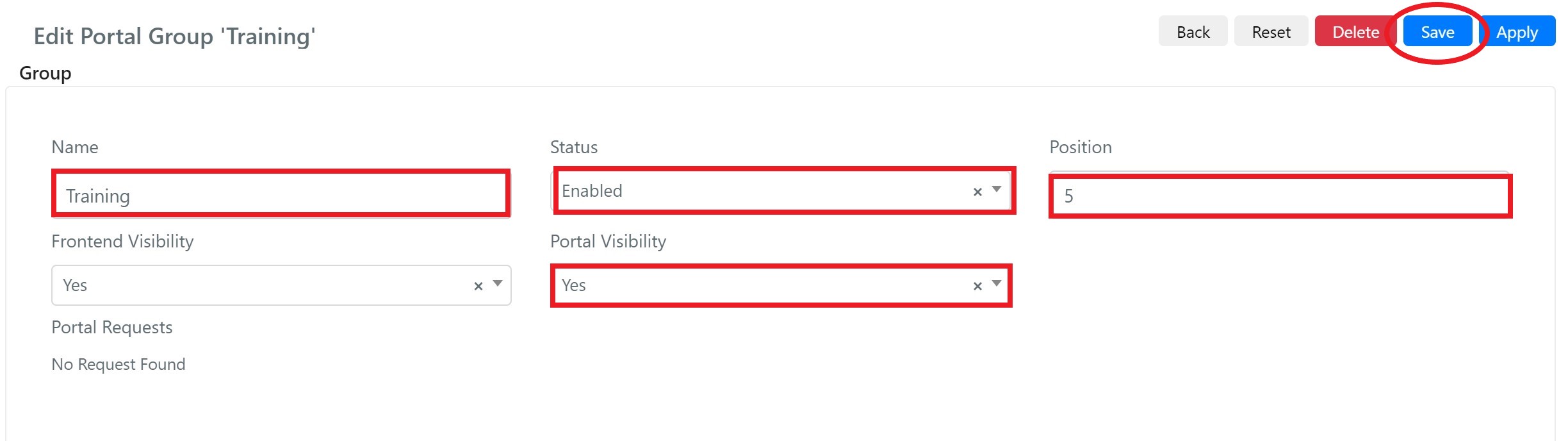
Portal Requests will not show any values until portal requests are configured. If the Portal Visibility field is not visible, drag it into the template form using the pencil-shaped edit button in the top left corner.