Configure Portal Requests
Portal Requests define the types of Service Operations that end users can create from the User Portal. This guide shows you how to configure a new request and assign it to a group.
Create a Portal Request
-
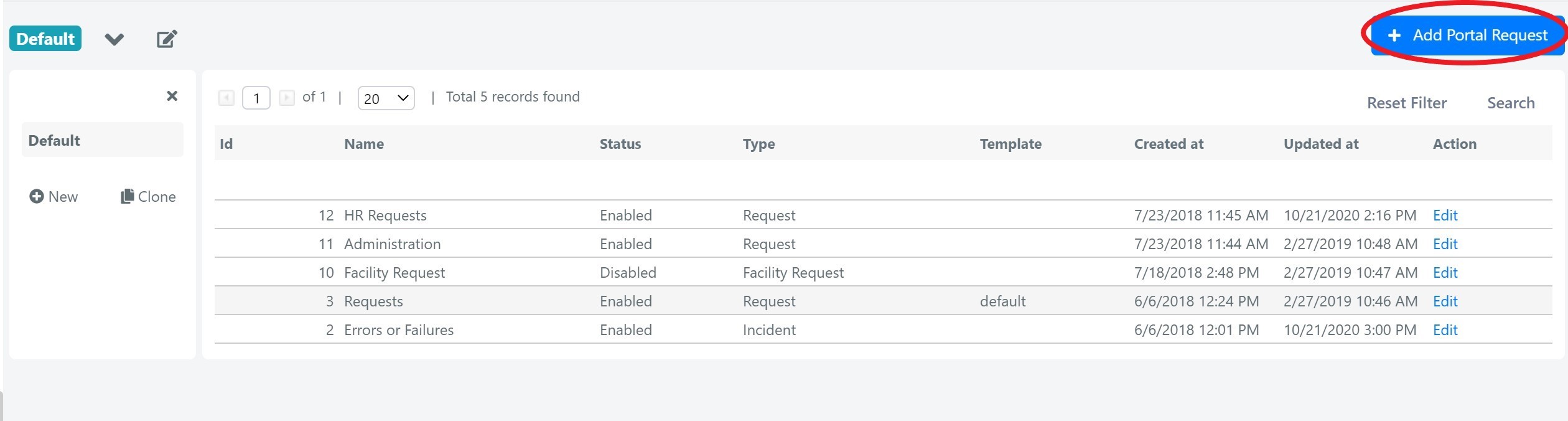
In the Deepser Backend, go to System > Portal > Request.
-
Click the Add Portal Request button.
-
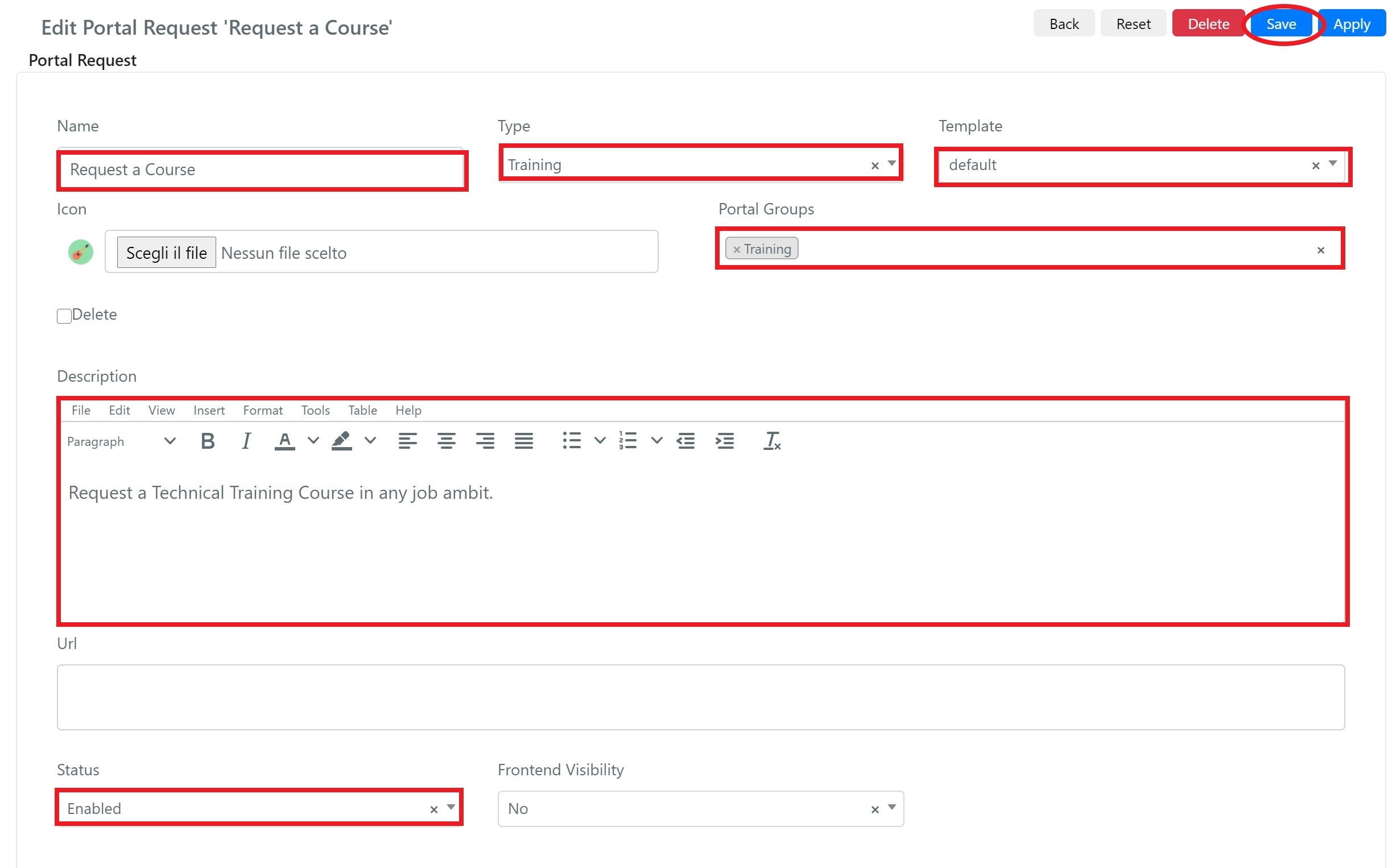
Fill in the request creation form and click Save.
Portal Request Fields
| Field | Description |
|---|---|
| Name | The name of the Portal Request displayed to end users. |
| Type | The service type of the Service Operation generated by this Portal Request. |
| Template | The form template used when creating the request. We recommend creating two templates: one for creation and a read-only one for viewing. |
| Icon | The icon displayed next to the request in the portal. |
| Portal Groups | The group to which this Portal Request belongs. |
| Description | A description shown under the request to help end users understand its purpose. |
| Url | Transforms the Portal Request into a link. If set, clicking the request opens the link instead of creating a Service Operation. |
| Status | The status of the Portal Request (Enabled/Disabled). |
| Frontend Visibility | If set to Yes, makes the request visible in the Guest Portal. |
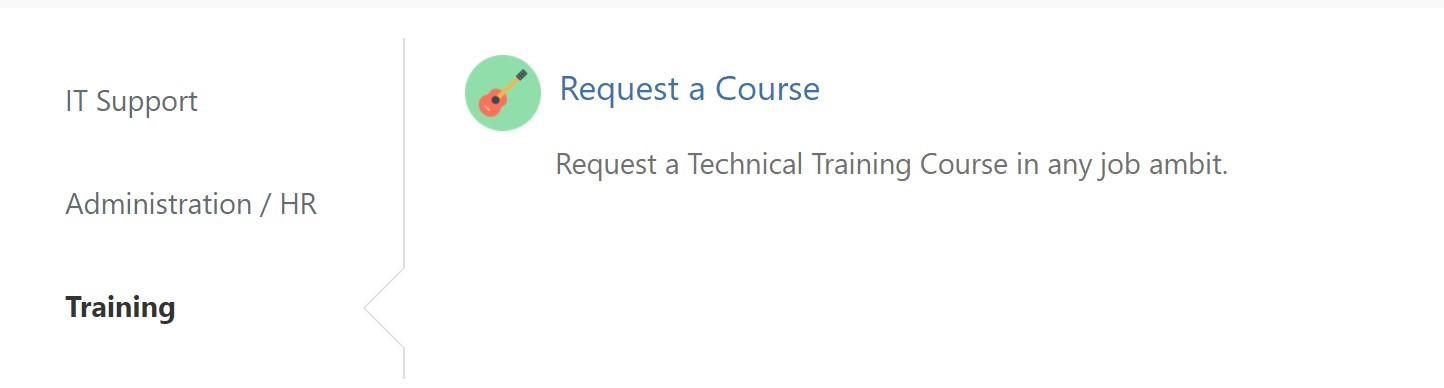
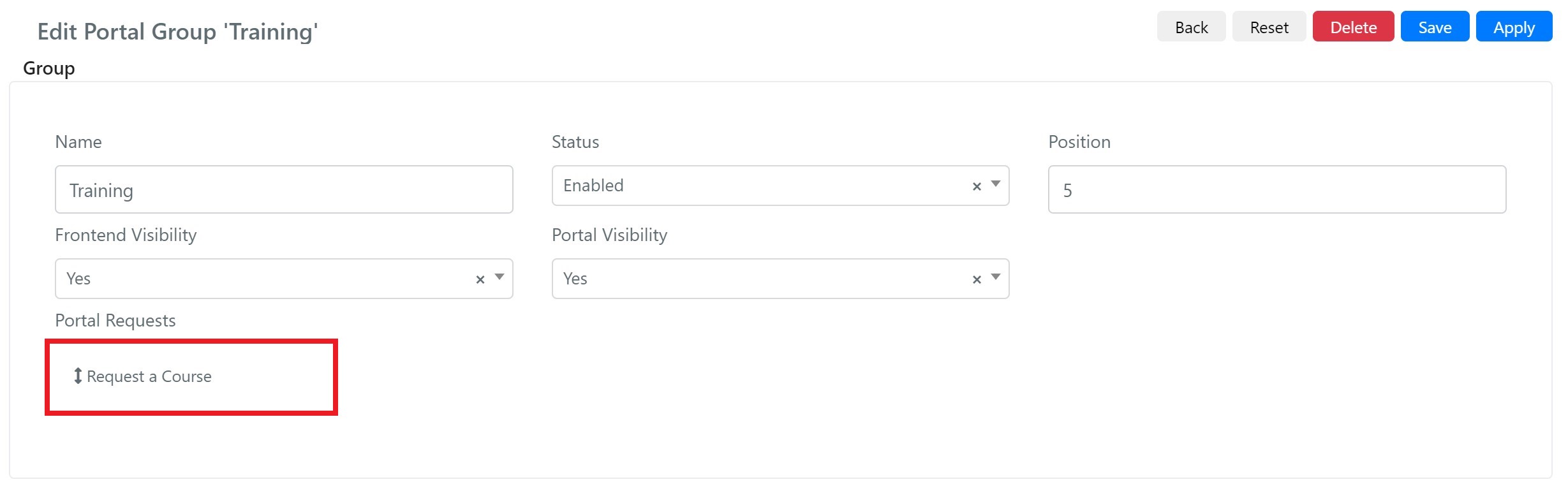
After saving, the request will appear within its assigned group.
The request will also be visible in the User Portal.