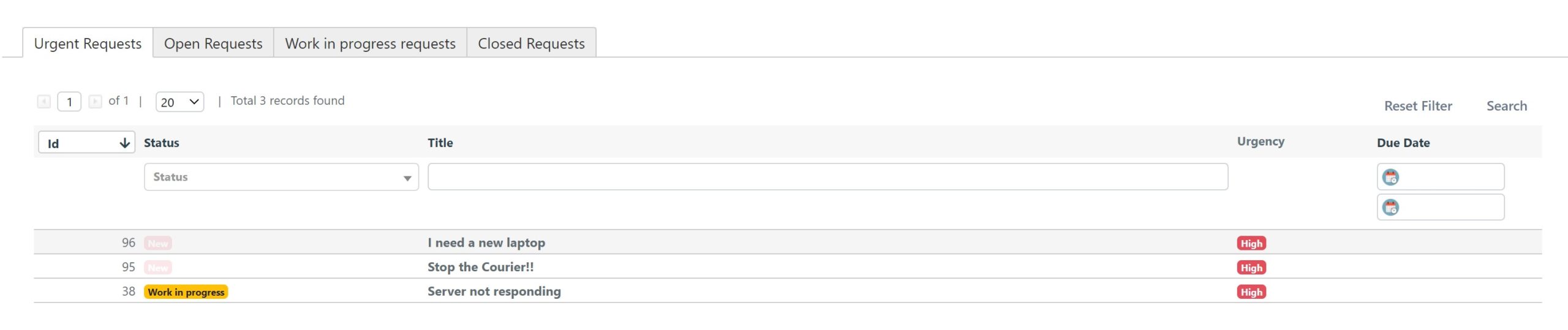
Configure Service Operation Grids in the User Portal
The User Portal displays Service Operations through customizable grids in the lower section of the portal. By default, three grids are available -- Open, In Progress, and Closed -- showing the Service Operations that the current user has requested. You can create additional grids with custom filters.
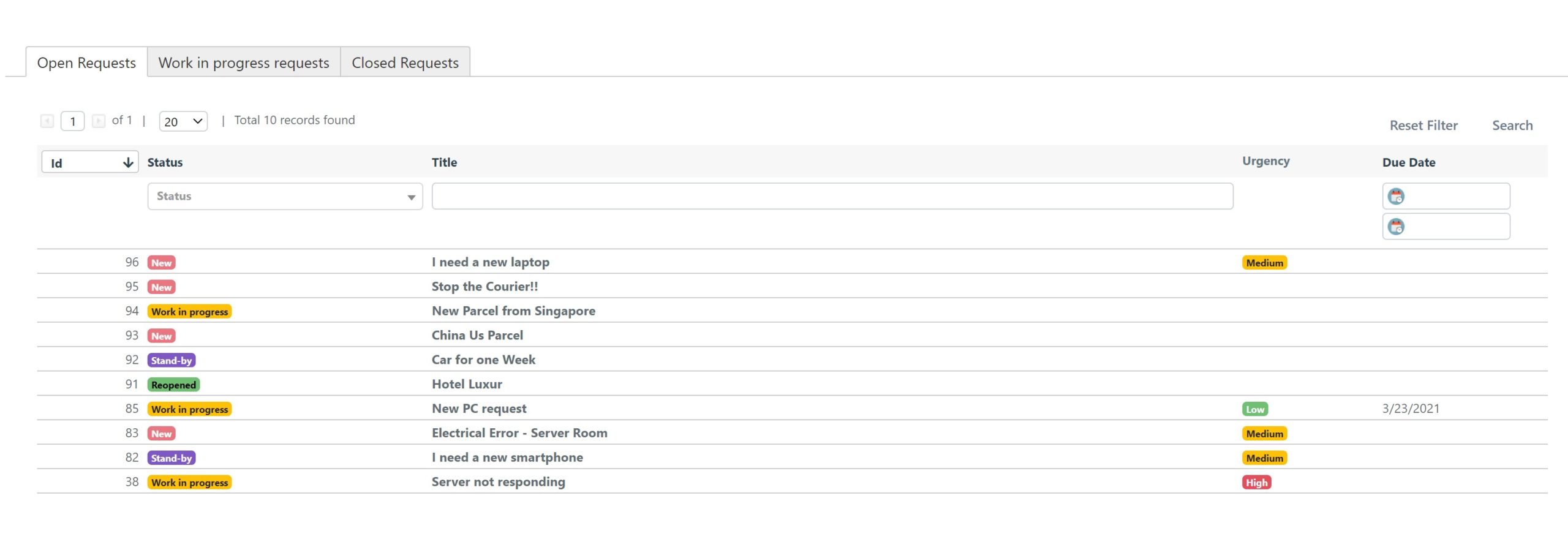
The following example shows how to create a custom Service Operations with High Urgency grid.
Steps
-
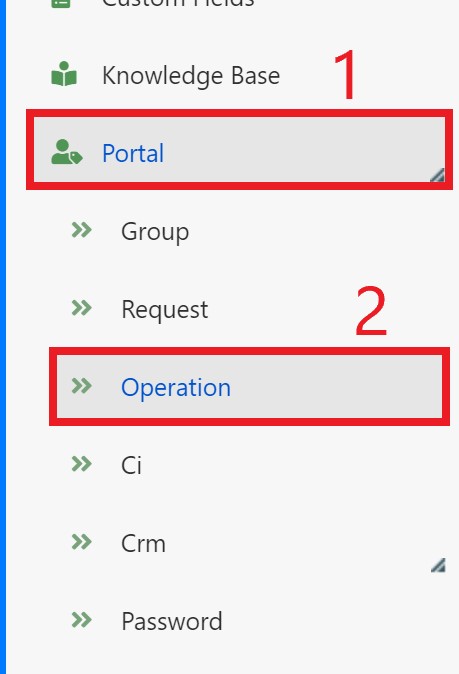
In the Deepser Backend, go to System > Portal > Operation.
-
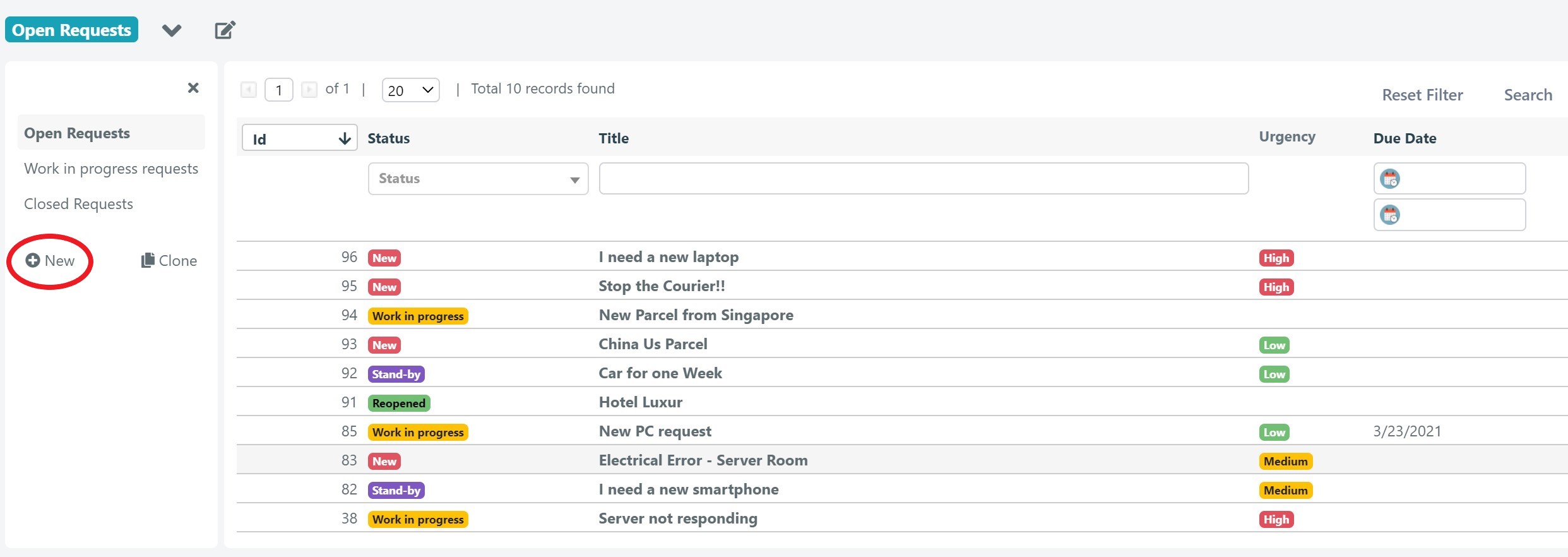
This menu shows all existing User Portal grids. Click New to add a new grid.
-
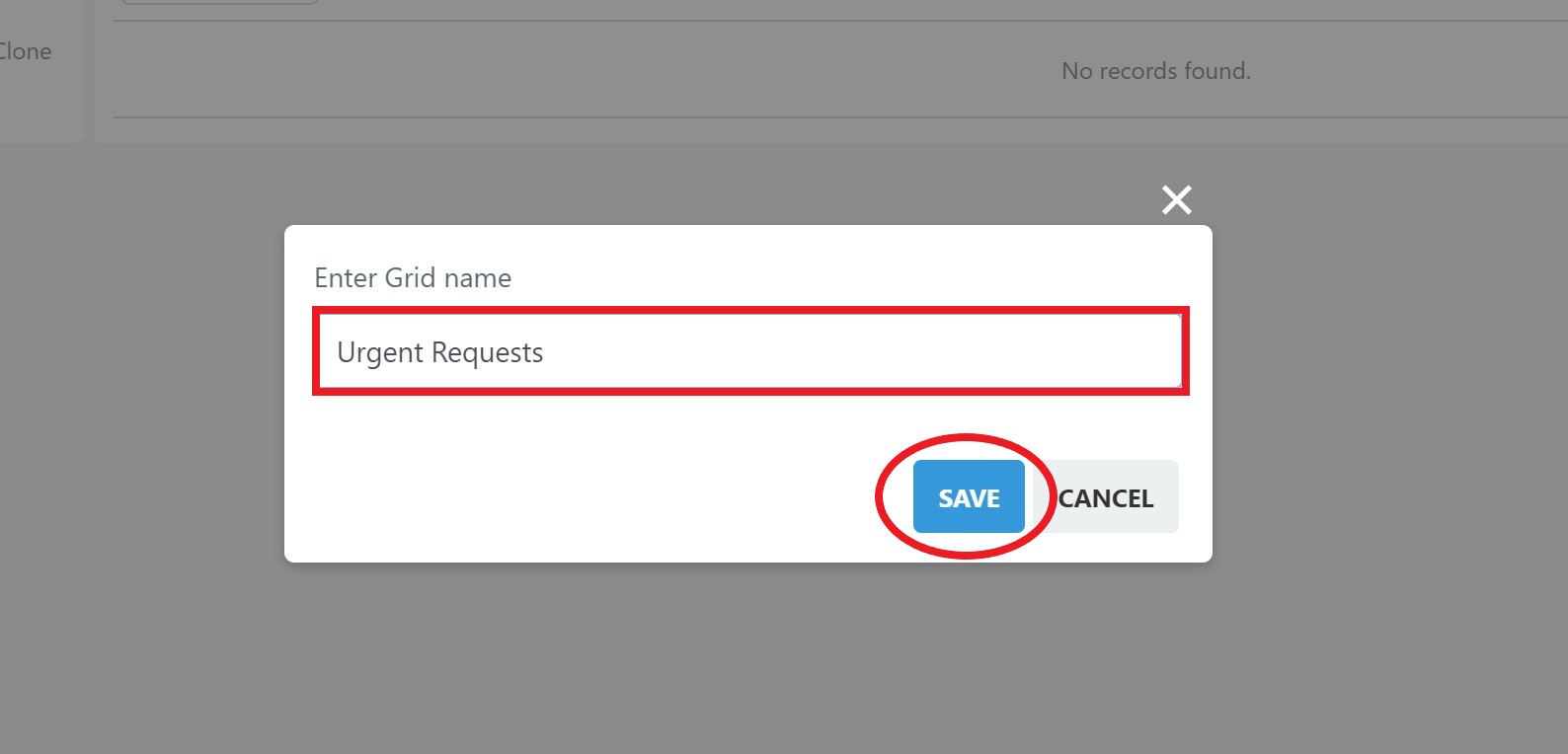
Enter a name for the grid, then click Save.
-
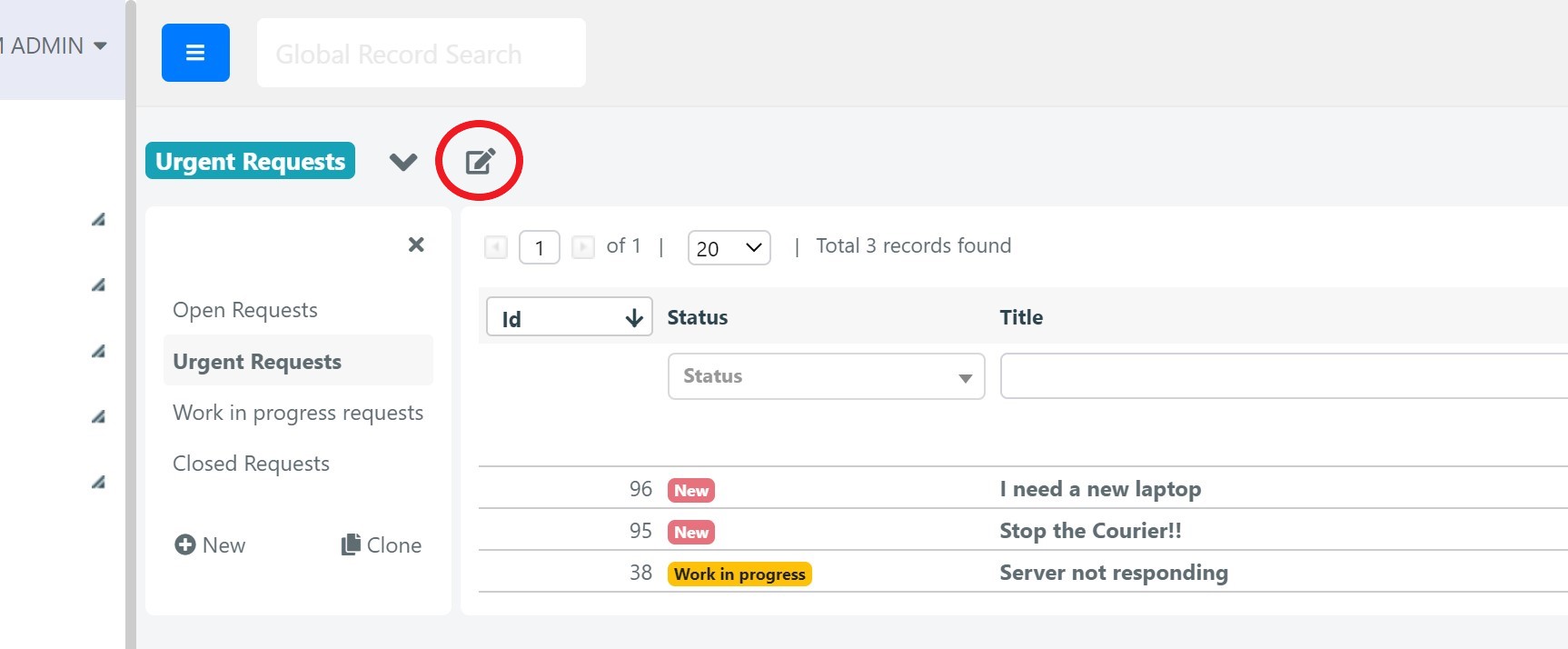
Enter grid editing mode by clicking the pencil button.
-
Configure the grid to show the needed fields, set the required filters in the query builder, and select the groups that will have visibility. In this example, the grid displays all urgent Service Operations in an open state. Click Save.
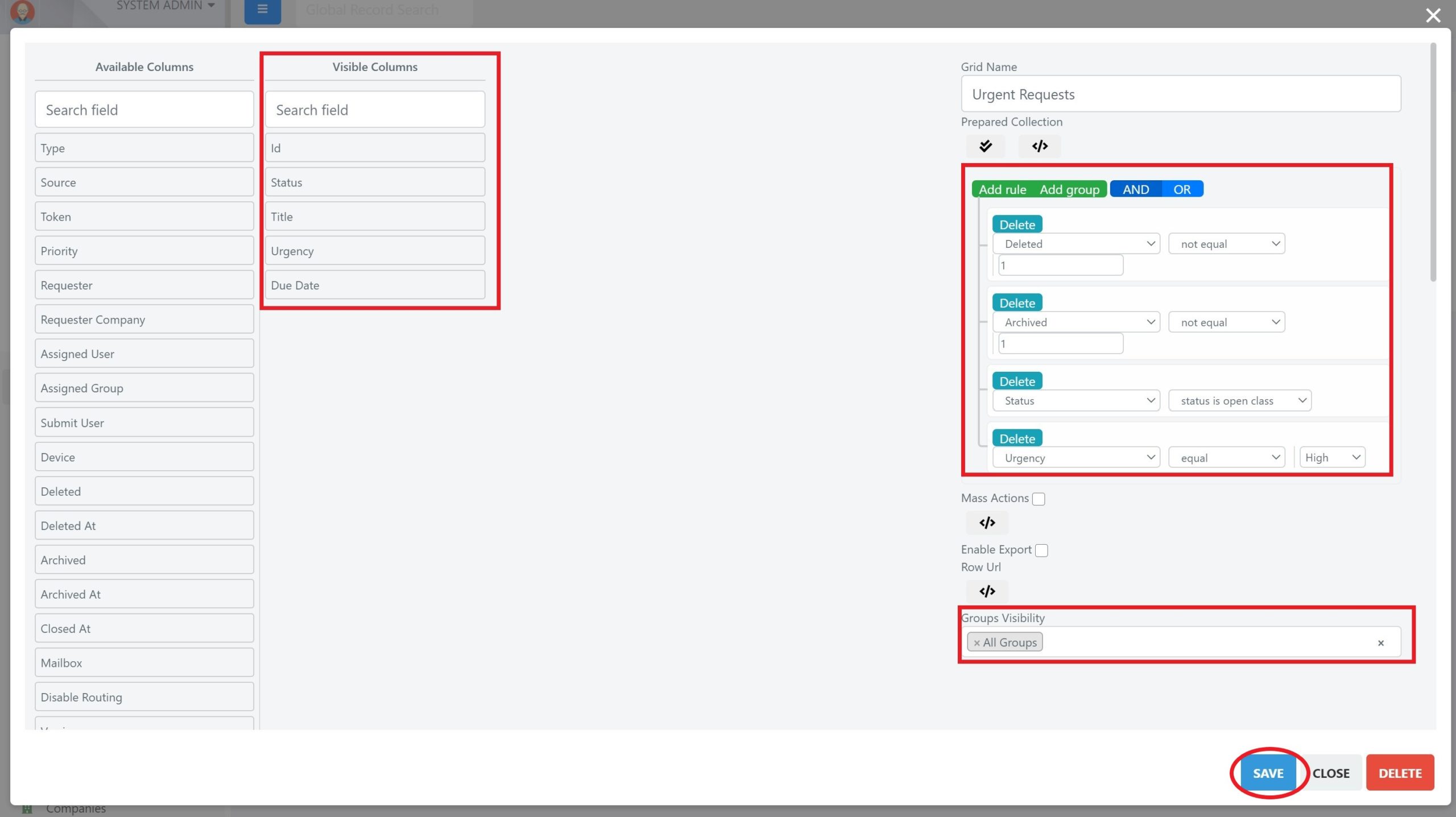
For more information on how grid editing works, see the grid configuration section of the documentation.
-
After completing all steps, the new grid appears in the User Portal showing Service Operations that meet the conditions you defined.