Relation Graph View
The Relation Graph View provides a visual interface for the relation module in Deepser. It allows you to see how entities are connected and interact with those connections graphically. This module has two entities:
- Graph View
- Palette
Graph View
Graph View is the main entity where you configure the relation. This entity is found inside the Relation module. When you navigate to that entity, you can:
- Create a new entity by clicking the Add Graph View button.
- Edit an existing entity by clicking the row of that entity.
- See the graphical view of a relation by clicking the Open Graph button of the respective entity.
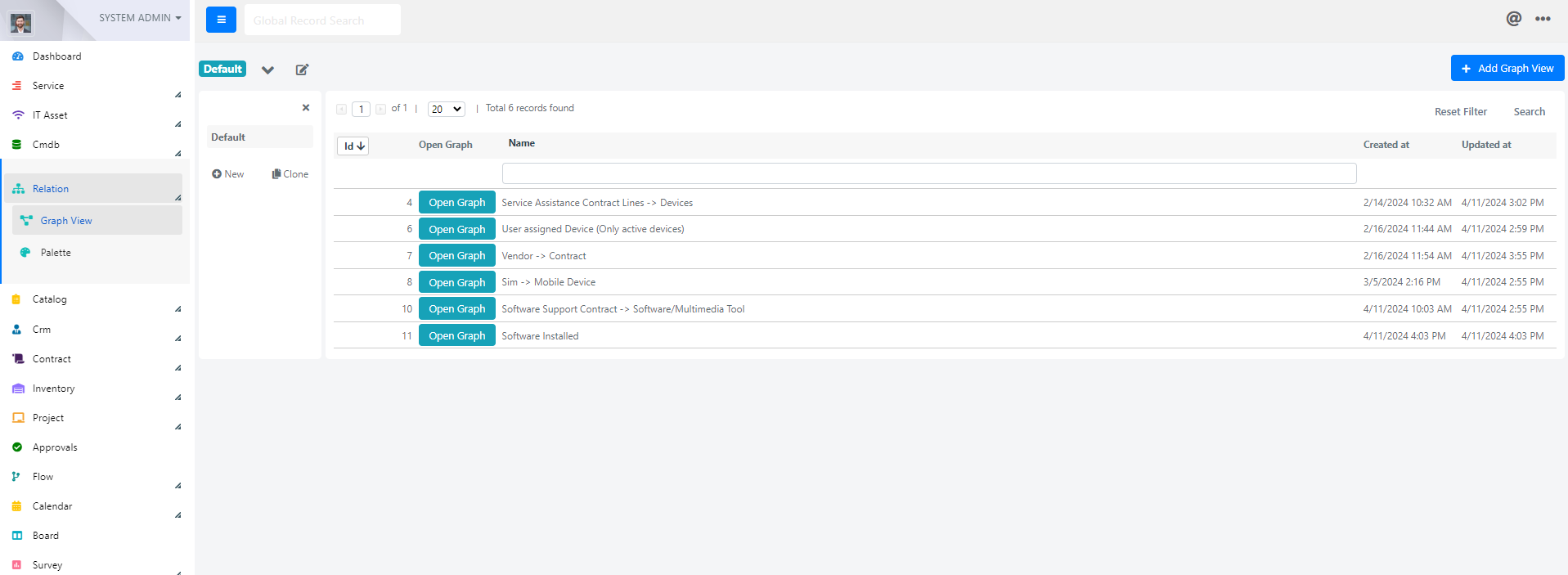
Create or Edit a Graph View
When you create or edit a Graph View entity, the following form is shown.
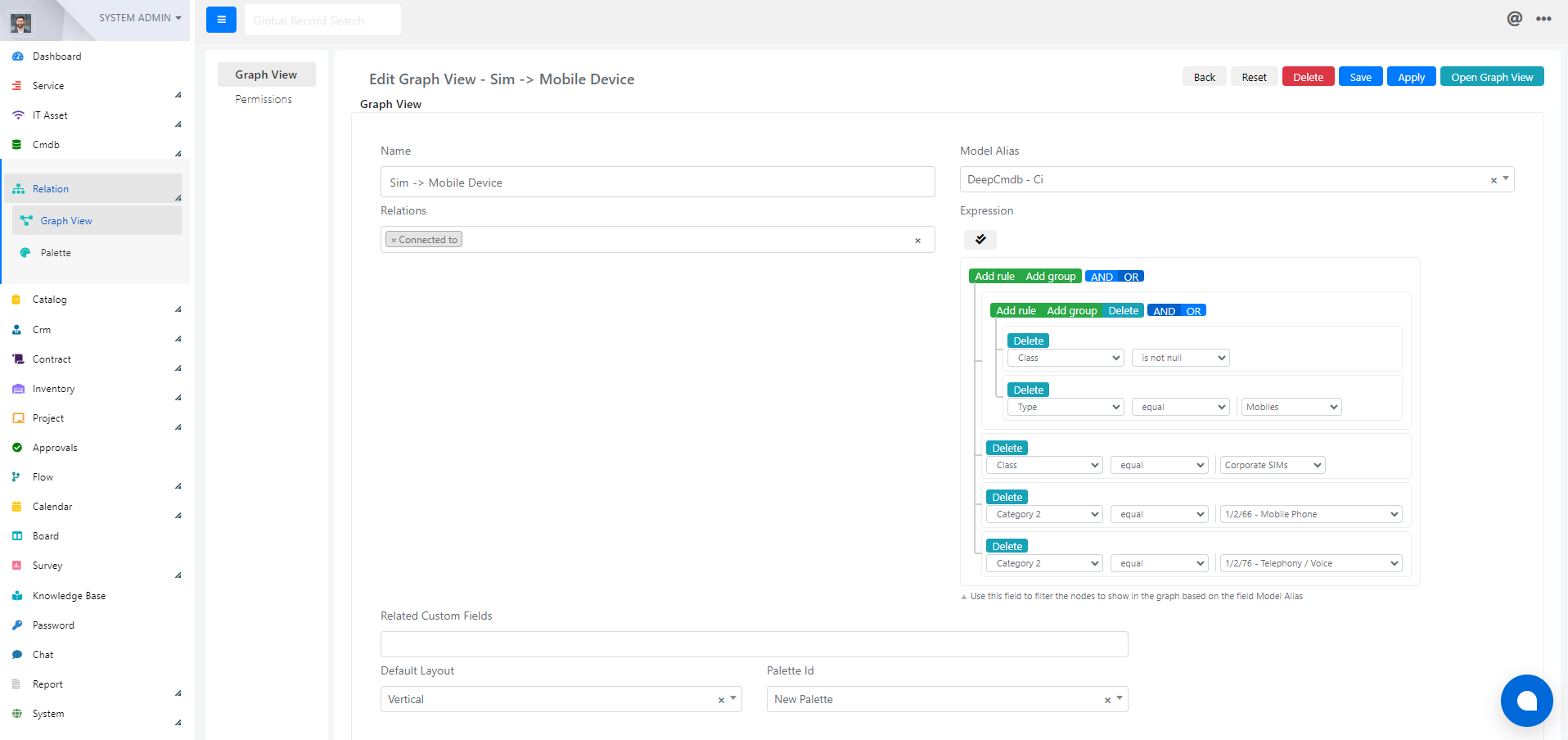
The available fields inside the Graph View tab are:
- Name -- The name of this relation.
- Model Alias -- Main model of this relation.
- Relation -- Existing simple relations.
- Expressions -- Filters for the entities displayed inside this relation.
- Related Custom Fields -- Add new related models to this main model.
- Default Layout -- The layout of the relation.
- Palette Id -- The colors and descriptions used inside this relation.
The available fields inside the Permissions tab are:
- View Groups -- Which group can view this relation.
- View Users -- Which user can view this relation.
- View and Edit Groups -- Which group can view and edit.
- View and Edit Users -- Which user can view and edit.
Open Graph View
When you click the Open Graph View button, you are redirected to the following page:
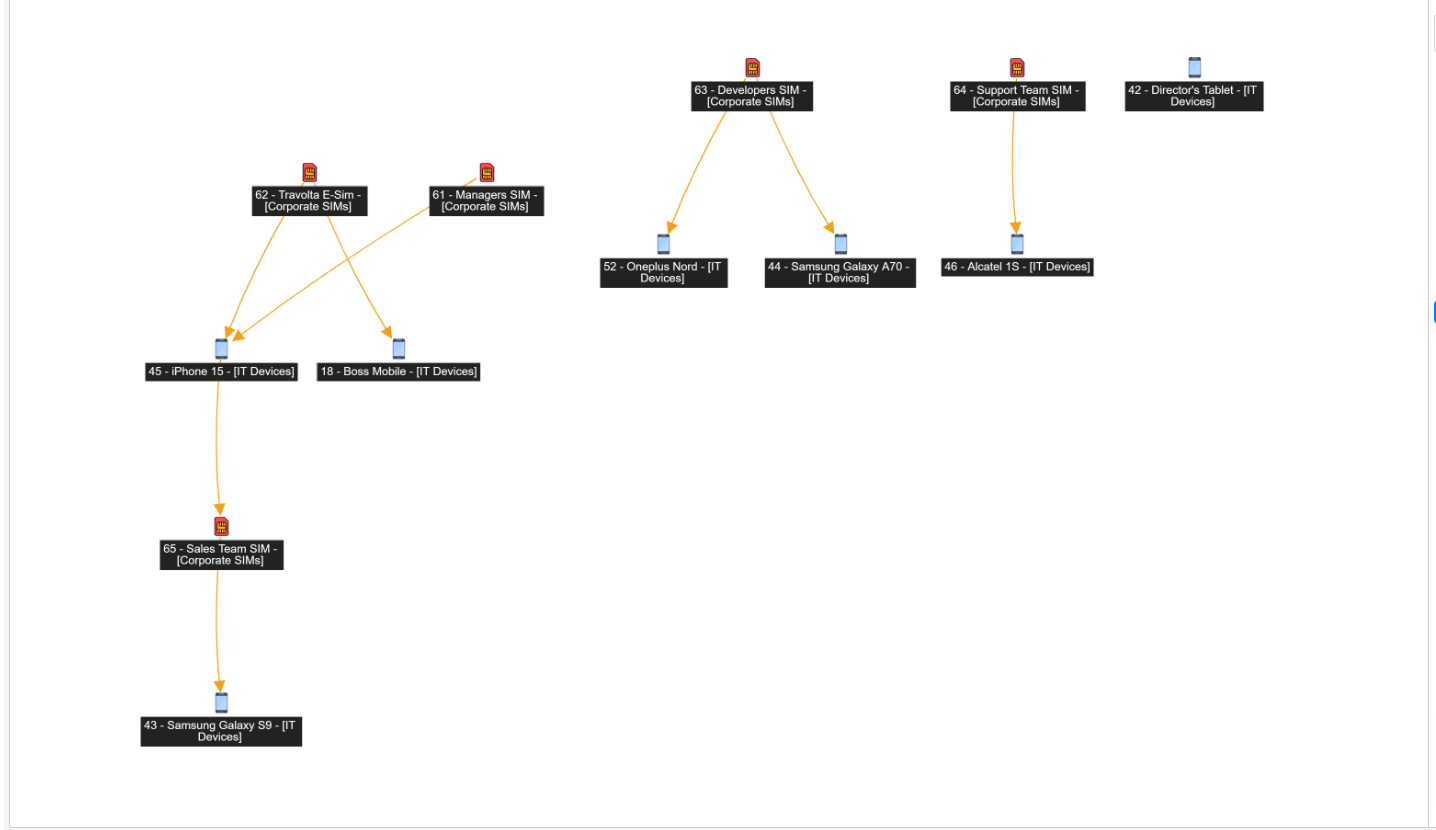
On the left side, you can see all the entities predefined in the above configuration and the relations between them. You can drag these entities to arrange them as needed. On the right side, there is a menu with five main sections:
- Node Search and Focus: Search for a specific entity or focus the view on the selected one.
- Legend: Shows the colors of the relations between entities. Clicking an element inside the legend toggles the relation lines on and off.
- Layout: Change the layout of the relation.
- Exclude Models: Hide or show models available inside this relation.
- Export Button: Downloads the current view as a PNG file.
Right-Click Context Menu
When you right-click an entity inside the graph view, the following popup appears.
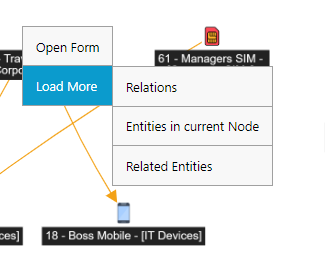
The popup contains four options:
- Open Form -- Opens the form of this entity in a new tab.
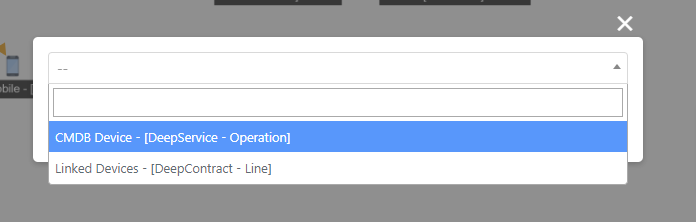
- Relations -- Appends existing relations to the graph view. When you select this option, a modal appears where you can select a relation. Only relations that share the same Source Model as the entity you right-clicked are shown.

- Entities in Current Node -- Shows the entities present inside the current model. When clicked, the following modal appears. Here you can see all the fields of the selected entity that are separate models inside Deepser.
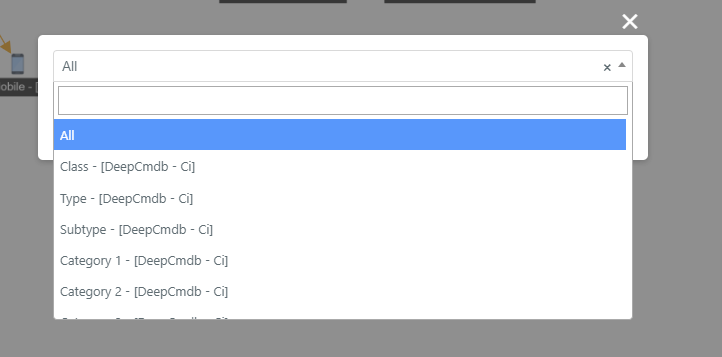
- Related Entities -- Shows all entities associated with the current selection. This displays only the models that have this entity assigned.
Palette
Palette makes relations more understandable by using colors and icons. Palette is located inside the Relation module.

You can add a new palette by clicking Add Palette or edit an existing one by clicking the respective row. Inside the palette form, there are three main elements:
- Name -- Name of this palette.
- Status -- Status of this palette.
- Palette Items -- All available items inside the palette.
When you click the Add Palette Item button or click one of the existing items, the following window appears:
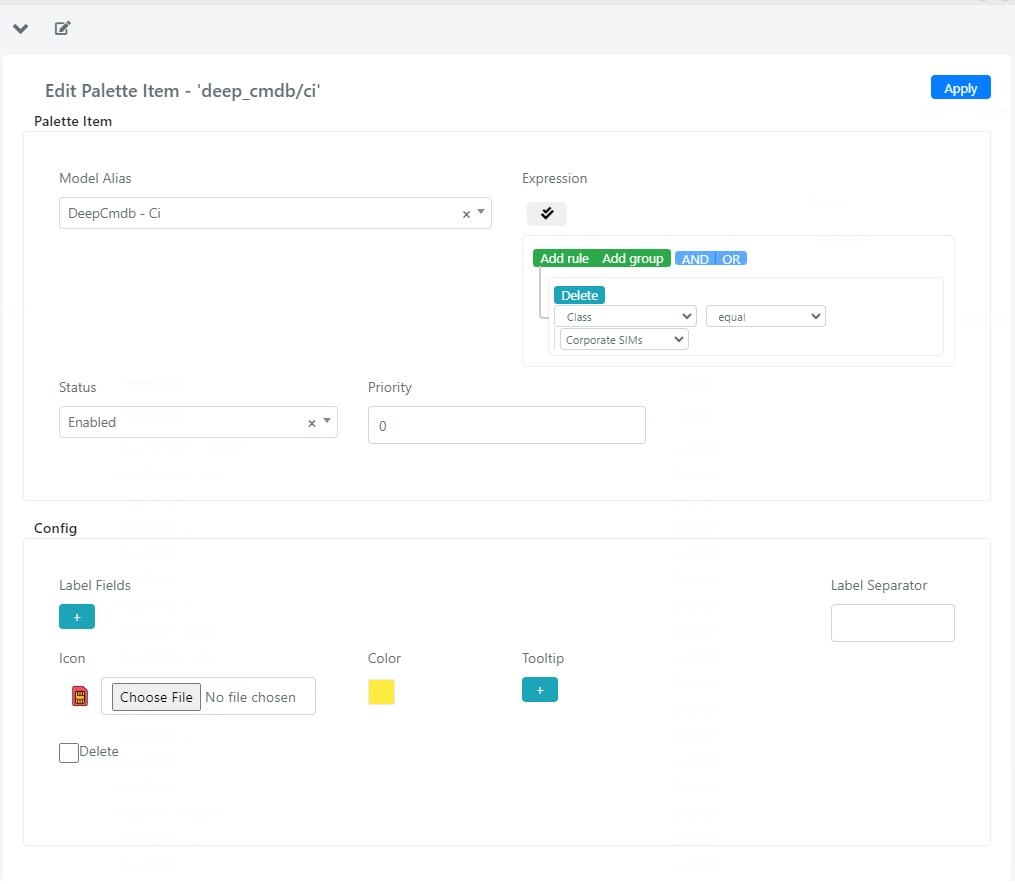
The available fields are:
- Model Alias -- Which model these items apply to.
- Expressions -- Additional filters, even between elements of the same model.
- Status -- The status of this item.
- Priority -- An entity that matches two or more item filters receives the style of the one with the higher priority.
- Label Fields -- What is shown inside the graph view.
- Label Separator -- How these labels are separated.
- Icon -- What icon these entities have.
- Color -- What color these entities are displayed with.
- Tooltip -- What data is shown when you hover over an entity inside the graph view.