Configure an Opposite Relation
In Deepser, you can define an inverse relation with respect to the parent relation. This allows you to trace back from the related entity to the main one. For example, using an opposite relation, you can connect from a user to all the CIs to which they have access.
Configure the Opposite Relation Field
In this example, you will configure the relation from the previous section to trace from a user to all the Location-class CIs to which they have access.
- Go to System > Custom Fields and choose the "DeepAdmin -- User" template.
- Navigate to the Fields item and click Add Field.
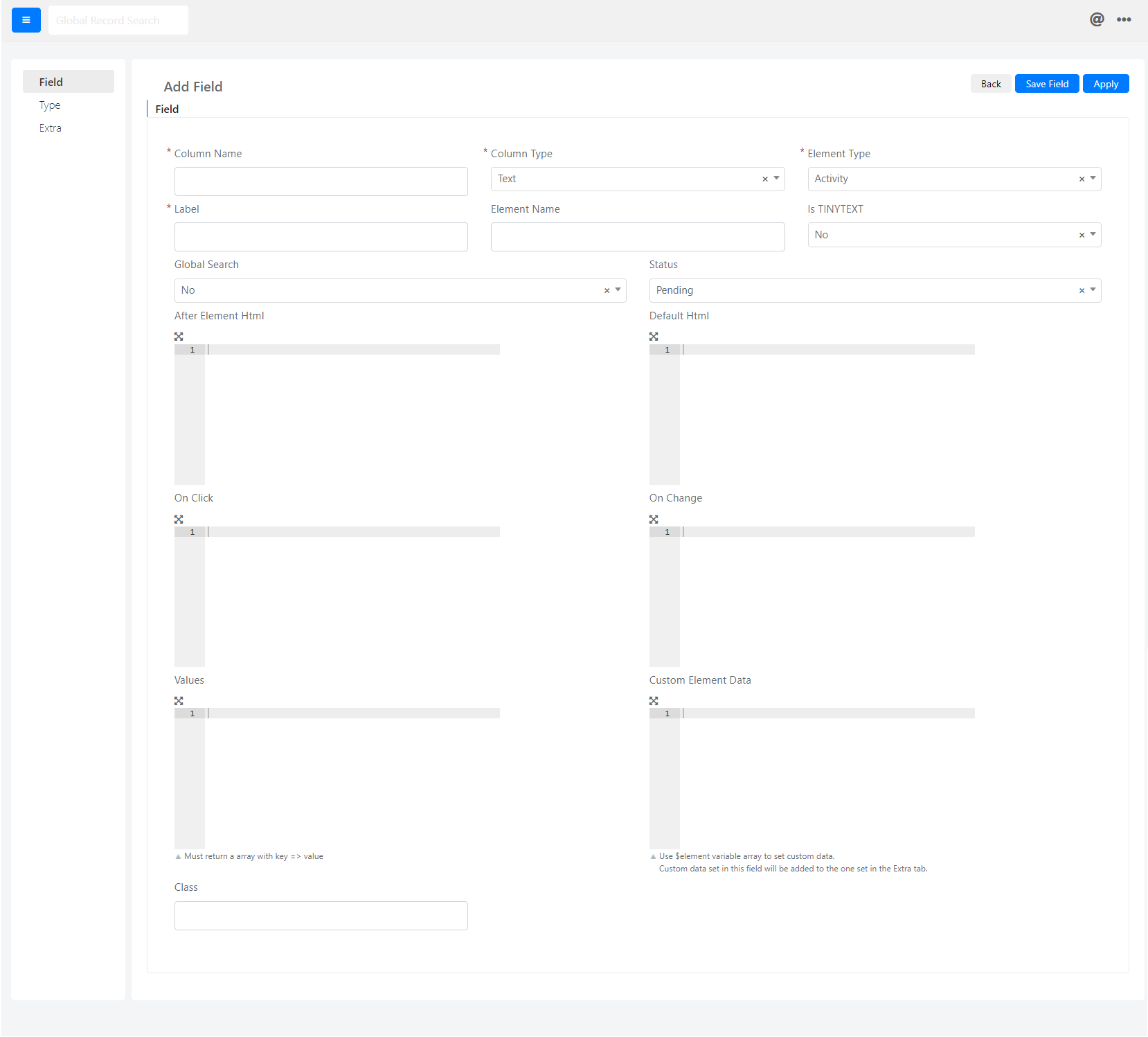
- Configure the fields as follows:
- Column Name: Set to "cust_user_ci_relation".
- Column Type: Set to "Don't Create DB Column".
- Element Type: Set to "Relationgrid".
- Label: Set to "Authorized Locations".
- Status: Set to "Enabled".
- Relation: Select the name of the relation created previously.
warning
You must also go to the Extras tab and set the Opposite field to "Yes". This is what makes the relation work in the inverse direction.
- Click the Save or Apply button to save the field.
After saving, add the field to the template form of the users. You will then be able to view and interact with the inverse relation.