Run and Review Reports
This guide explains how Operators and other non-administrator users can work with reports in Deepser. You can access report folders, execute reports, and review execution history.
As a non-administrator user, you can:
- Access a folder to view the reports within it.
- Execute a report.
- View the history of executed reports.
Access and Run a Report
- Open the reporting section in the Deepser Backend. You will see all available report folders.
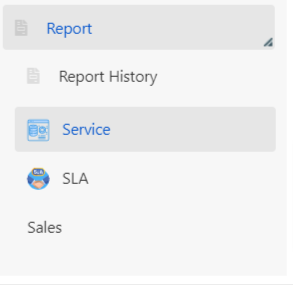
- Click on a folder to see the reports it contains.
- Click the Run button next to a report to generate it.
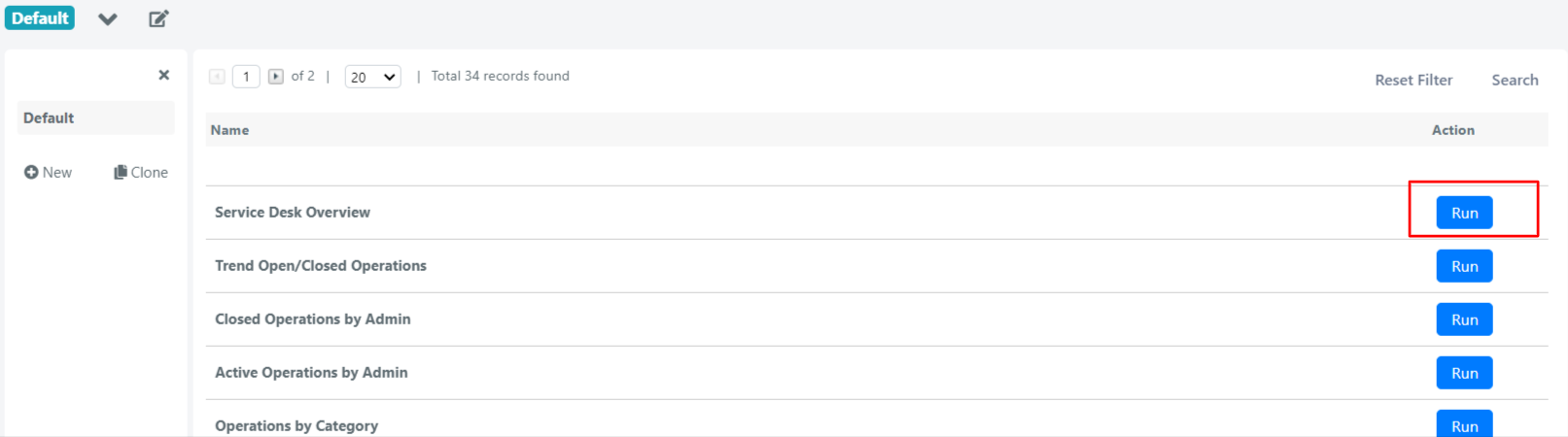
Review Report History
The report history section lets you review all previous report executions, including the timestamp, who ran the report, and how long it took.
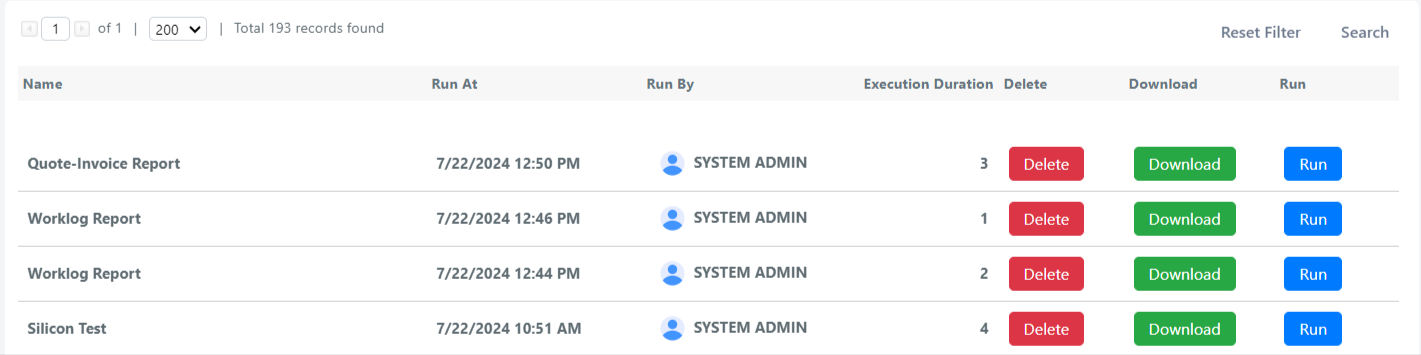
The following actions are available for each execution record:
- Delete: Removes the report execution record. This does not delete the report configuration itself.
- Download: Downloads the generated report file from this execution.
- Run: Re-runs the report that was previously executed, using the same filters.
tip
Use the report history to quickly re-run a previously generated report without reconfiguring filters.