Movements Billing
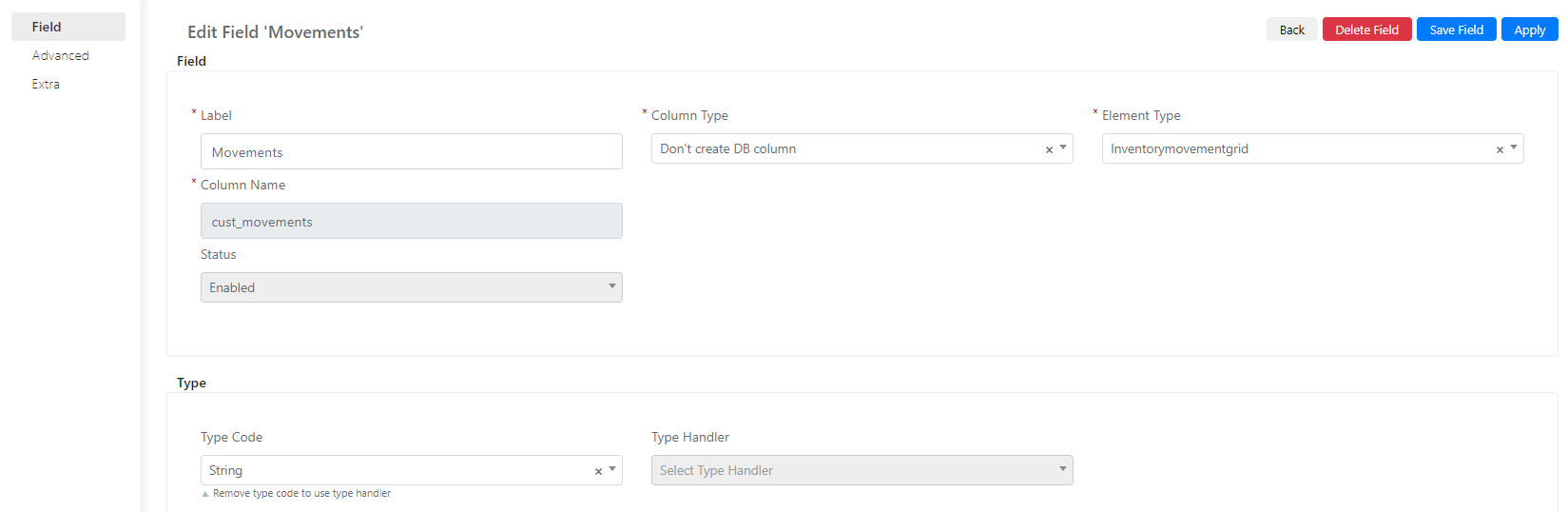
This section explains how to invoice the movements associated with a Service Operation. To do so, you must add a custom field of element type "Inventorymovementgrid" to the Service Operations form.
For more information regarding the creation of custom fields, click here.
Setting Up the Default Grid
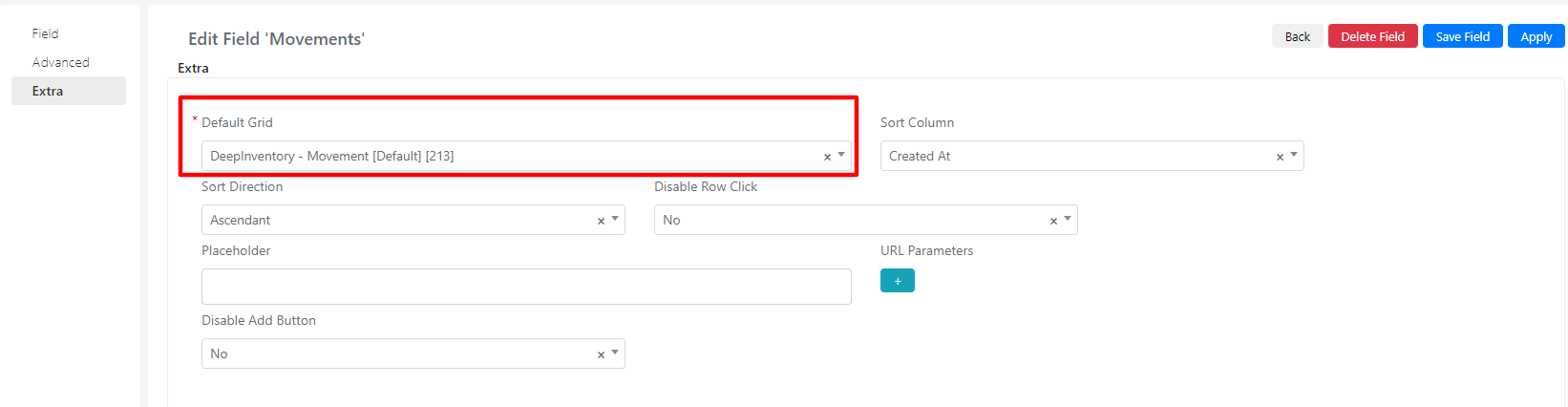
In the "Extra" tab, set the "Default Grid."
After saving the field, in the "Advanced" tab, enter the following code:
					$currentOperationId = Deep::registry('current_operation')->getId() ? Deep::registry('current_operation')->getId() : -1;
//Collection filter vars
$bind = [
    'src_model_id' => $currentOperationId,
    'src_model_alias' => 'deep_service/operation'
];
// URL params
$additionalUrlParams = [
    'bind' => Deep::helper('deep_admin')->getBase64UrlString($bind),
];
// Merge with extra URL params
$element['url_params'] = array_merge($element['url_params'], $additionalUrlParams);
This code ensures the grid displays only the movements related to the specific Service Operation.
Adding the Field to the Form
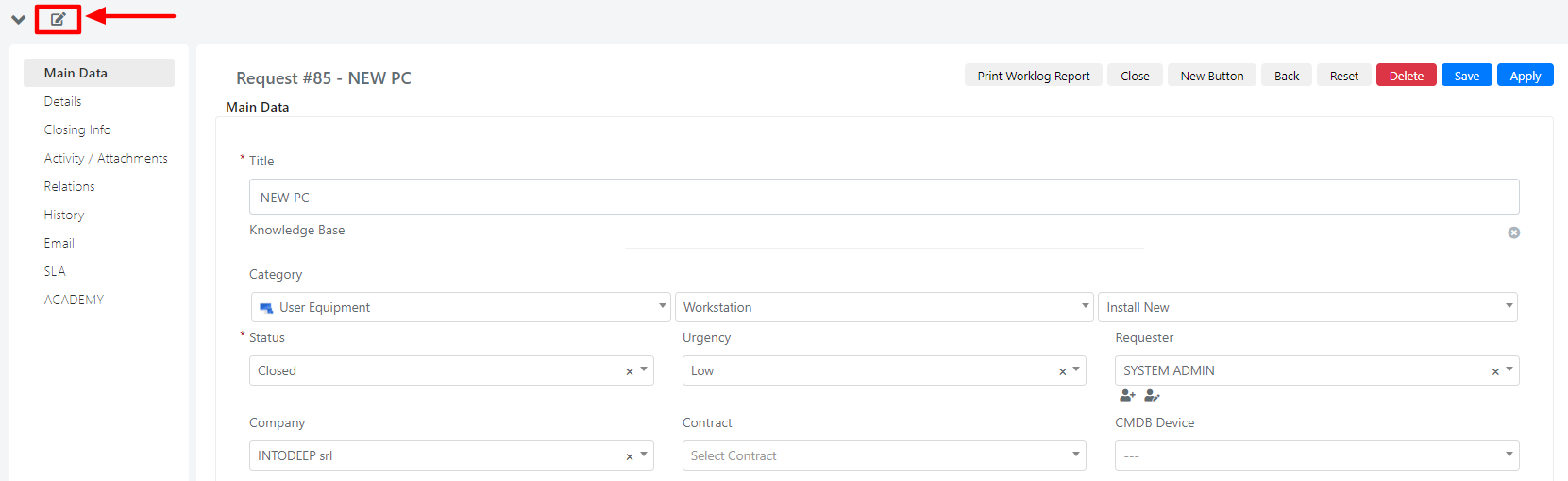
After creating the field, you need to add it to the form. Press the pencil icon in the upper left corner.
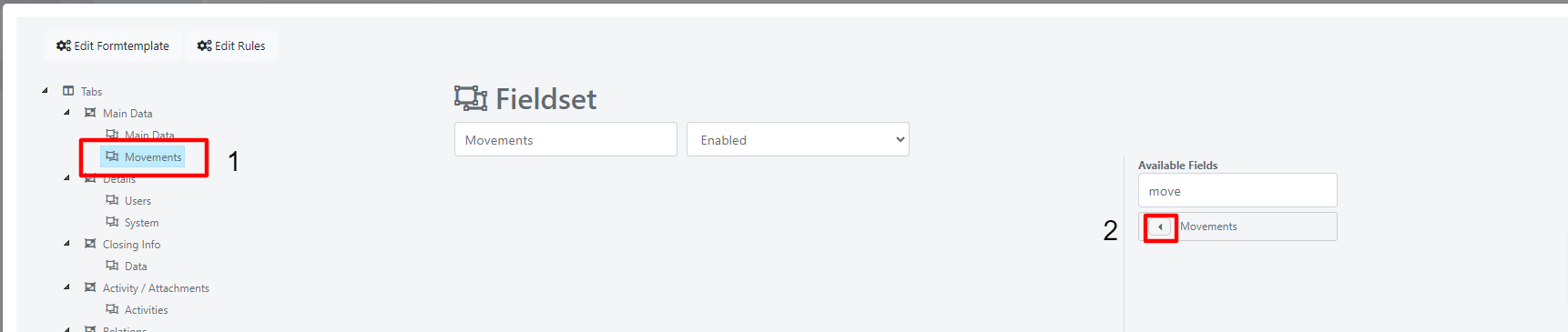
In the floating window that opens, select the fieldset where you want to add the field (1), and from the list on the right, move the field by pressing the highlighted button (2).
After saving the template, the field looks like this:

Adding and Invoicing Movements
To add a movement related to the Service Operation, click the "Add Movement" button and fill out the form that opens.
Once you have added the movements, the field appears as follows:

To invoice the movements related to a Service Operation, fill out the invoice form as shown below:

The Model Alias corresponds to "DeepService -- Operation" and the Model Id corresponds to the ID of the Service Operation to be billed.

For the movement to appear in the grid, the movement item must be linked to a product in the catalog.