Product
After configuring the product types, you can proceed with inserting a product. This section covers all the fields and tabs available when creating or editing a product in Deepser.
To access the list of products, from the main menu navigate to Catalog > Product. You can select the "All" item (which contains the list of all products registered in the system, of any type) or select the item corresponding to one of the configured product types.
To create a new product, click the "+ Add Product" button in the top right corner.
Main Data
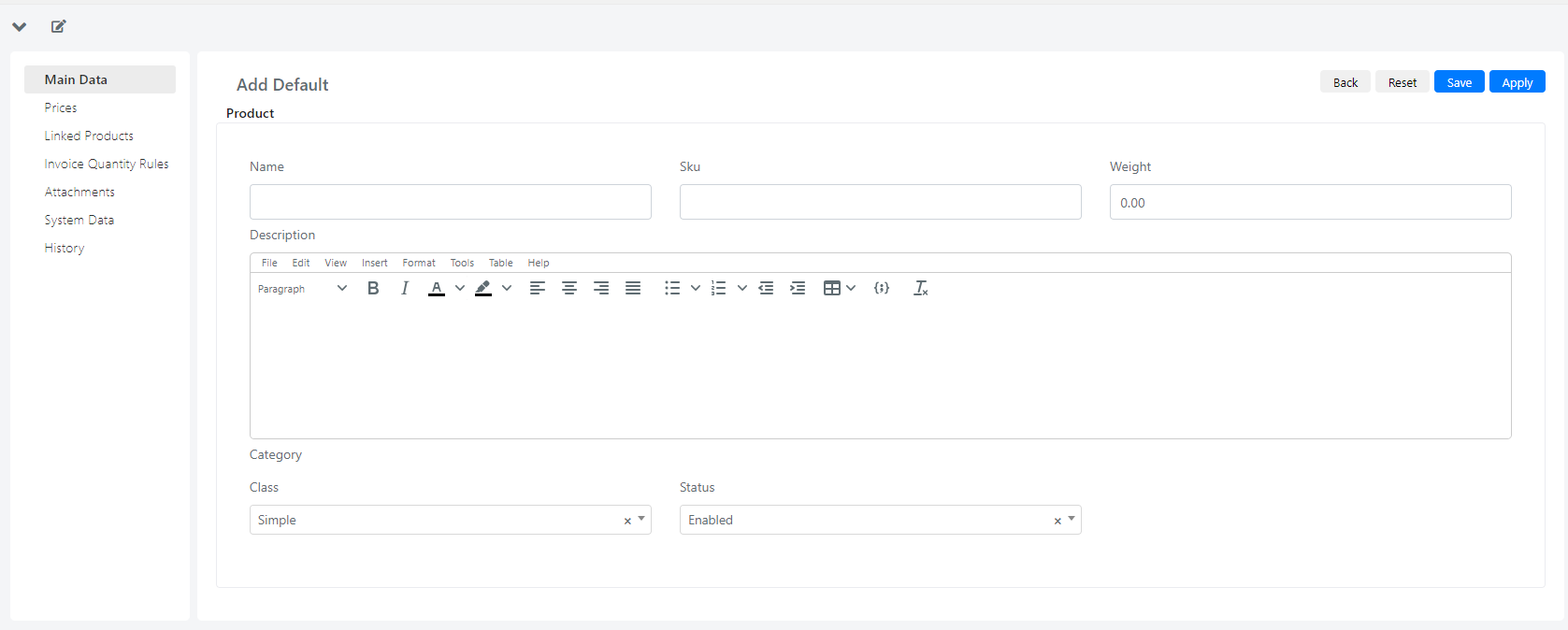
| Field | Description |
|---|---|
| Name | Text field populated with the product name. |
| Sku | Text field containing the unique code for the product. |
| Weight | Numeric text field indicating the weight of the product. |
| Description | Product description. |
| Class | Select field indicating the type of product, which can be: simple or grouped. When a product is defined as "grouped," all other created products are linked to this product. Grouped products are mainly used in the Sales modules of the CRM section (Offers, Orders, Invoices) where they can be used dynamically to add products to an invoice by selecting a single grouped product, or statically to add a set of products with the selection of a single grouped product. |
| Status | Select field indicating whether a product is enabled or disabled. |
| Category | Category field showing all the categories configured for the product model. |
Price
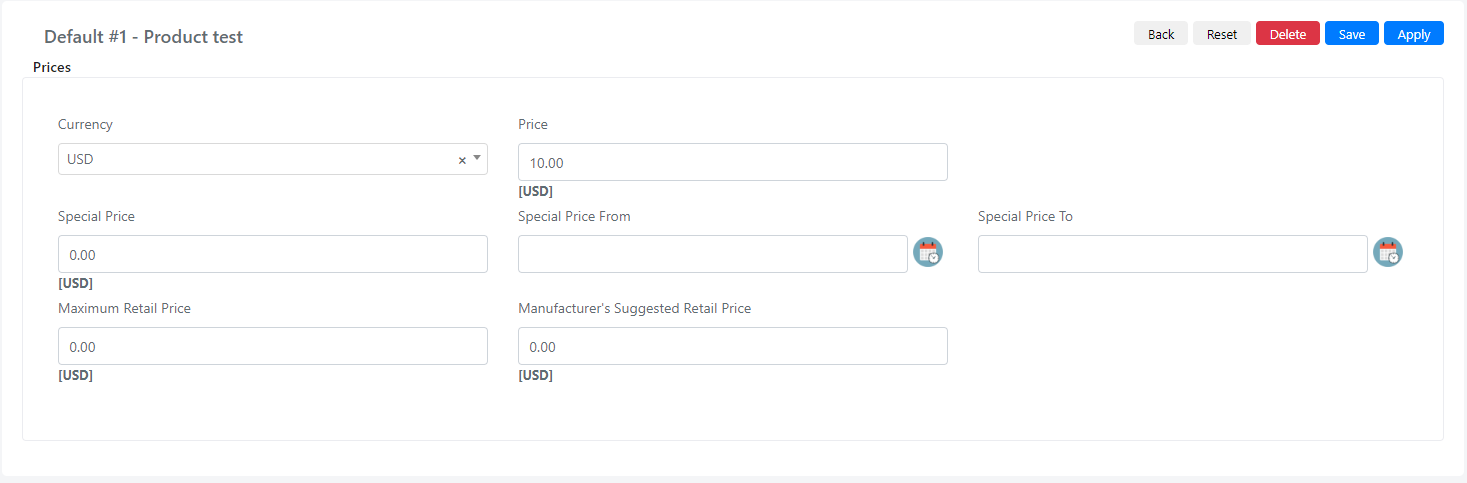
| Field | Description |
|---|---|
| Currency | Select field with all the available configured currencies. To configure currencies, go to System > Configuration > General > Currency Setup. |
| Price | Price field showing the regular price, measured in the selected currency. |
| Special Price | This field indicates a price that can be offered for a designated time period. During the specified period, the special price appears instead of the regular price. |
| Special Price From | The start date of when the special price begins to apply. |
| Special Price To | The end date of the special price application. |
| Maximum Retail Price | In this field you can set the maximum manufacturer's retail price. |
| Manufacturer's Suggested Retail Price | In this field you can set the manufacturer's suggested retail price, which gives you the ability to remain in compliance with the manufacturer's requirements. |
Linked Products
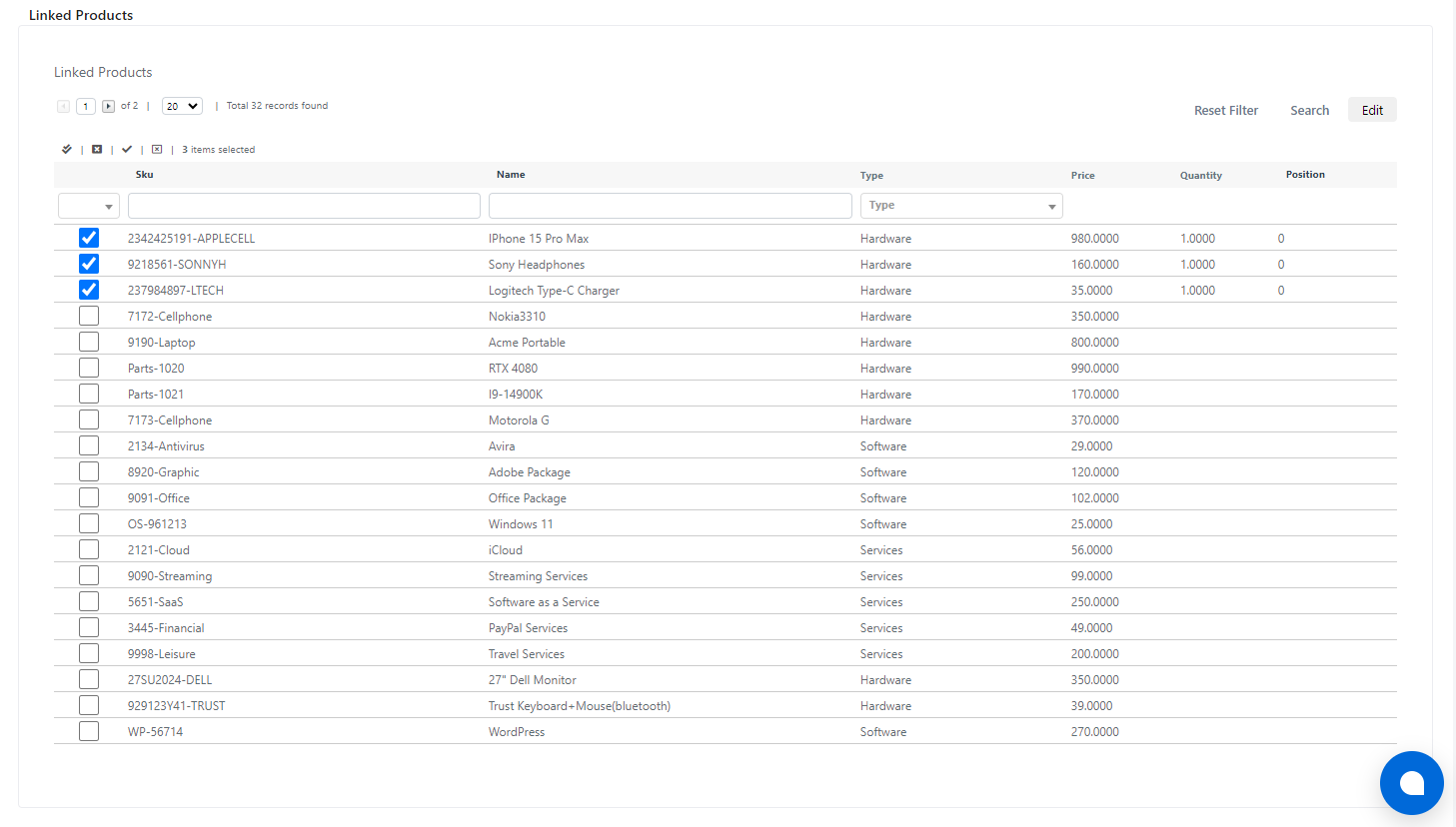
This tab shows all the products linked to the current product. The field is populated with the products grid when a product is defined as "grouped."
Invoice Quantity Rules
On this tab you can set invoice rules for the product. Invoice rules let you define the quantity of a product to be invoiced.
To create a rule, click the "+ Add Invoice Rule" button on the Invoice Rules grid:
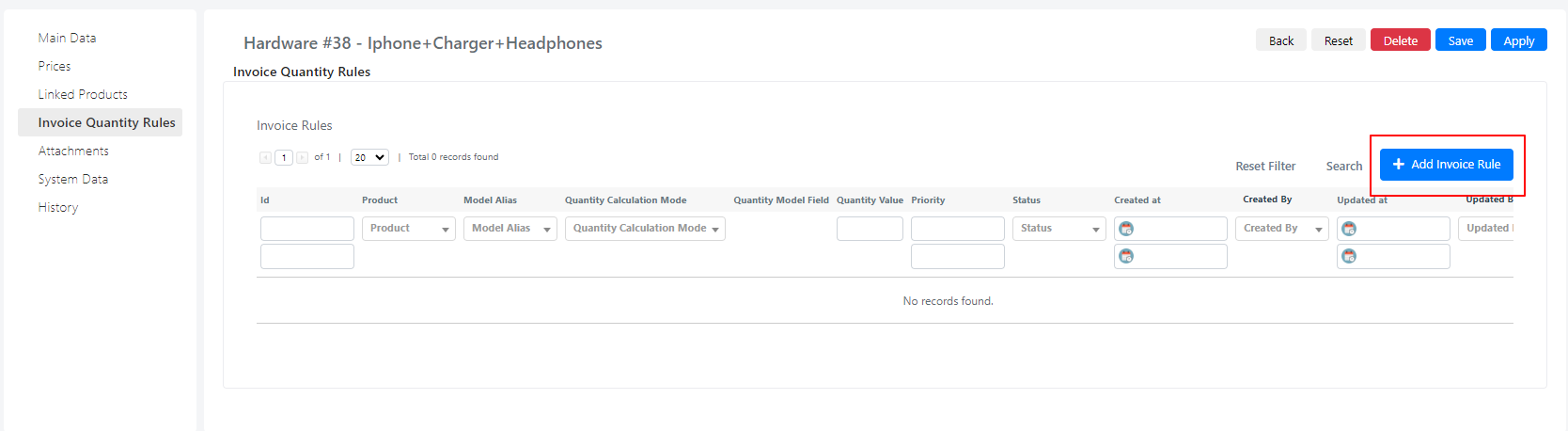
The following fields are available on the entry screen:
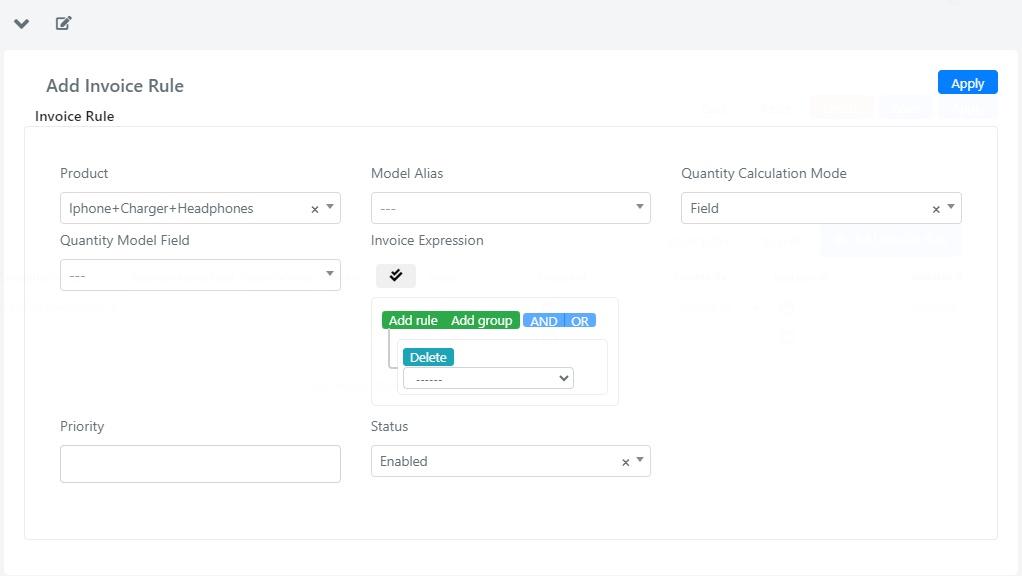
| Field | Description |
|---|---|
| Product | Select field auto-populated with the current product's name. |
| Model Alias | Select field where you choose the model to which this rule applies. |
| Quantity Calculation Mode | Select field used to set whether the quantity for this rule is determined by a field in the model or by a fixed value. |
| Quantity Model Field | Select field indicating the quantity for which this rule is applied. |
| Model Expression | Query builder field that sets a filter on the model to which this rule applies. |
| Invoice Expression | Query builder field that sets a filter on the invoices to which this rule applies. |
| Priority | Text field that sets the priority determining the order in which multiple rules are applied. When multiple rules could apply to a product, Deepser applies them based on their priority. |
| Status | Select field indicating whether a rule is enabled or disabled. |