Sales
The Sales module is located inside the CRM module and is used to keep records of your sales department. It includes different entities such as quotes, orders, invoices, and shipments, allowing you to manage the full sales lifecycle from initial quote through to delivery.

Quotes
Quotes is an entity inside the Sales module used to create different quotes based on the products that the client requires.
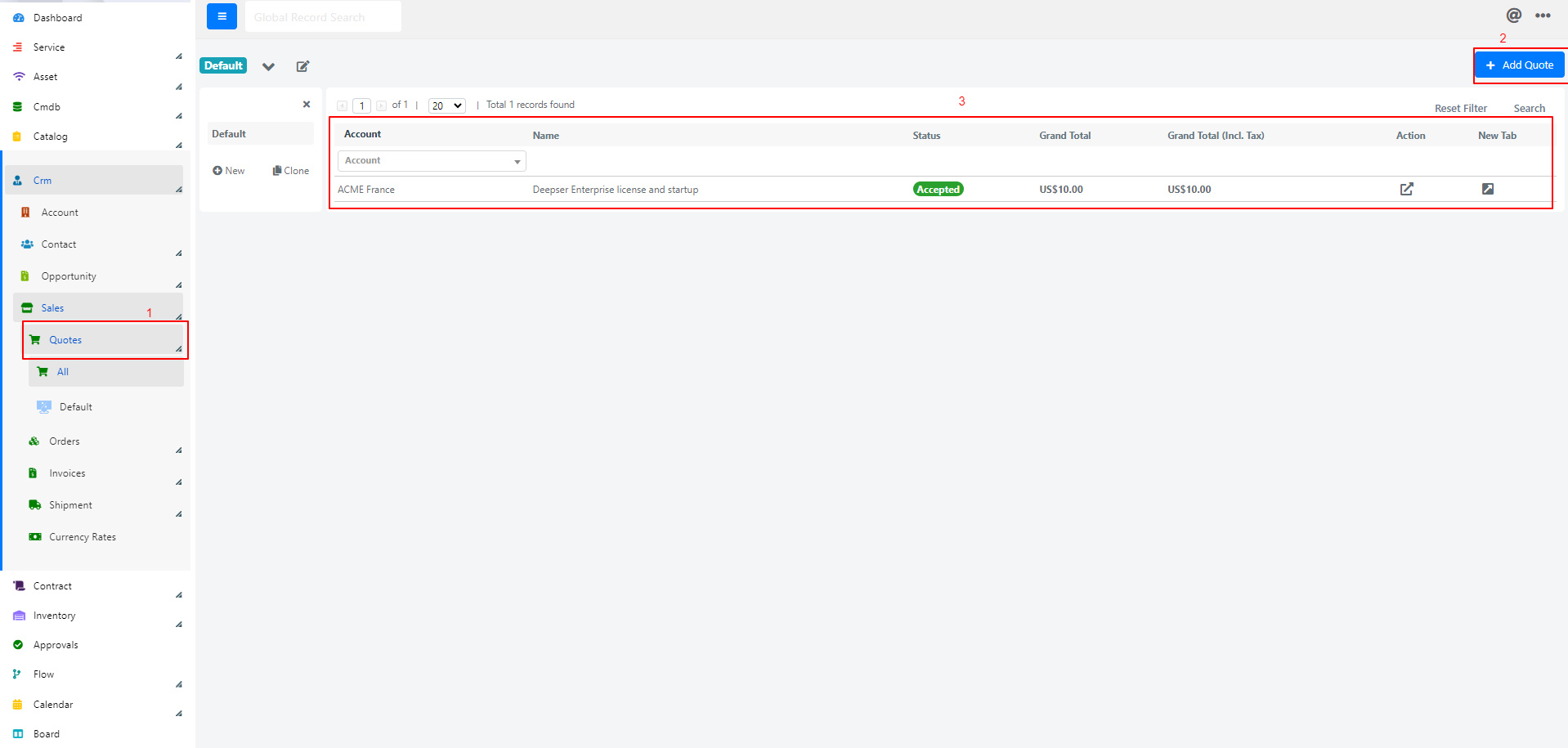
On the right side you have:
- The button to create a new quote (2).
- The grid with all present quotes (3).
Create a Quote
To create a new quote, click the Add Quote button. The default form opens and can be modified to your needs. On the left side you have a menu for different sections of the form, and on the right side you have the form fields that will be populated with quote data.
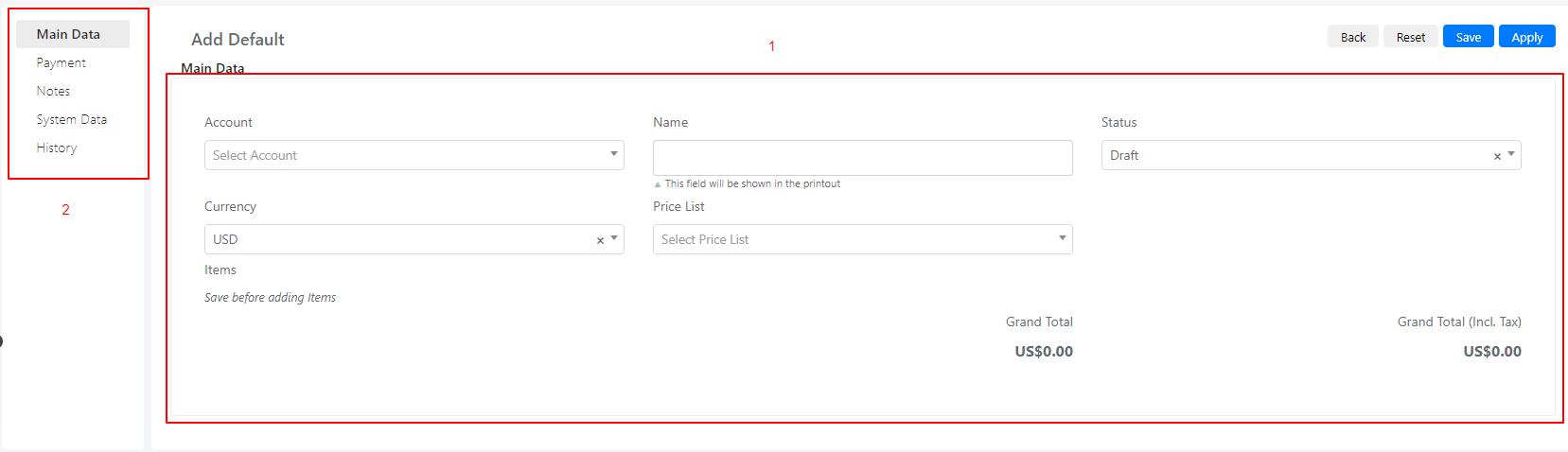
The available fields are:
-
Main Data:
- Account -- the account related to this quote.
- Name -- the name of the quote.
- Status -- the status of the quote (accepted, draft, rejected; other values can be added to this list).
- Currency -- the currency on which the product prices will be calculated.
- Price list -- the price list associated with this quote.
-
Payment:
- Payment condition
- Billing address
-
Invoice:
- Invoice -- a grid that contains the invoices created from this quote. You can add, modify, and delete invoices directly from here.
After filling in the data and saving, the following additional fields appear on the Quote form:
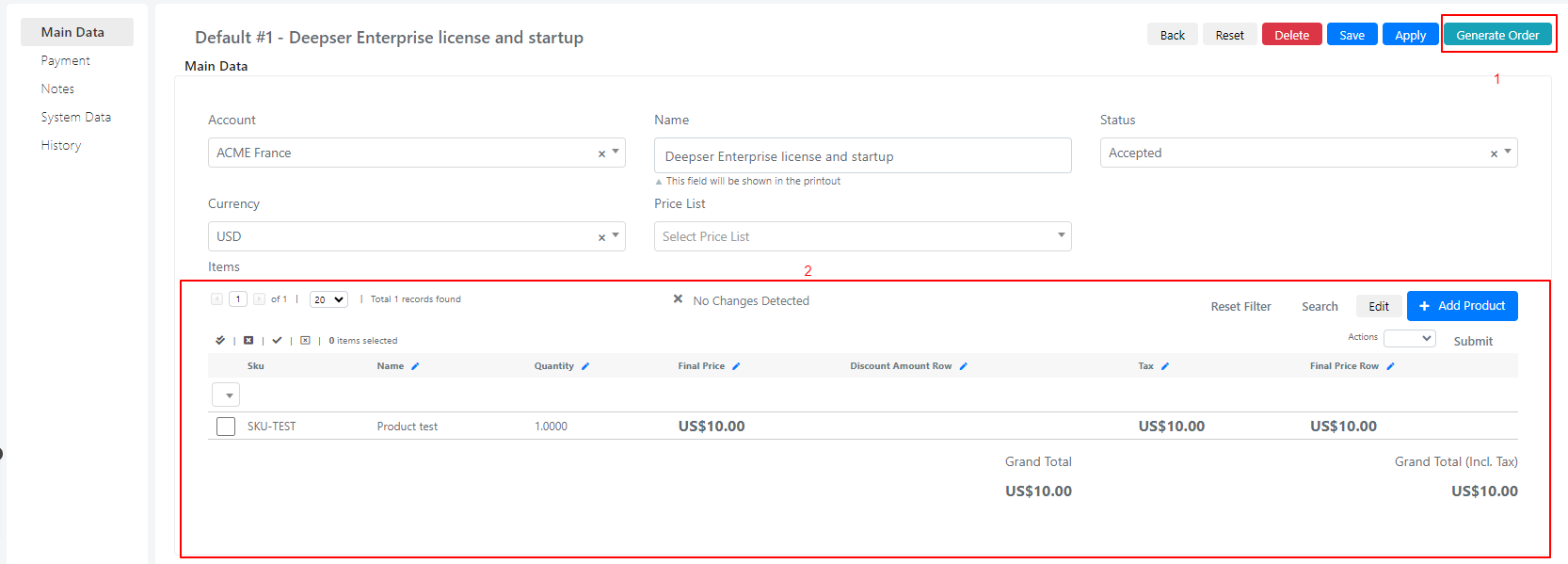
- The button on the top right creates an order based on this quote with the given products. This creates a record in the Order entity of the Sales module.
- The grid displays the products added to this quote. You can add more or delete selected ones. The products are retrieved from the Catalog.
Orders
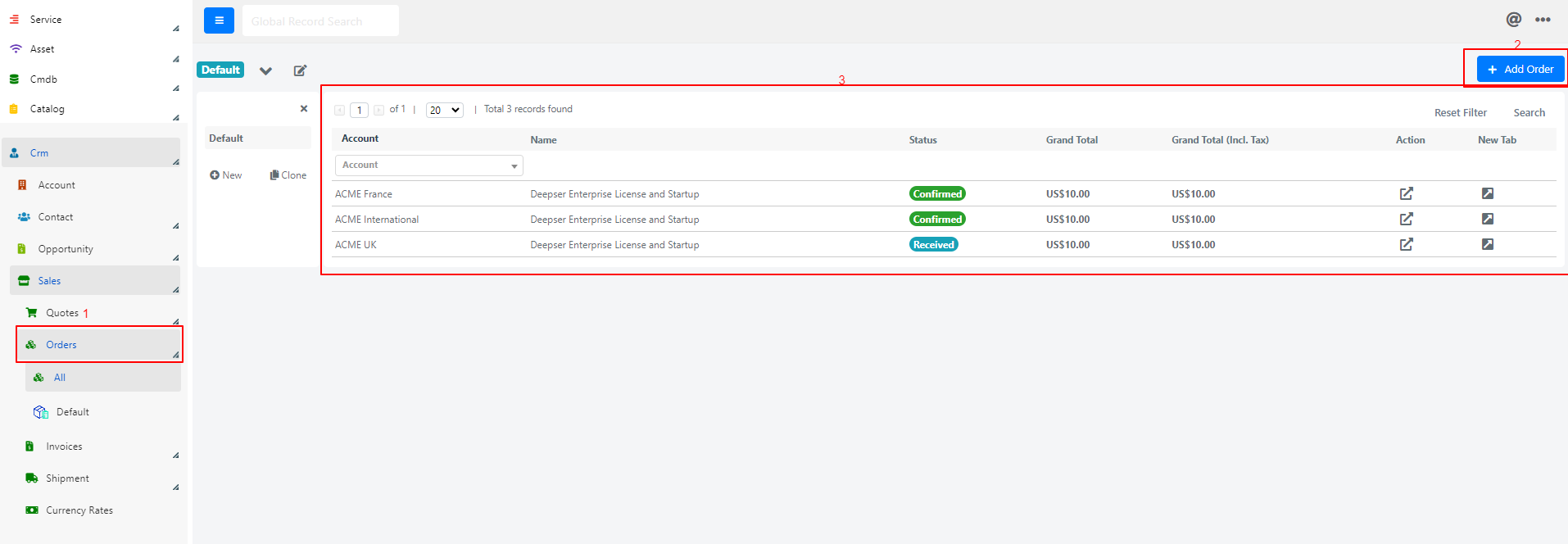
Orders is another entity inside Sales used to:
- Manage orders created from the Quotes entity.
- Create a new order without a quote relation by clicking the Create Order button and selecting the order type (2). Below the button, the grid displays all available orders.
Create an Order
An order can be created from the Quote entity or by clicking Create New Order. If you create it from the Quote entity, the quote field will be populated with a link to the originating quote.
The available fields are:
-
Main Data:
- Account -- the account related to this order.
- Name -- the name of the order.
- Status -- the status of the order (accepted, draft, rejected).
- Currency -- the currency on which the product prices will be calculated.
- Price list -- the price list associated with this order.
- Quote -- if the order is created from a quote, this field links back to the respective quote.
-
Payment:
- Payment condition
- Billing address
-
Shipment:
- Shipment grid -- shows all shipments related to this order. You can add, modify, and delete shipments from this grid.
-
Invoice:
- Invoice -- a grid that contains the invoices created from this order. You can add, modify, and delete invoices from here.
After filling in the data and saving, the following additional fields appear on the Order form:
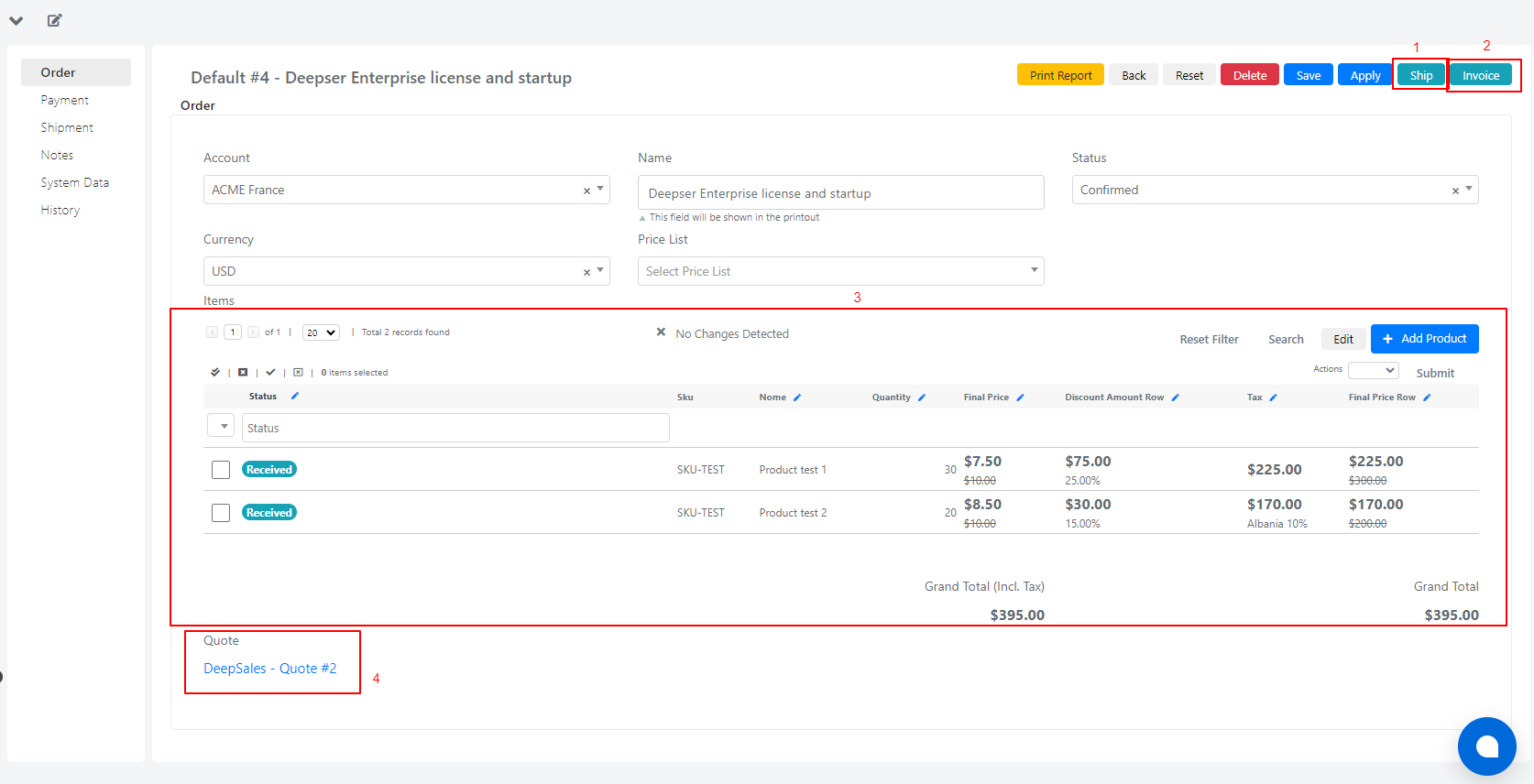
- On the top right, a button creates a shipment for this order.
- On the top right, a button creates an invoice for this order.
- The grid displays the products added to this order. You can add more or delete selected ones. The products are retrieved from the Catalog module.
- The quote that is related to this order.
Invoices
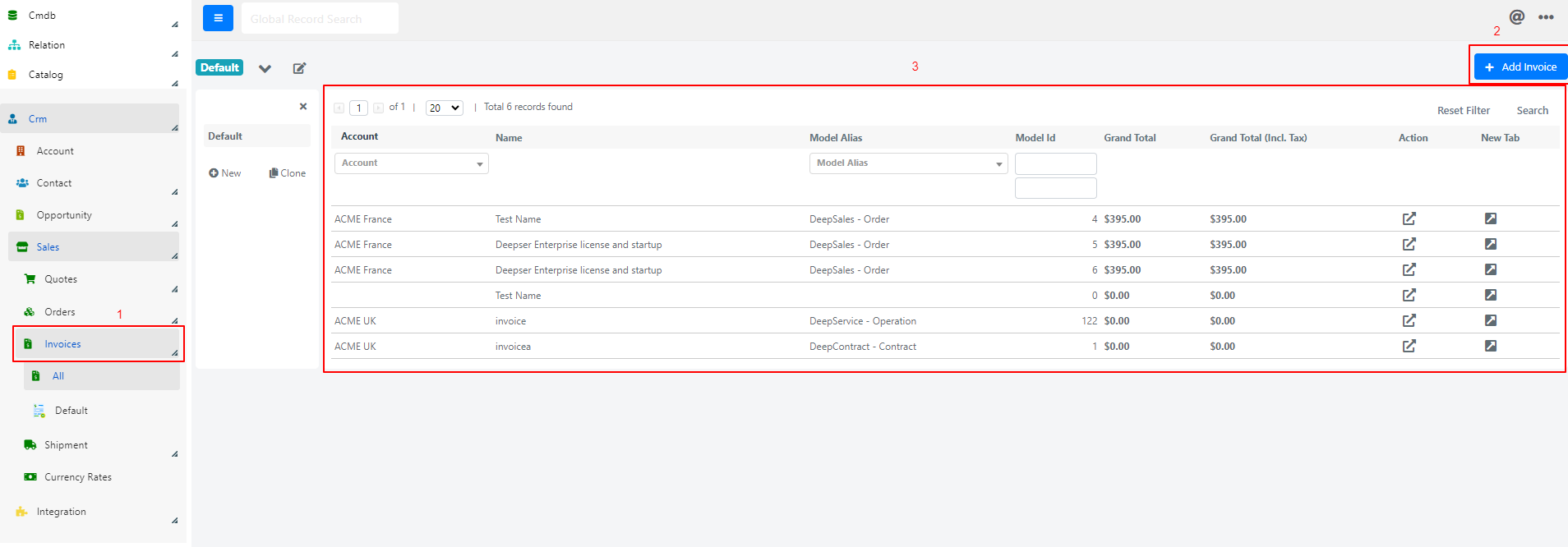
Invoices is another entity inside Sales used to manage invoices created from the Quote entity or the Order entity. You can also create a new invoice without a quote or order relation by clicking the Create Invoice button and selecting the invoice type (2). Below the button is the grid that displays all available invoices (3).
Create an Invoice
An invoice can be created from the Quote entity or the Order entity, or by clicking the Add Invoice button on the top right side.
The available fields are:
-
Main Data:
- Account -- the account related to this invoice.
- Name -- the name of the invoice.
- Status -- the status of the invoice (enabled, disabled).
- Model alias -- the model from which the invoice is created.
- Model id -- the ID of the entity that created the invoice.
- Currency -- the currency on which the product prices will be calculated.
- Price list -- the price list associated with this invoice.
-
Payment:
- Payment condition
- Billing address
-
Activities and Movements:
- Invoice Related Models -- a grid relation that contains the activities related to this invoice. You can add, modify, and delete activities from here.
- Invoice Related Movements -- a grid relation that contains all the warehouse movements connected to this invoice.
After filling in the data and saving, the following additional fields appear on the Invoice form:
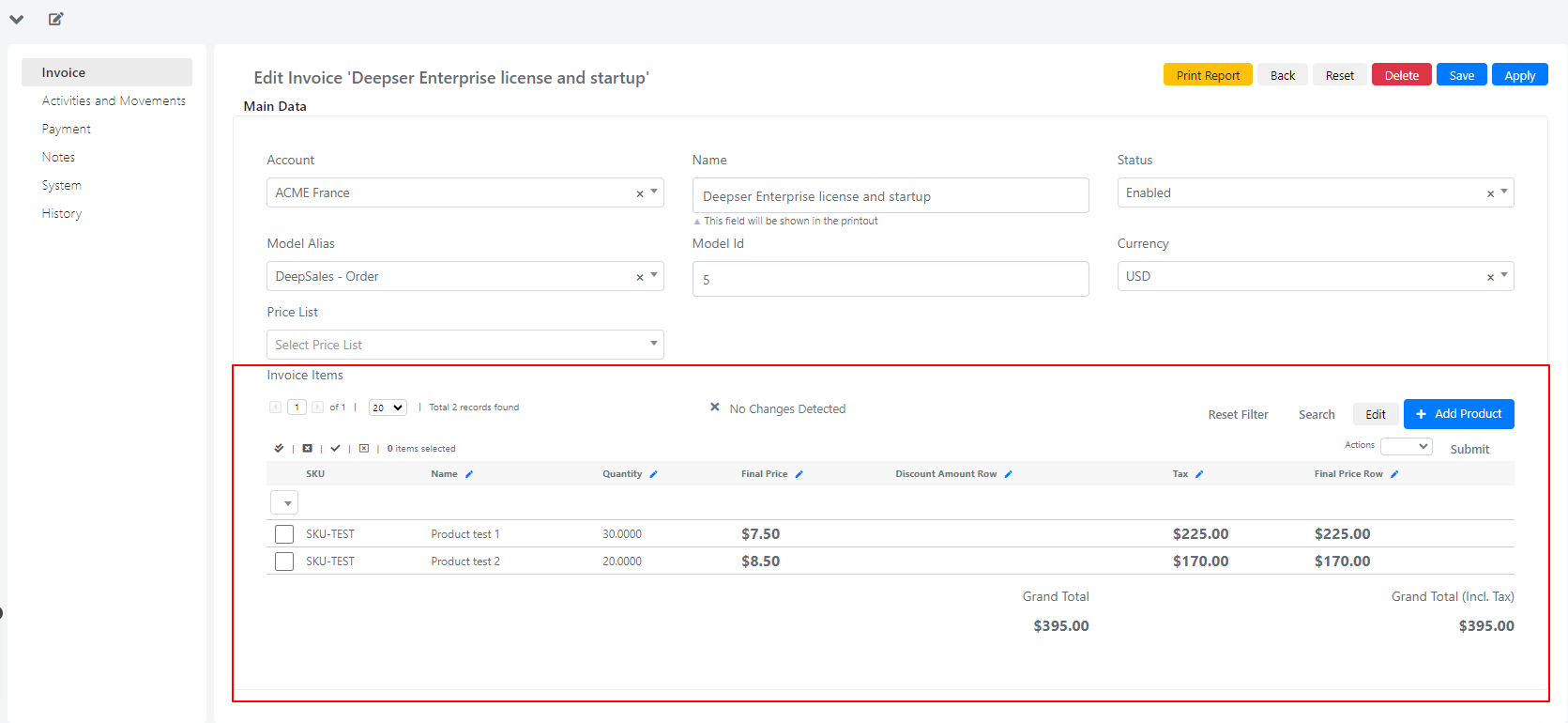
Invoice Items is the grid that displays the products added to this invoice. You can add more or delete selected ones. The products are retrieved from the Catalog module.
Shipments
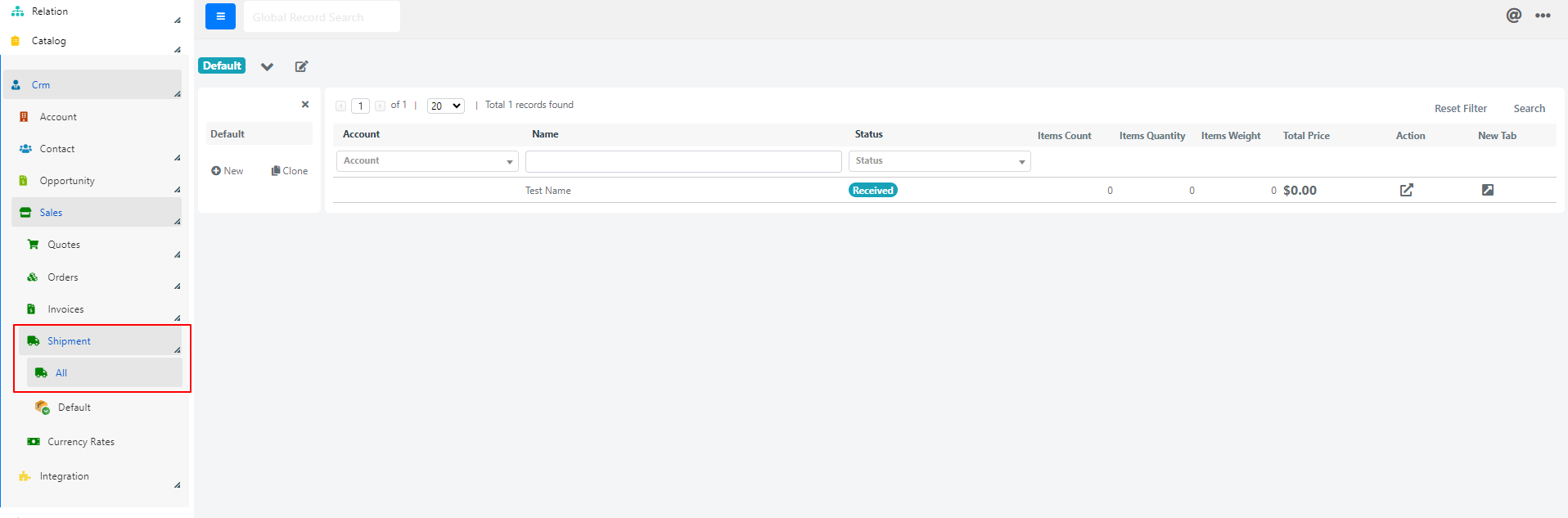
Shipments is another entity inside Sales used to manage shipments created from the Order entity. When you click on the Shipment section from the left menu, the grid with all the shipments generated from orders is shown.
Edit a Shipment
The available fields are:
-
Shipment:
- Account -- the account related to this shipment.
- Name -- the name of the shipment.
- Status -- the status of the shipment (delivered, received, canceled; other values can be added).
- Shipping Date -- the date of shipment.
-
Addresses:
- Billing Address -- the billing address of the shipment.
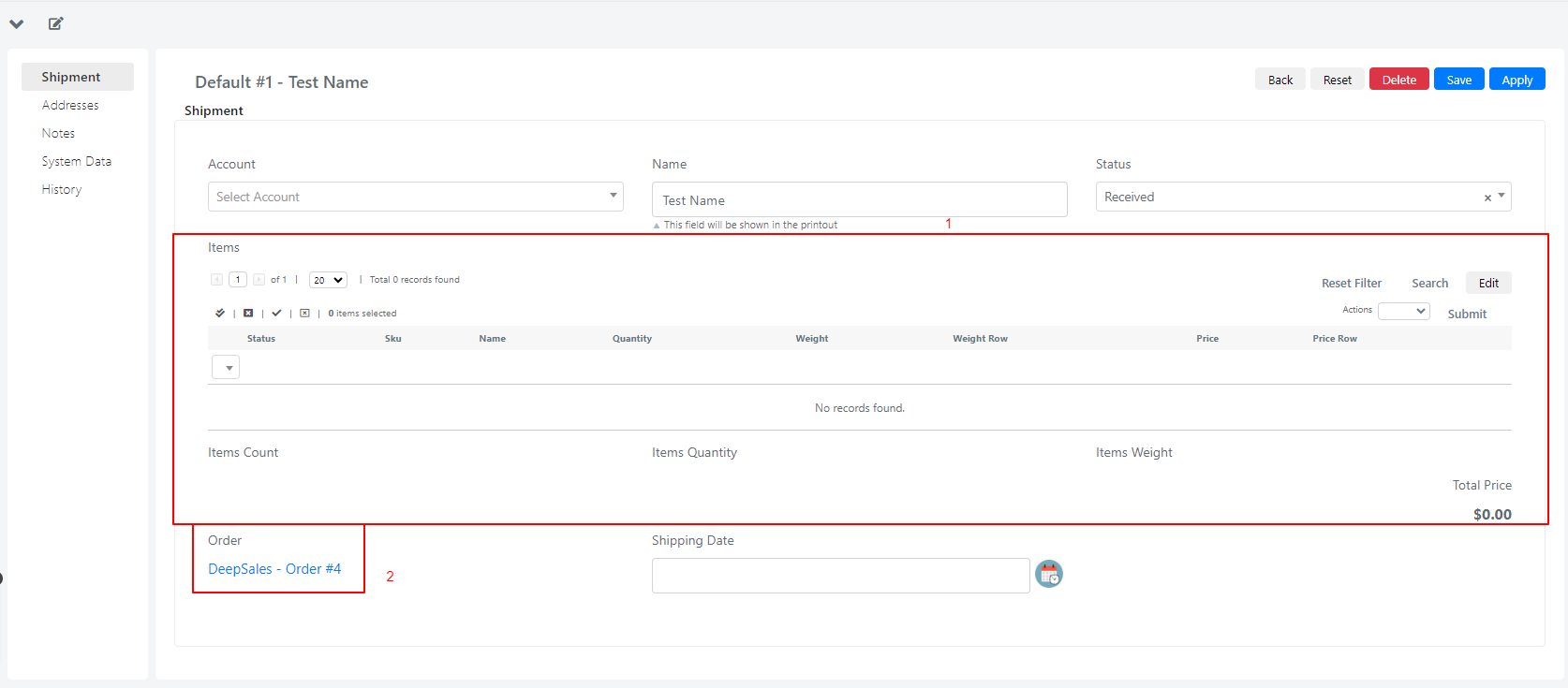
- Items -- the grid that displays the products added to this shipment. You can add more or delete selected ones. The products are retrieved from the Catalog.
- Order -- a link that opens the Order related to this shipment.