Create a Service Operation
This guide walks you through creating a new Service Operation in Deepser. Whether you are an end user working from the User Portal or an Operator using the Deepser Backend, the steps below cover everything you need to get started.
Choose Where to Create the Service Operation
You can create a new Service Operation from the User Portal or from the Deepser Backend (accessible only to Operators).
From the User Portal, select the type of Service Operation you intend to open.

From the Deepser Backend, access the grid for the relevant service type (for example, Generic Request) through the sidebar menu.
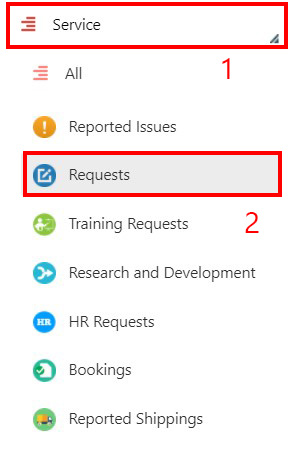
By default, Deepser includes Incident, Request, Problem, and Change service types, but each environment can be configured with custom service types.
Fill In and Save the Service Operation
-
From the Deepser Backend, press the Add Operation button (the label varies according to the service type).
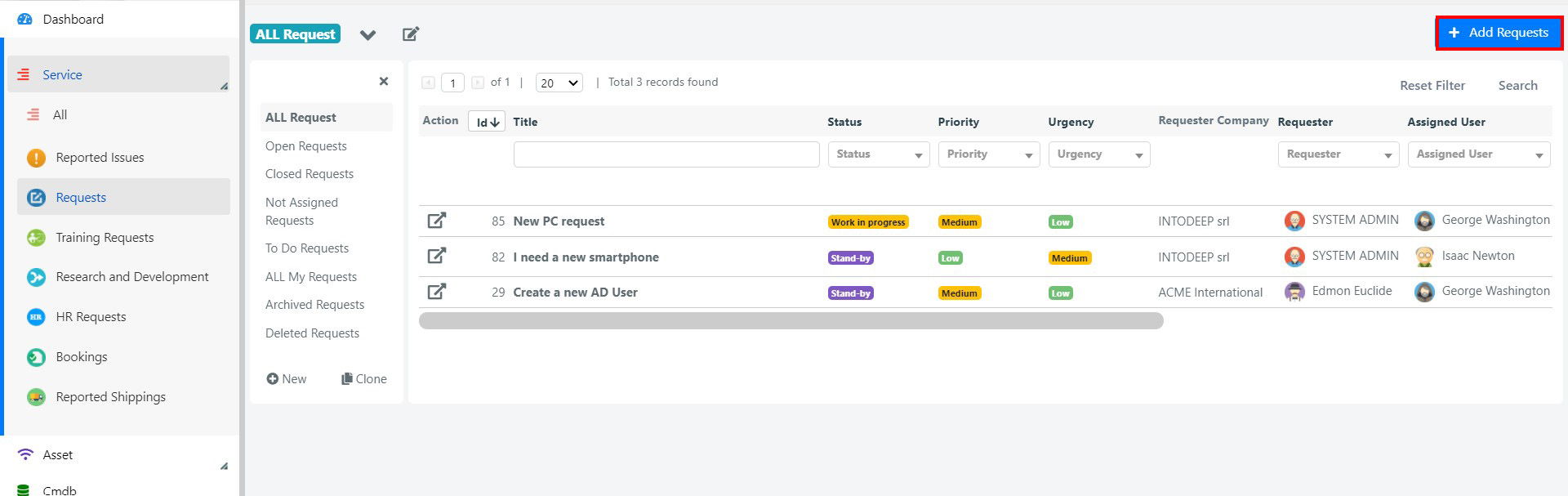
-
If the Service Operation was created through the User Portal, a simplified form template loads instead. The standard User Portal form looks like this:
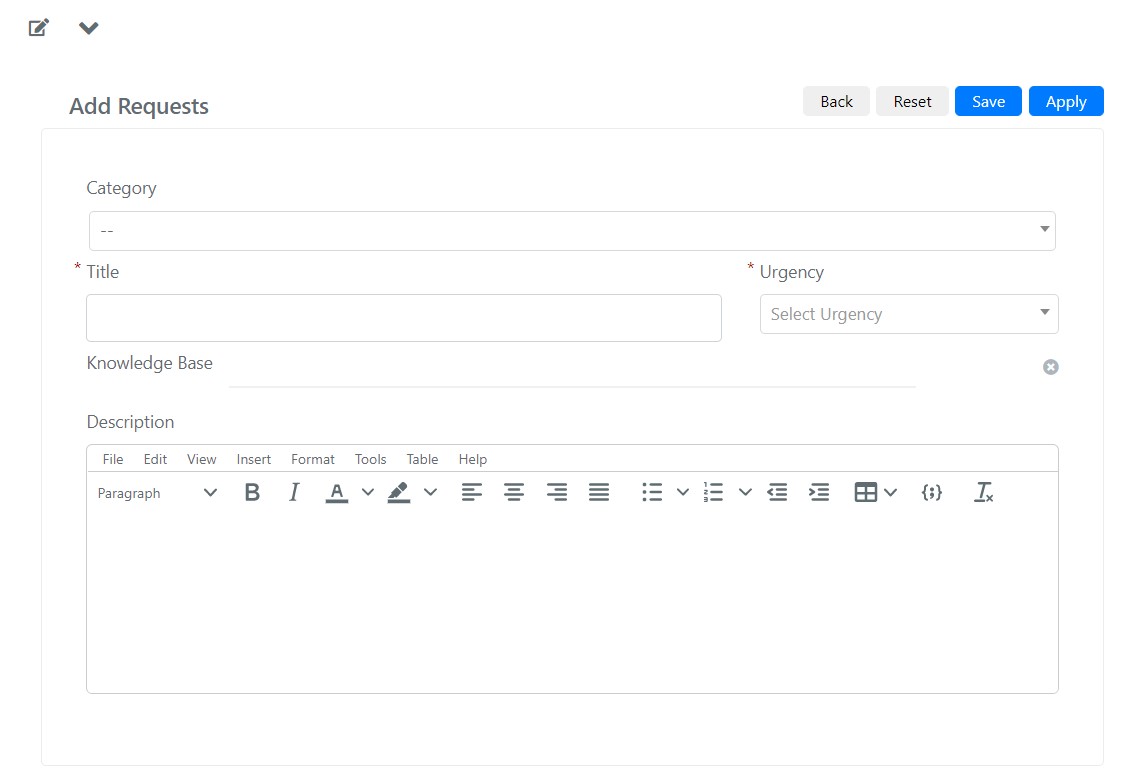
The default fields on the User Portal form are:
Field Description Title A brief description of the Service Operation. Category Determines workgroup assignment and catalogues the scope of the request. Urgency The urgency as perceived by the user. Description Detailed information about the Service Operation. -
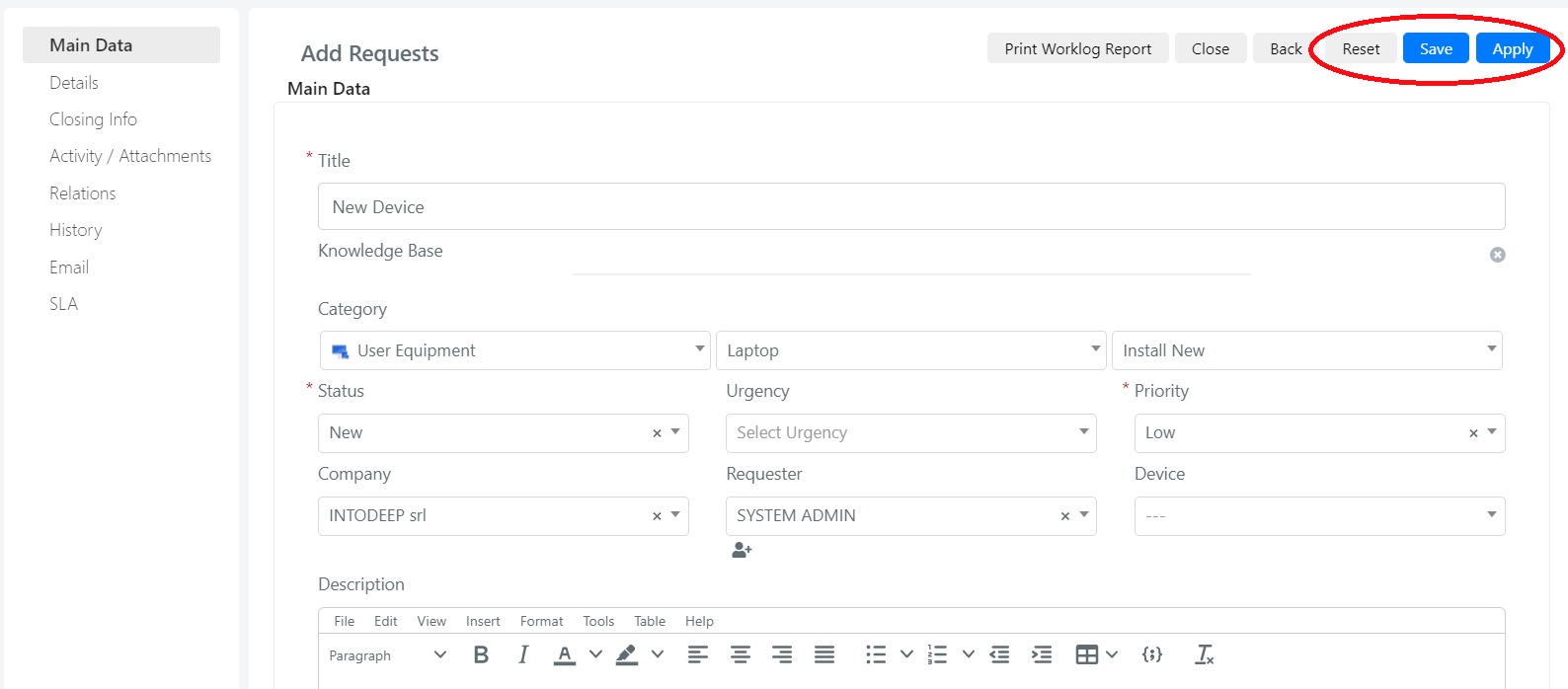
Fill in all relevant fields, then press Save to save the Service Operation and close the form, or press Apply to save and stay on the page. Pressing Reset restores values to the last saved version.
Verify the Service Operation
-
After saving, the Service Operation appears in the User Portal grid.

-
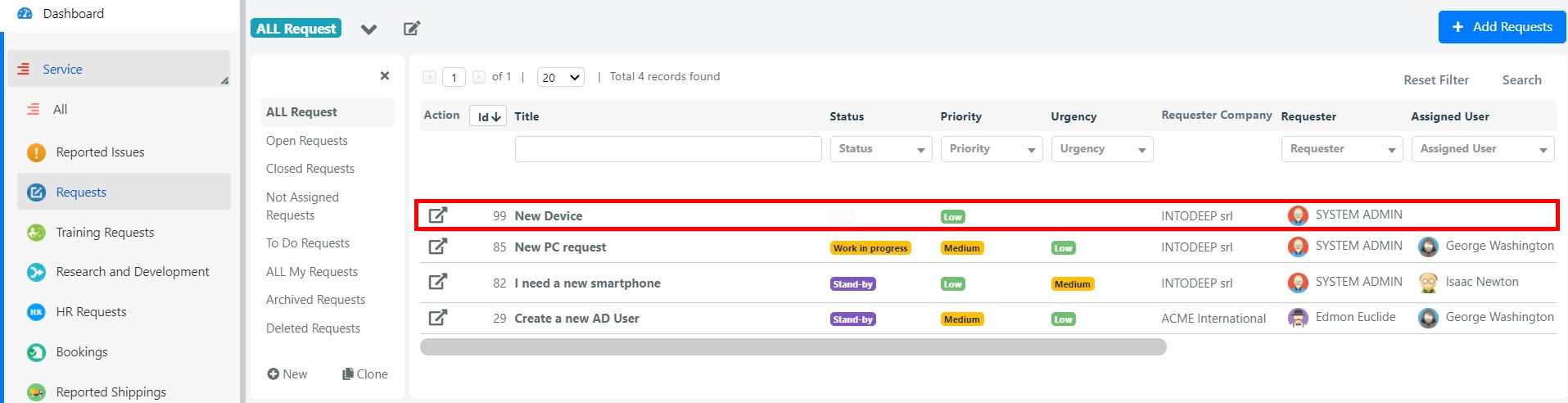
It is also visible in the Deepser Backend within the selected service type grid.
Additional Actions
The Service Operation form includes several management actions:
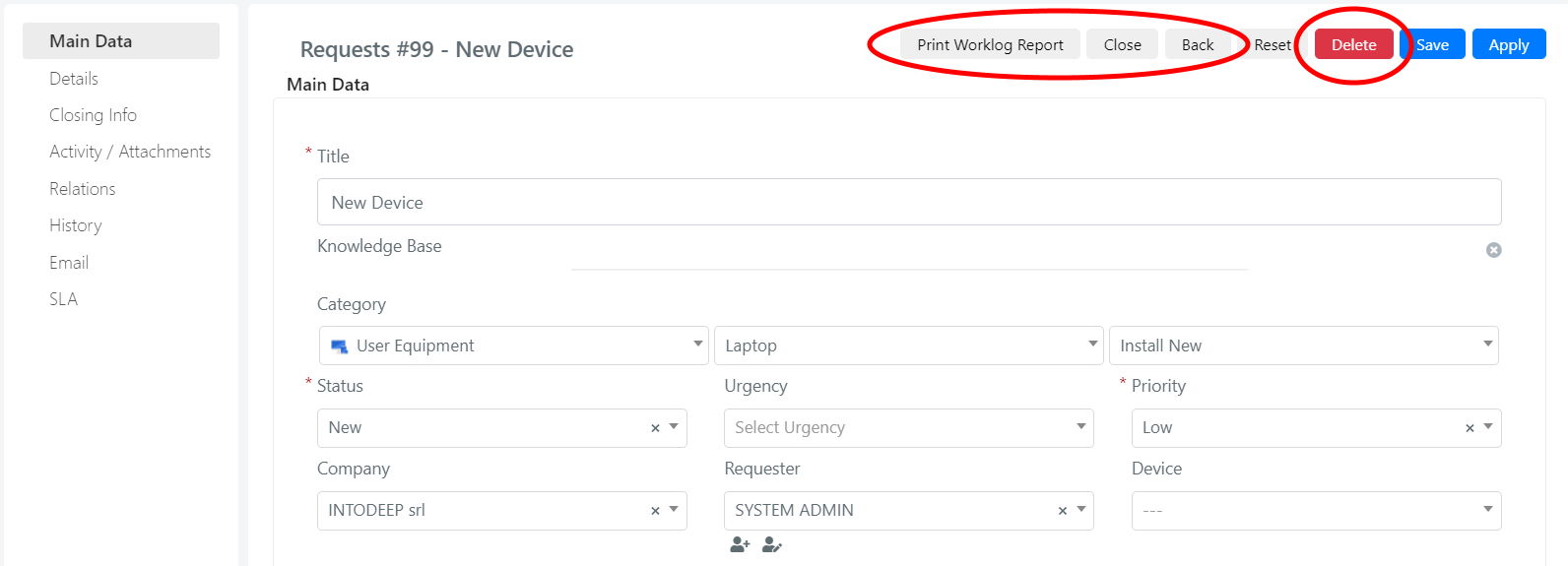
- Use the Delete button to permanently remove the Service Operation from the database.
- Use Close to set the status to Closed.
- Use Print Report to generate a printable report.
Physical and Logical Deletion
Each Service Operation can be deleted in two ways. Logical deletion occurs when you set the Service Operation to a status with a "Deleted" class -- the record remains in the database and appears in the Deleted grid. Physical deletion uses the Delete button to permanently remove the record from the system; it cannot be recovered.
Physical deletion is permanent. Once a Service Operation is physically deleted, it cannot be recovered. Use logical deletion when you may need to reference the record later.