Configure Escalation Rules
Escalation rules automate time-based actions on Service Operations, such as changing priority, reassigning Operators, or triggering email notifications. This guide walks you through creating a new escalation rule in the Deepser Backend. It is intended for administrators responsible for automation workflows.
Create an Escalation Rule
-
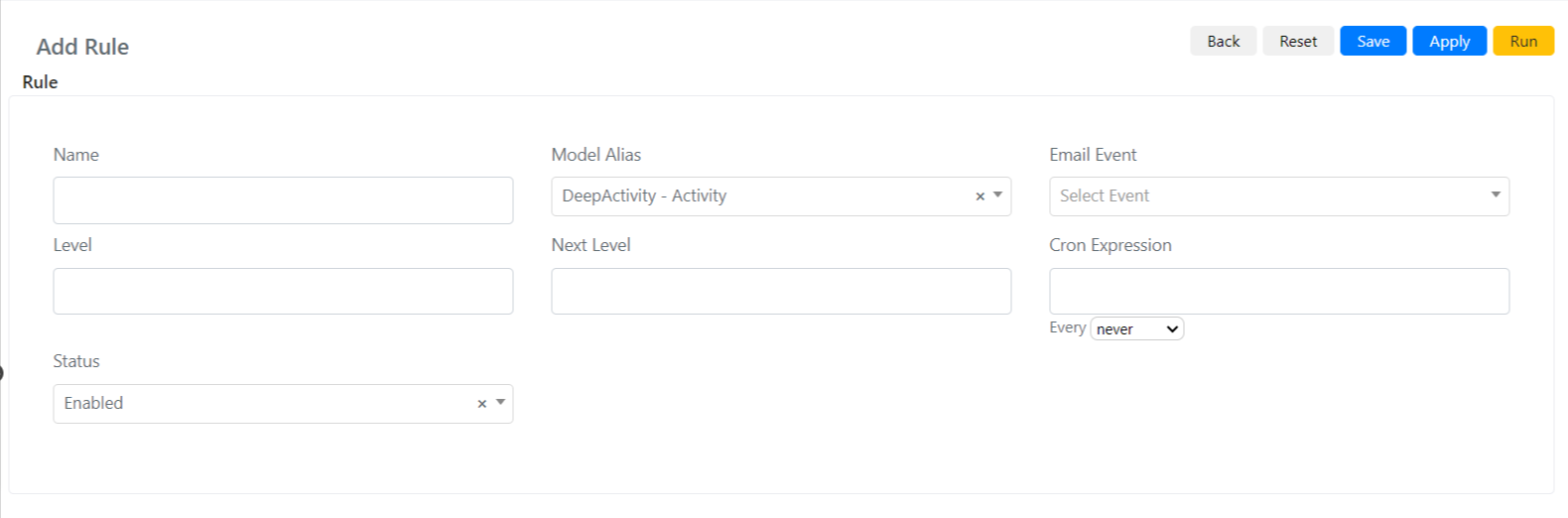
Navigate to System -> Service Configuration -> Escalation Rule and click Add Rule.
-
Fill in the basic fields:
Field Description Name Name of the escalation rule. Model Alias The model on which the rule applies. Email Event The email event triggered when conditions are met. Level Which level of Service Operations will be processed (default is 0). Next Level The level assigned to the Service Operation after processing. Cron Expression How often the rule runs. Status If "Enabled", the rule is active; otherwise it is skipped. -
Click Save or Apply.
note
The condition fields (query builders and scripts) only appear after the rule has been saved at least once.
Configure Conditions and Actions
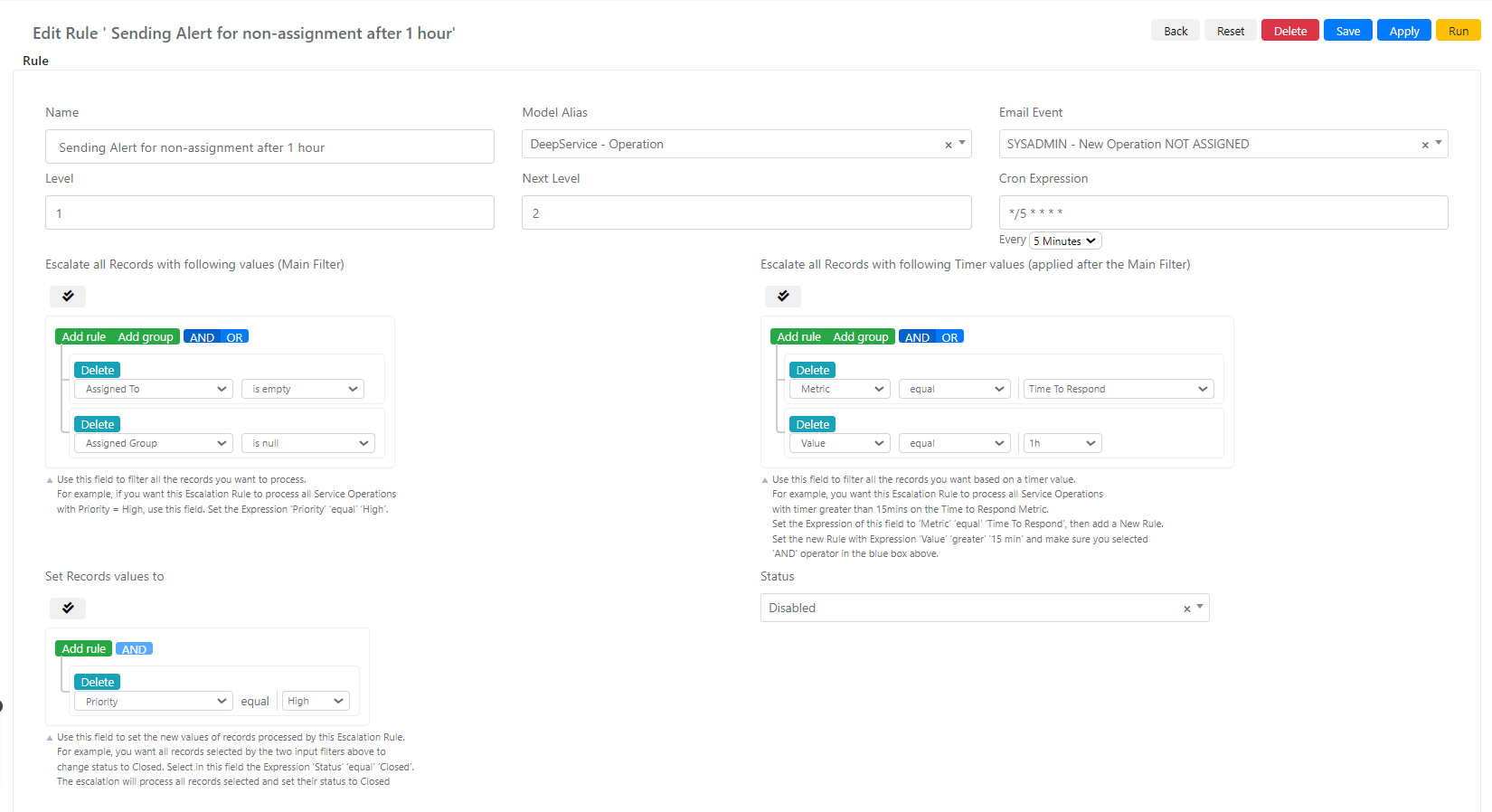
After saving, additional fields appear:
| Field | Description |
|---|---|
| Escalate all Records with following values (Main Filter) | Query builder that filters which Service Operations are processed. |
| Expression Input (Script) | Script-based filter (must return true for the Service Operation to be processed). |
| Escalate all Records with following Timer values (applied after the Main Filter) | Query builder that adds SLA metric conditions on top of the main filter. |
| Expression Timer (Script) | Script-based SLA metric filter. |
| Set Records values to | Query builder that defines which field values to set on matching Service Operations. |
| Expression Output (Script) | Script that programmatically sets field values on matching Service Operations. |
Fill in the desired condition and action fields, then click Save or Apply.