Configure Routing Rules
Routing rules let you automatically assign Service Operations to the appropriate Operators or groups based on field values. This guide explains how to create, configure, and test routing rules in the Deepser Backend.
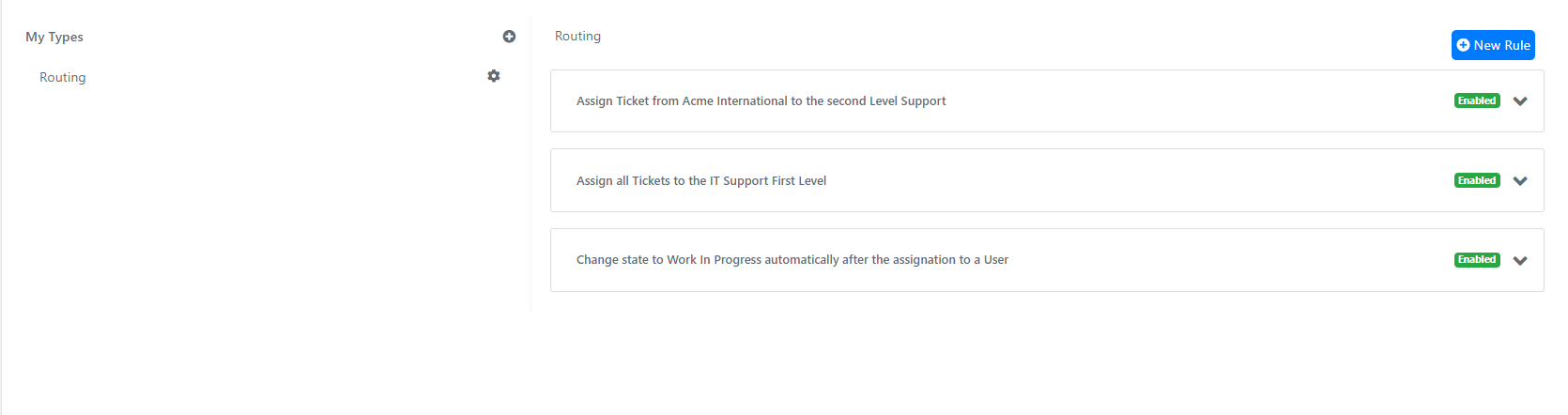
Create a Routing Rule
-
Navigate to System -> Service Design -> Routing.
-
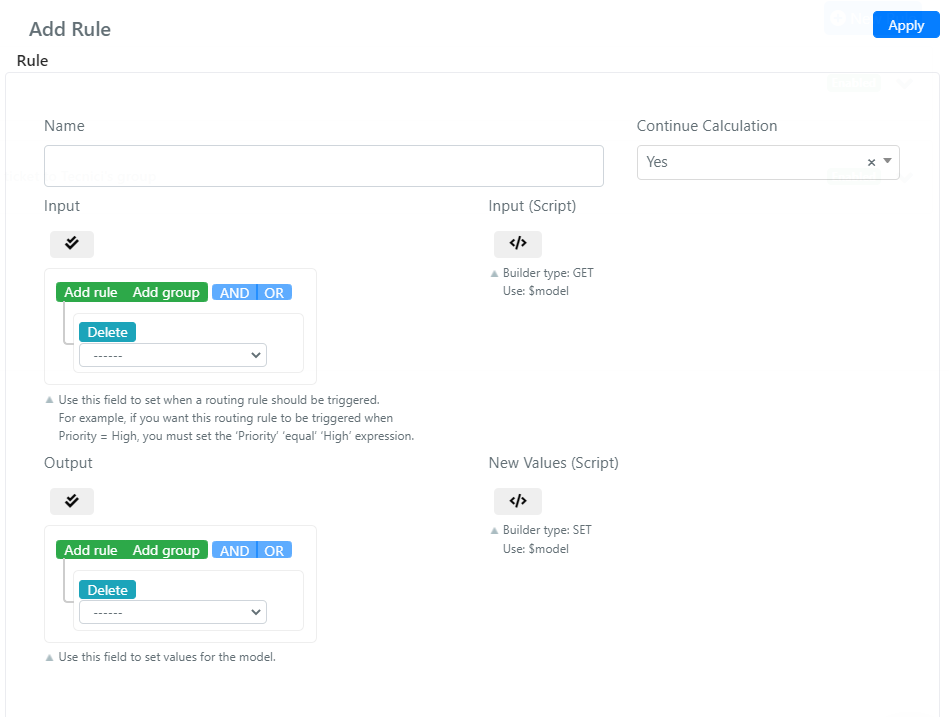
Click the New Rule button. The following screen opens:
-
Fill in the fields described below:
Field Description Name The name you assign to the routing rule. Continue Calculation Whether the system should continue evaluating remaining routing rules after this rule matches. Input A query builder that filters Service Operations by defining the conditions under which this rule applies. Input (Script) The scripting counterpart of the Input field for programmatic condition definitions. Output A query builder that defines the values to set on matching Service Operations. New Values (Script) The scripting counterpart of the Output field for programmatic value assignments. -
Click Save or Apply.
You can exclude a specific Service Operation from routing by enabling the Disable Routing flag (available as a system field, not exposed in the form template by default).
To enable or disable a rule, click the Disabled / Enabled label next to the rule on the main routing rules screen.
Example: Assign All Incidents to an Administrator
This example assigns every Service Operation of type "Incident" (id: 1) to the user "SYSTEM ADMIN".
-
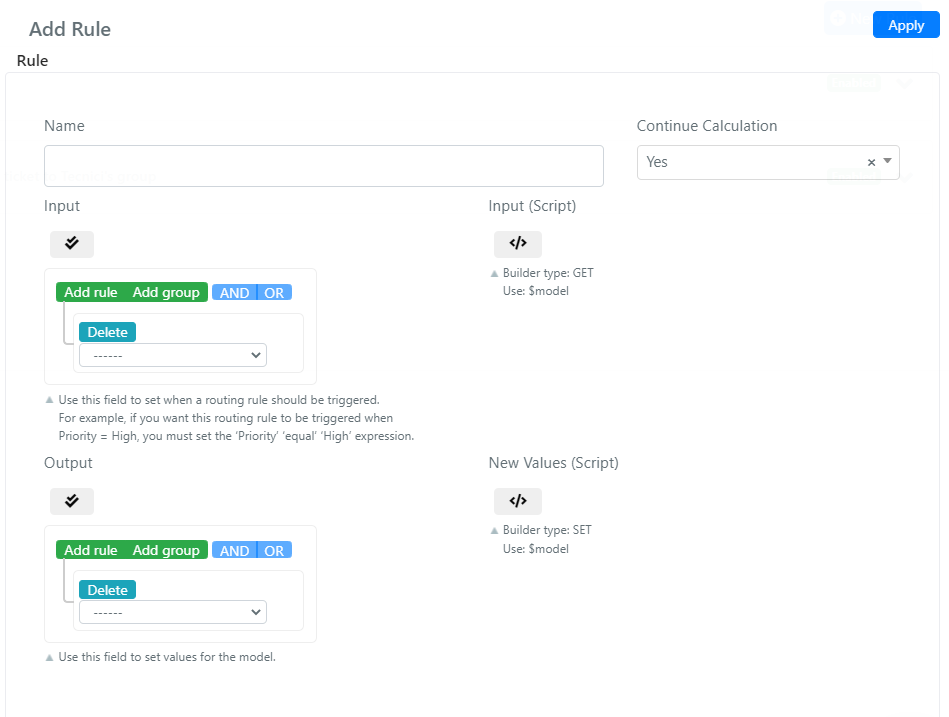
Navigate to System -> Service Design -> Routing and click New Rule.
-
In the Name field, enter "Assign To Admin Every Incident".
-
Configure the Input query builder to match Incidents:

-
Configure the Output query builder to set the assigned user:

-
Click Save.
Advanced Routing With Scripting
When the standard query builder is not sufficient, you can define routing rules using scripting for full programmatic control.
The following example recreates the same "Assign To Admin Every Incident" rule using scripts.
-
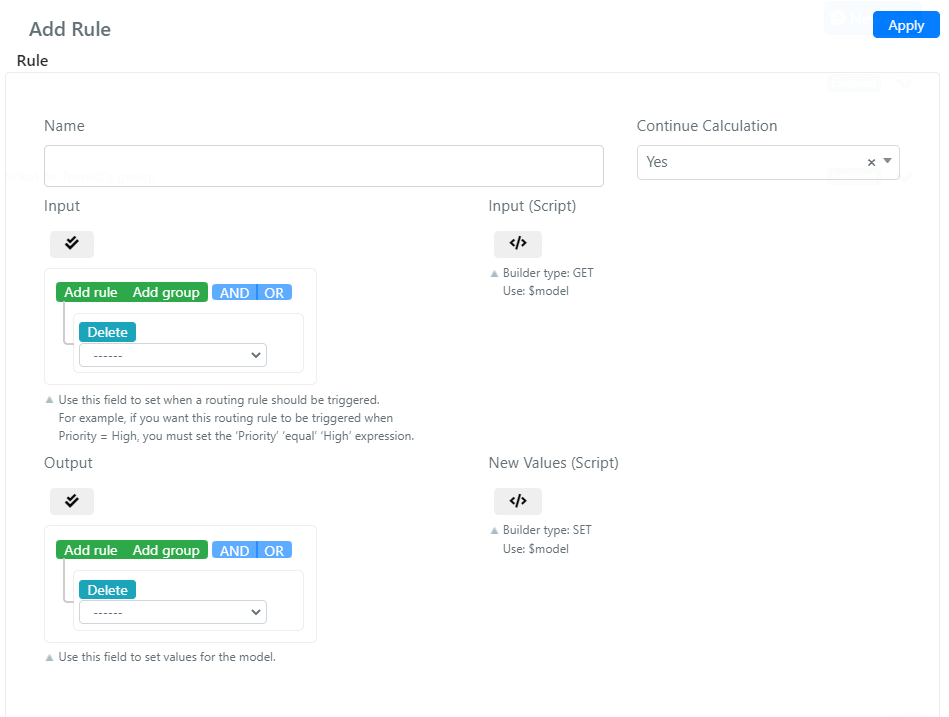
Navigate to System -> Service Design -> Routing and click New Rule.
-
Enter "Assign To Admin Every Incident" as the name.
-
In the Input (Script) field, enter:
//if the current operation is an incident, return true else return falseif($model->getData('type_id')==1){return true;}else{return false;} -
In the New Values (Script) field, enter:
//setting the Assigned username to admin, admin is the username of "System Admin"$model->setData('assigned_username','admin');//Returning the modelreturn $model; -
Click Save.
After saving, enable the rule by clicking the Disabled label next to it on the main routing rules screen.