Configure SLA Calendars
SLA calendars allow Deepser to correctly process timelines and deadlines for your service level agreements. This guide covers how to create a calendar, configure working hours, and define holidays. It is intended for administrators setting up SLA infrastructure.

What Is an SLA Calendar
SLA calendars define working times for your organization. Since SLA goals specify deadlines within which actions must be completed, calendars let Deepser account for midweek holidays, non-working days, and periods of suspended activity when calculating those deadlines.
Deepser includes a default SLA calendar, but you should verify its configuration since the working week may vary depending on your country or company conventions.
Create a New Calendar
-
Navigate to System > Service Design > SLA > Calendar.
-
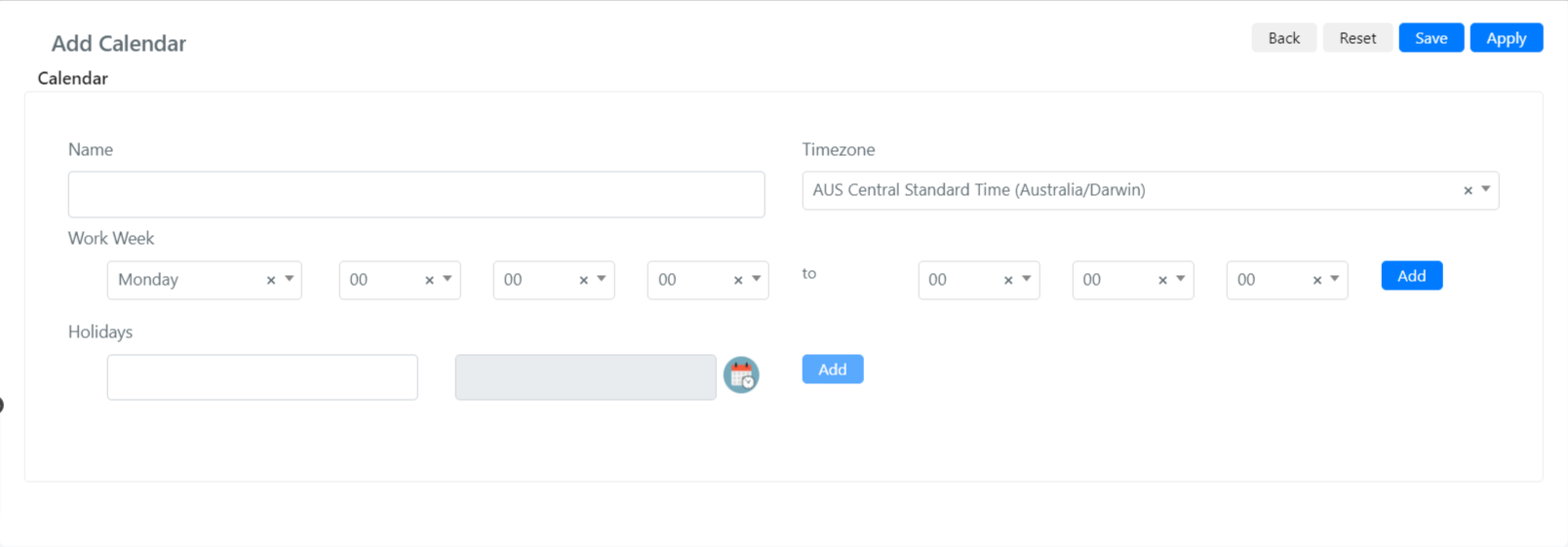
Click the Add Calendar button.
-
Fill in the Name field and set the correct Timezone.
-
Click Save or Apply.
Configure the Work Week
-
Navigate to System > Service Design > SLA > Calendar and click on the calendar you want to edit.
-
In the Working Week section, select the day you want to configure (for example, Monday).
-
Enter the morning start time (hour and minutes) and end time in the corresponding fields.
-
To configure afternoon working hours, fill in the second pair of time fields in the same row.
-
Repeat for each working day.

-
Click Save.
Configure Holidays and Business Suspension
-
Navigate to System > Service Design > SLA > Calendar and click on the calendar you want to edit.
-
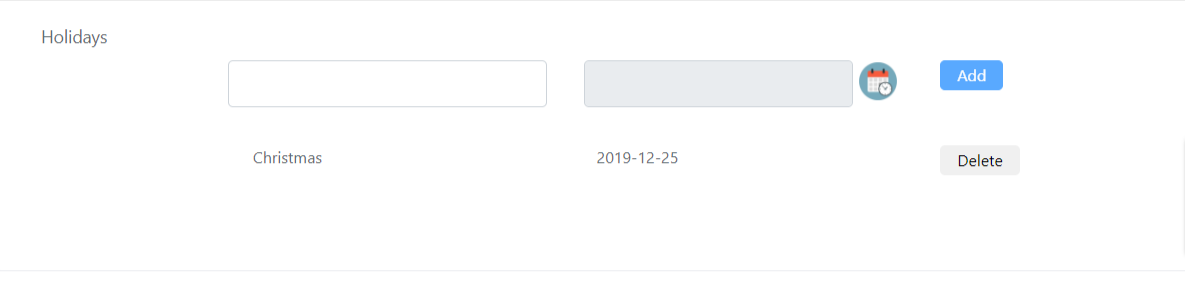
In the Holidays section, enter the name of the holiday (for example, "Christmas") in the first field.
-
Select the date using the date selector in the adjacent field.
-
Click Add to confirm the entry.
-
Repeat for all public holidays and suspension periods.
-
Click Save.