Configure SLA Goals
Goals in Deepser are the objectives that SLA metrics must achieve. You can define multiple goals for the same metric -- for example, different response time targets per customer or per priority level. This guide explains goal configuration and is intended for administrators managing SLA policies.
What Is a Goal
A goal defines by when a specific metric must be completed. For each metric you can create multiple goals that apply conditionally based on the customer, the priority of the Service Operation, or any other field.
Create a Goal
-
Navigate to System > Service Design > SLA > Metric.
-
Click on the metric to which you want to add a goal.
-
In the Goal section, click the + button.
-
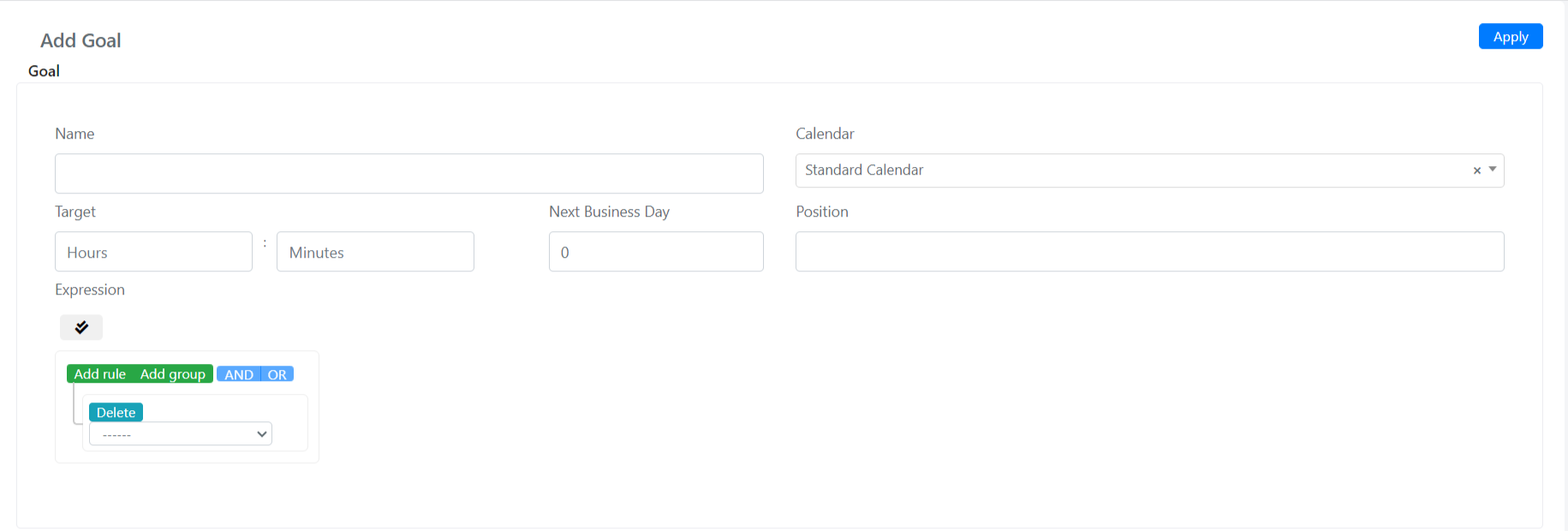
Fill in the fields:
Field Description Name The name you assign to the goal. Calendar The SLA calendar used for time calculations. Normally the default calendar is used, but you can select any available calendar. Target The time within which the goal must be met. Position Display order when multiple goals exist. Expression A query builder condition that determines when this goal applies (e.g., a specific company or priority). -
Click Save on the goal, then click Save on the metric to persist the changes.
Example: Company-Specific Response Goal
Suppose you want a 1-hour response target for Service Operations from "Acme International".
-
Navigate to System > Service Design > SLA > Metric and click the target metric.
-
Click + in the Goal section.
-
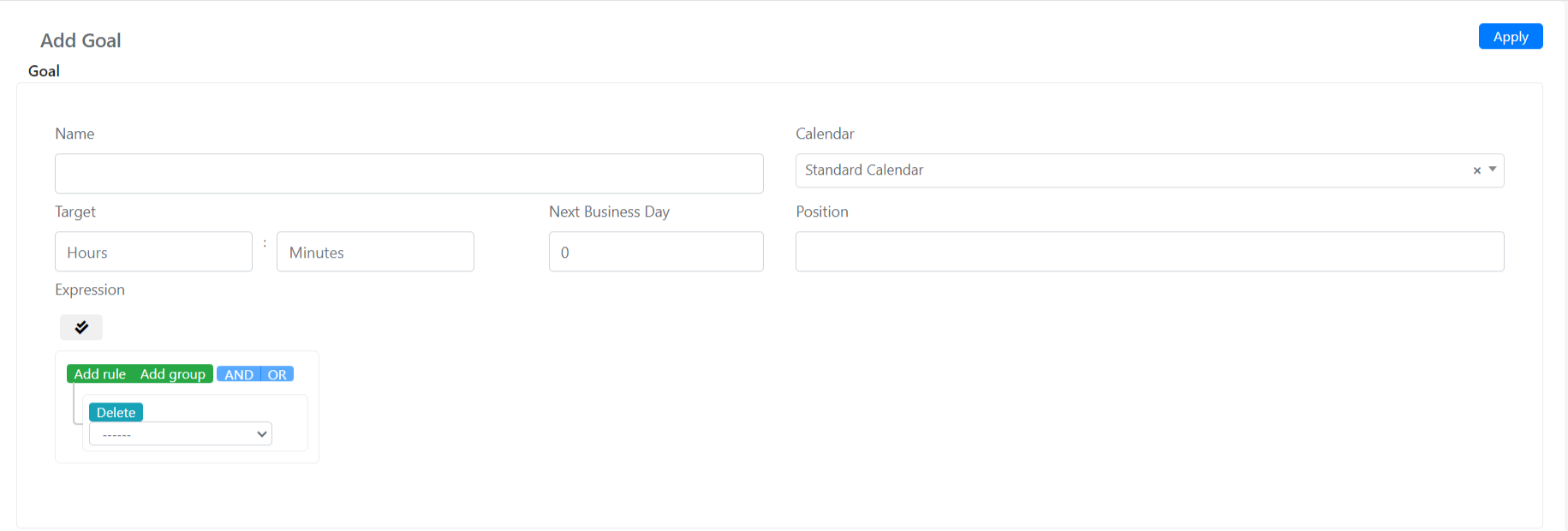
Set the Name to "Goal Acme International".
-
Set the Calendar to the appropriate calendar (e.g., "Demo Calendar").
-
Set the Target to 1 hour.
-
Leave Position blank -- it will be determined automatically.
-
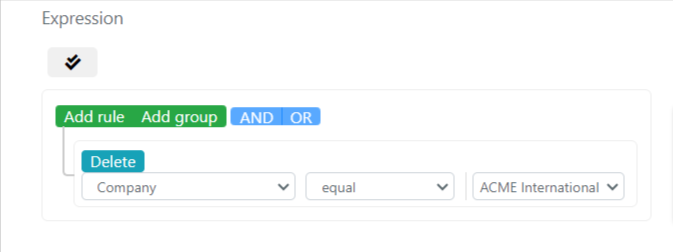
Configure the Expression to match the company:
-
Click Save on the goal, then Save on the metric.