Configure Quick Replies
In Deepser you can configure predefined quick replies that automatically populate text-area fields such as comments, email body messages, and solution descriptions. This guide explains how Administrators can set up quick replies and how Operators can use them in Service Operations.
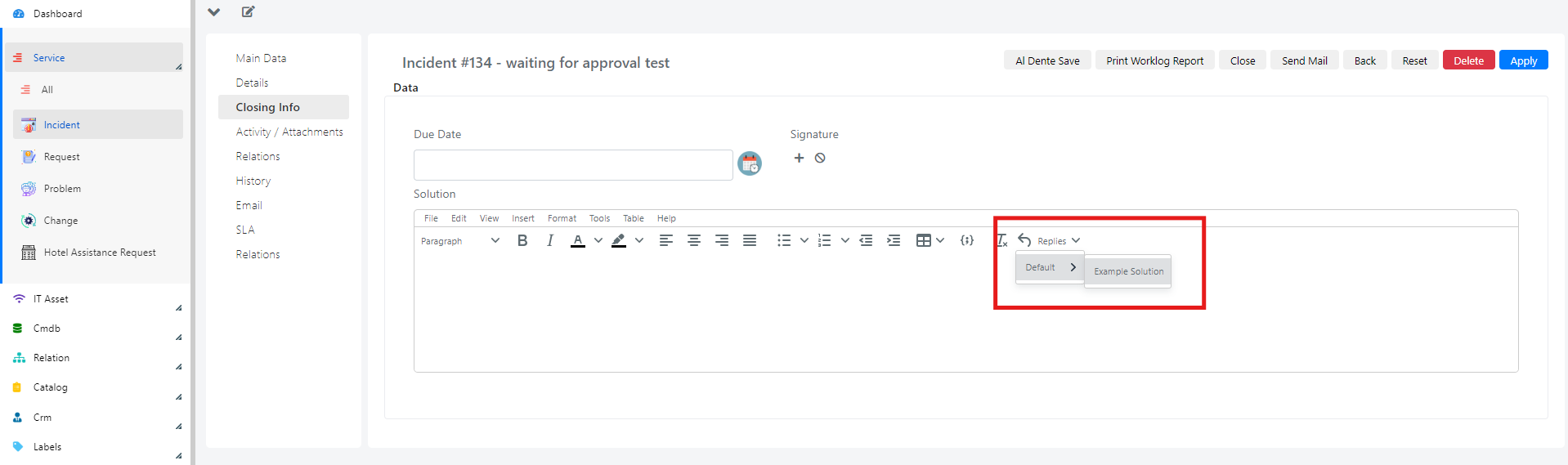
Create a Quick Reply
Automatic quick replies can be configured by an Administrator within various Deepser entities.
- Navigate to System > Quickreply > Reply. The following screen will appear:
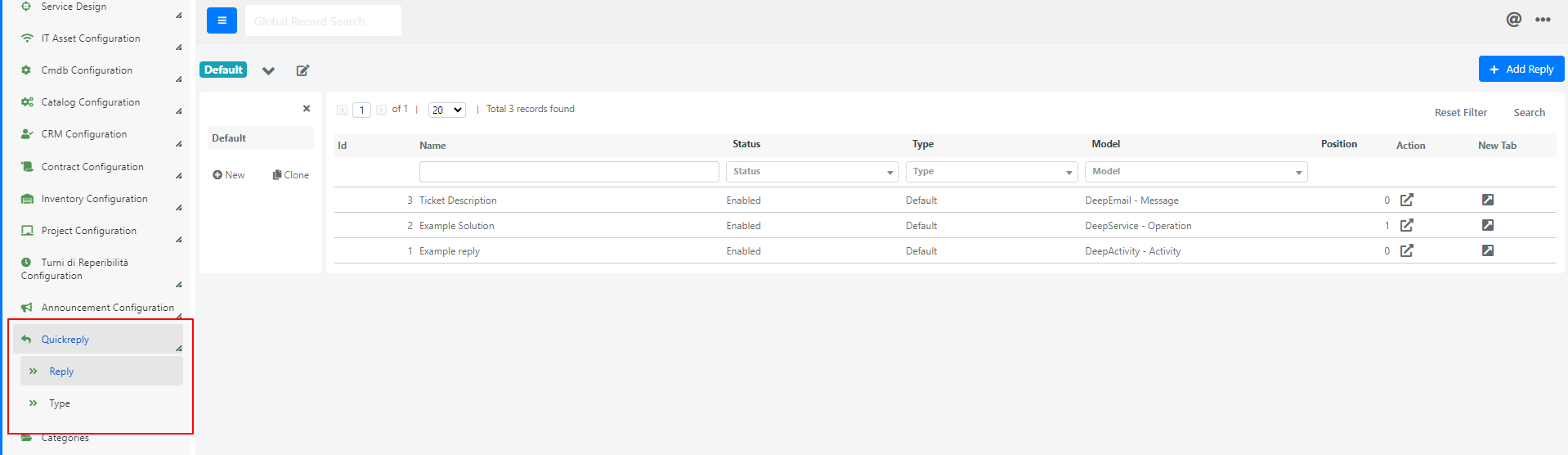
In this example, two different quick replies have been configured: one for the Operation model and one for the Activity model.
- Click the "Add Reply" button at the top right. The following screen will appear:
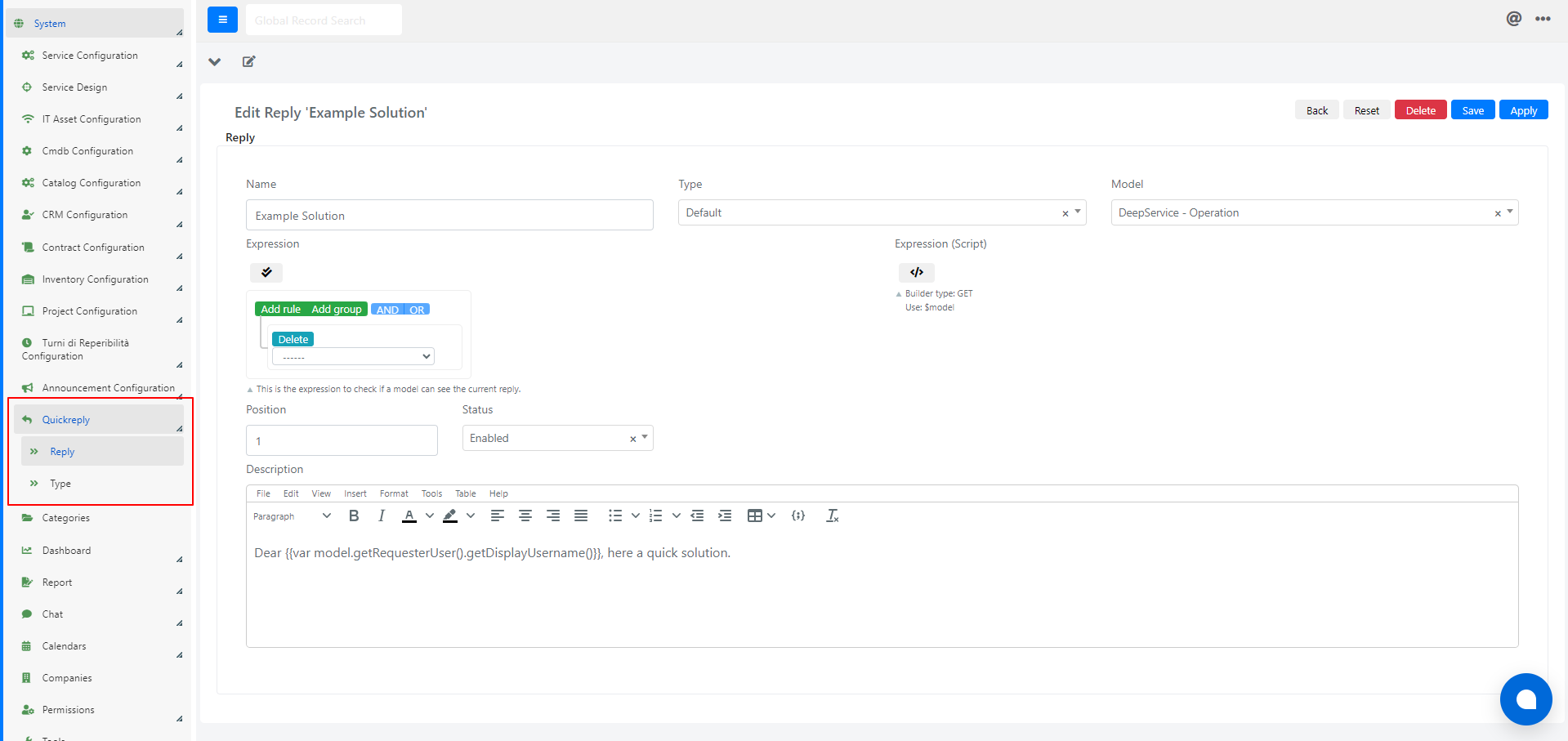
- Fill in the fields described below and save.
Quick Reply Fields
| Field | Description | Note |
|---|---|---|
| Name | The name of the quick reply | In the example, it is called "Example Solution" |
| Type | The type of quick reply | In the example the type is "Default" |
| Model | The model inside Deepser where you want to insert the quick reply | Examples: - If you want to insert the quick reply in a Service Operation comment, the model is "DeepActivity-Activity". - If you want to insert the quick reply in the Service Operation solution, the model is "DeepService-Operation". - If you want to insert the quick reply in the email message, the model is "DeepEmail-Message". |
| Expression | A query builder that allows you to filter by fields of the chosen model | Example: If you want to insert the quick reply in a Service Operation comment, filter by Model equal "DeepService-Operation". |
| Expression (Script) | Section where you can insert filters using custom code | |
| Status | The status of the quick reply | You can only use enabled quick replies. |
| Description | Personalized quick reply message | Note: The code inside the curly brackets is used to retrieve the name of the requester user. |
Use a Quick Reply
To use a predefined reply inside a text-area field (such as a comment, email body message, or solution description):
- Navigate to the desired field. In this example, we are on the "Solution" field in the Operation module, reachable from the "Closing Info" tab.
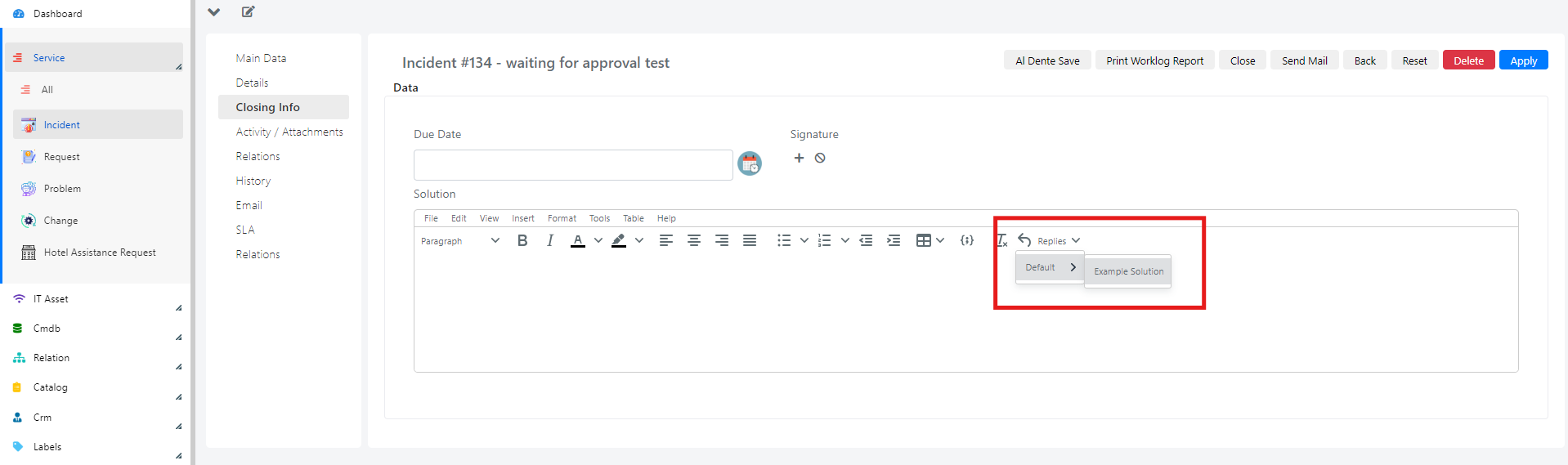
- Click on "Replies" within the field.
- Choose a default reply that has been previously configured (in this example, there is one configured quick reply in the Operation module with the type "Default" named "Example Solution").
Once a quick reply is selected, the field will be automatically filled with the default text configured earlier.
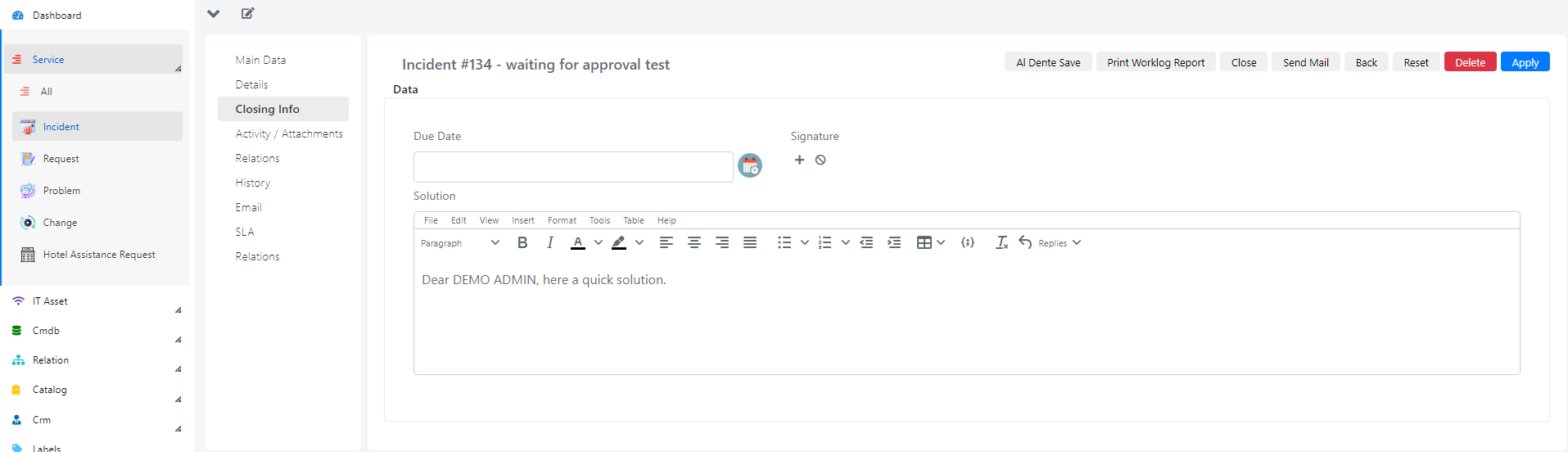
You can also customize the automatically inserted text according to your needs.
With proper configuration, you can insert a quick reply in a Service Operation comment or within the body of an email as well.