Create a Task Type
Tasks in Deepser are divided into categories called task types. This guide walks you through the procedure for creating a new task type, including setting its class, icon, and enabled models.
Create a New Task Type
To create a task type, navigate to System > Tools > Task > Task Type.
The following screen will open:

Click the Add Type button. The following screen will open:
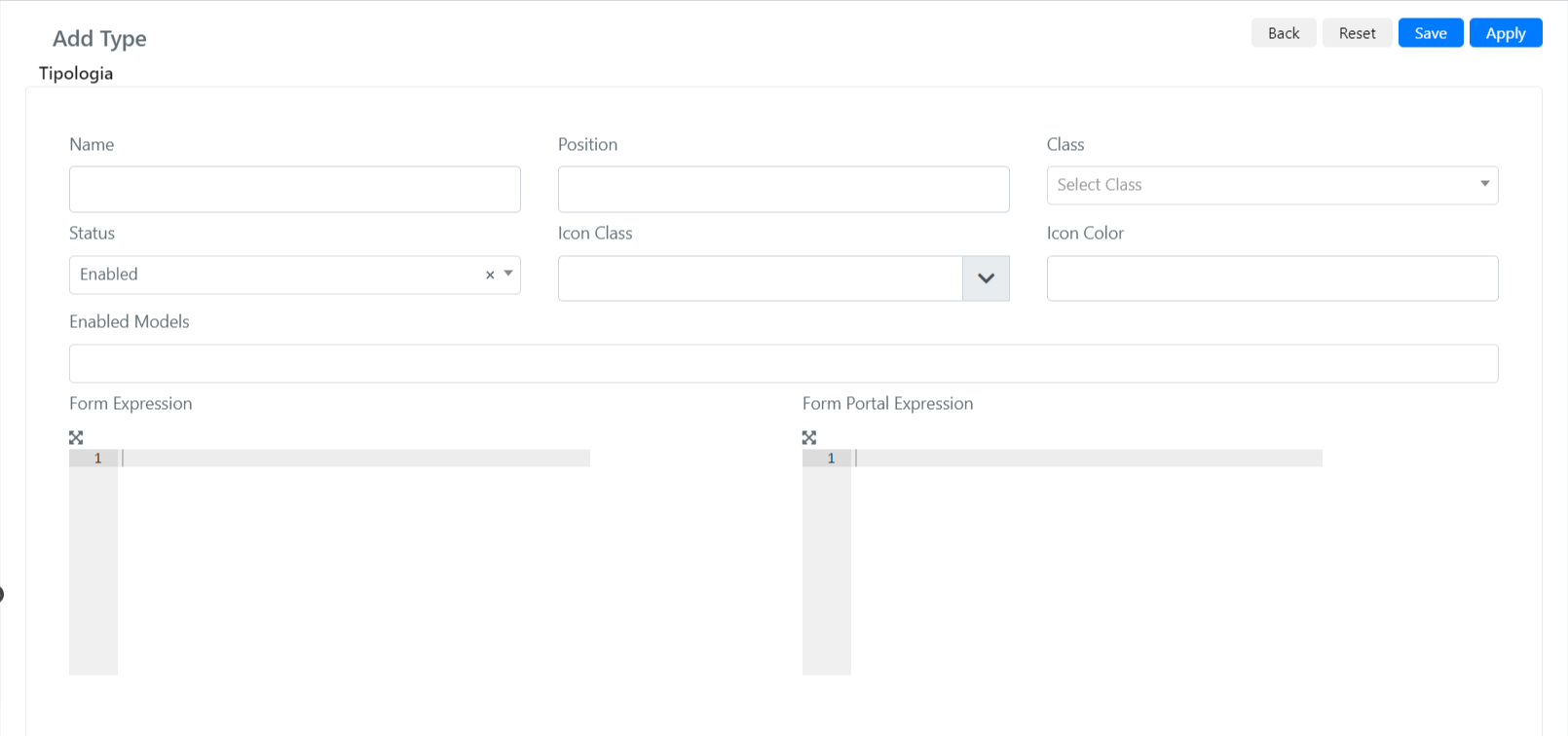
Below are the fields and their descriptions:
| Field | Description |
|---|---|
| Name | The name of the task type. |
| Position | The position this type will have in the list of tasks. |
| Class | The class of the task. There are three types: Task, Contact, Phone. For a generic task, the Task class is recommended. |
| Status | Sets the status to enabled or disabled. |
| Icon Class | Allows you to define the icon class of this task type. |
| Icon Color | Allows you to define the icon color of this task type. |
| Enabled Models | Defines on which Deepser entities these tasks will be visible and associated. |
| Form Expression | Defines the form that opens when you click the button to create a new task. If this field is empty, the form for creating a new task will also be empty. For configuration details, refer to the Form Configuration of Task Types guide. |
| Form Portal Expression | Defines the form that opens when you click the button to create a new task in the User Portal. If this field is empty, the form for creating a new task will also be empty. For configuration details, refer to the guide above. |
Once you have filled in all the fields, click the Save or Apply button.
Example: Creating a Task Class
In this example, you will create a task of the Task class. This example uses "Font Awesome" for the icon class.
This example produces a task class without a form expression, so the form that opens when you click the task creation button will be empty. To configure the form, refer to the Form Configuration of Task Types guide.
To create a task type, navigate to System > Tools > Task > Task Type.
The following screen will open:

Click the Add Type button. The following screen will open:
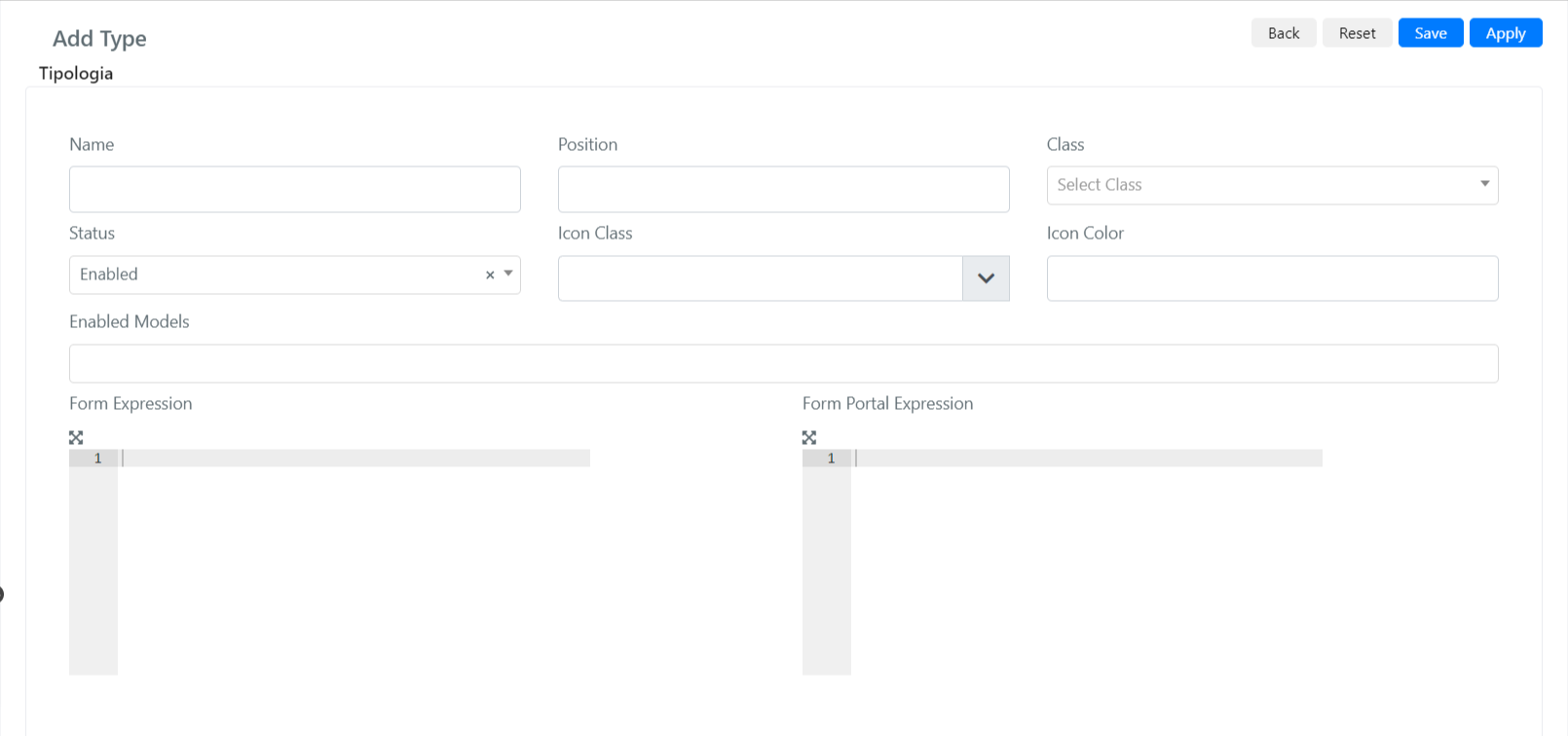
In the Name field, enter "Demo Task".
You can leave the Position field empty.
Configure the Class field as "Task".
In the Icon Class field, set the value "fab fa-centercode".
In the Icon Color field, enter the desired color -- in this case, "#7FFFB7".
Select "Deep Service -- Operation" in the Enabled Models field to create tasks inside the Service Module.
As the last step, click the Save or Apply button.
The task type will be saved and will become visible inside Service Operations.