Configure Task Type Forms
This guide explains how to configure the form of a task type created previously. Form expressions define what fields appear when users create new tasks in both the Deepser Backend and the User Portal.
Configure the Form Expression
To start the form configuration, follow these steps:
-
Navigate to System > Tools > Task > Task Type and select the task type you want to configure.
-
In the Form Expression field, enter the following code:
					$this->addField(
    'title',                                                //unique identification name of the field.
    'text',                                                 //type of the field
     array(
        'label' => Deep::helper('deep_task')->__('Title'),  //label of the field
        'name'  => 'title',                                 //name of the label
        'required'  => true,                                // if the filed is required
        'class' => 'required-entry',                        // css class for the field.
     )
);
$this->addField(
    'description',                                          //unique identification name of the field.
    'textarea',                                             //type of the field
     array(
        'label' => Deep::helper('deep_task')->__('Description'), //label of the field
        'name'  => 'description',                                //name of the label
        'required'  => false,                                    // if the filed is required
        'autogrow' => true
     )
);
- In the Form Portal Expression field, enter the following code:
					$this->addField(
    'title',                                                //unique identification name of the field.
    'text',                                                 //type of the field
     array(
        'label' => Deep::helper('deep_task')->__('Title'),  //label of the field
        'name'  => 'title',                                 //name of the label
        'required'  => true,                                // if the filed is required
        'class' => 'required-entry',                        // css class for the field.
     )
);
$this->addField(
    'description',                                          //unique identification name of the field.
    'textarea',                                             //type of the field
     array(
        'label' => Deep::helper('deep_task')->__('Description'), //label of the field
        'name'  => 'description',                                //name of the label
        'required'  => false,                                    // if the filed is required
        'autogrow' => true
     )
);
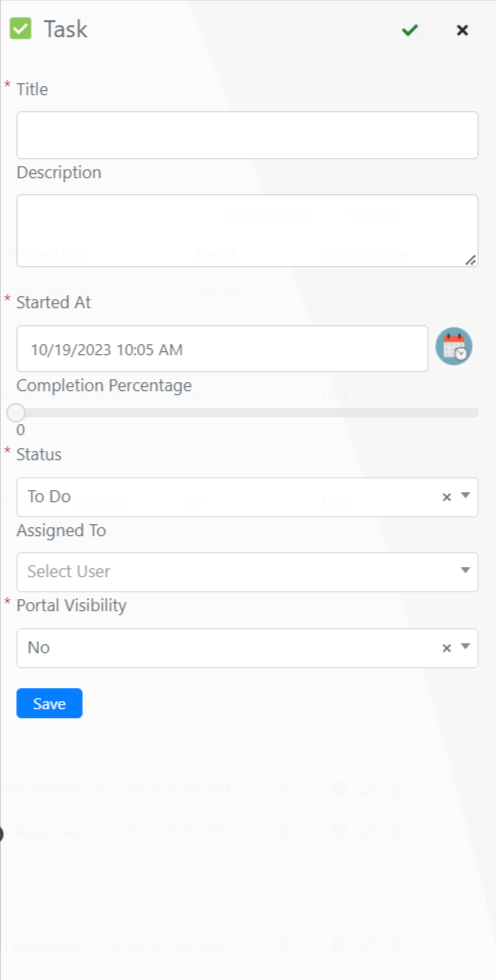
- Click the Save or Apply button. The result is shown below: