Task Global Grid
The global task grid is a configurable grid that allows you to view all tasks created in the system. It provides a centralized view of tasks across all modules and is accessible only from the Deepser Backend.
Access the Task Grid
You can reach the grid from anywhere in Deepser as follows: in the top-right corner, click the three-dot menu. You will see the Task items and the Work Activity item.
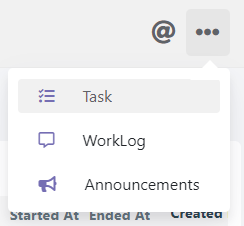
By clicking Task, you will access the grid. If not configured, it will show the following fields:
| Field | Notes |
|---|---|
| Action | Through a floating window, opens the entity containing the task (for example, the Service Operation in which the task is contained). |
| Id | The numeric and unique ID that identifies the task. |
| Status | The status of the task. |
| Type | Type of task. |
| Model Alias | The template that contains the task. |
| Owner User | The user who owns the task. By default, this is the user who created it. |
| Assigned User | The user who is assigned to perform the task. |
| Assigned Group | The group that is assigned to perform the task. |
| Portal Visibility | Visibility of the activity in the User Portal. By default, tasks are not shown in the User Portal. |
| Started At | The date that indicates the start of the activity. |
| Ended At | The date indicating the end of the activity. |
| Created by | The user who created the task. |
| Created at | The date and time indicating the creation of the task. |
Visibility
The global task grid has preset visibility. A Key User or Operator who accesses the grid will have visibility only of tasks that fall within at least one of the following cases:
- The user created the task
- The user owns the task
- The user is assigned the task
- The user is a member of the task assignee group
A user with an Admin role will have visibility of all tasks without any preset filter.
Task Global Grid Configuration
This section explains how to customize the global task grid, including which fields are displayed, their order, and how to enable mass actions and data exports.
Edit Grid Fields
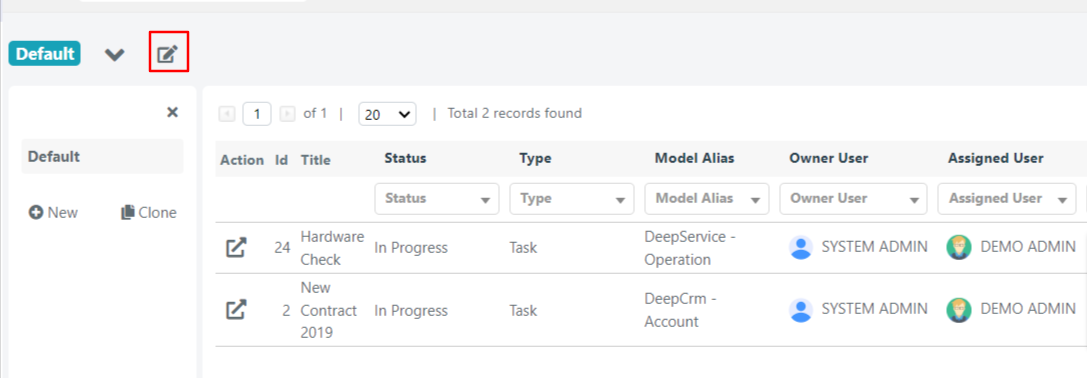
You can access the global grid configuration for tasks through the edit button shown below.
Inside, you can choose which fields to display and which to hide:
- The Available Columns list shows all fields that are not currently shown in the grid.
- The Visible Columns list shows all the fields that are currently displayed, and you can choose the order in which they appear.
To insert or remove fields from the grid, simply use the arrows at the ends of the fields.
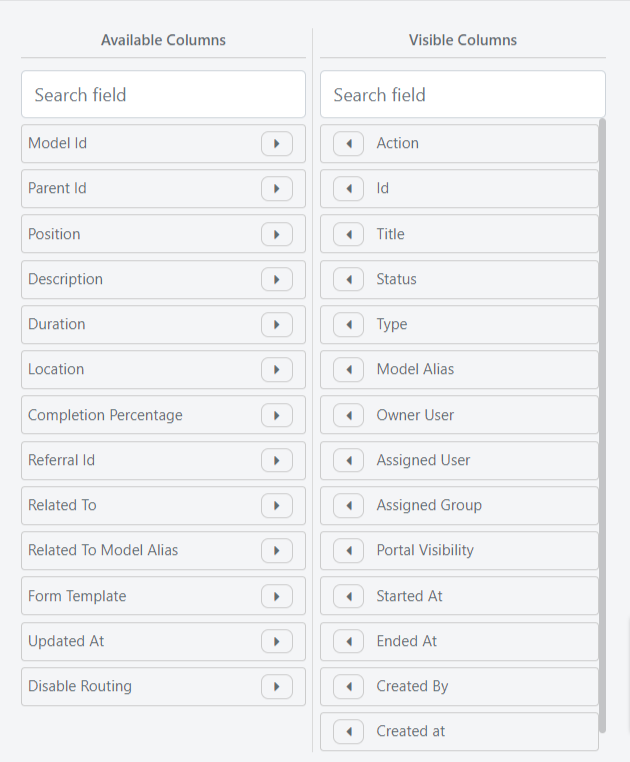
To change the order of displayed fields, use Drag & Drop -- simply drag the fields into the desired position.
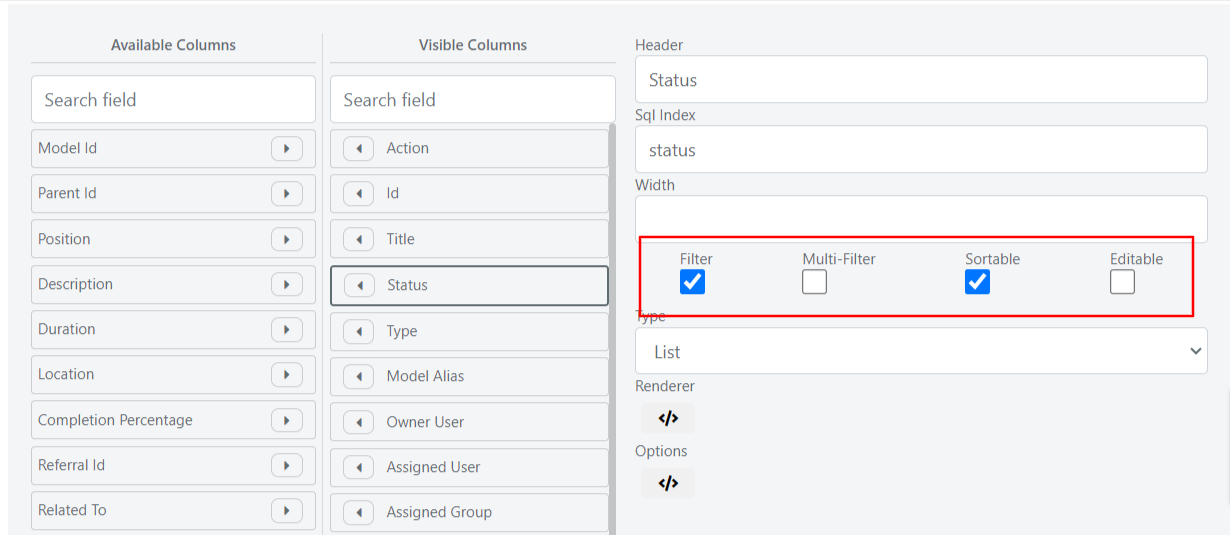
By clicking on one of the displayed fields, you can define whether the field is sortable, filterable, and/or multifilterable (in the case of a select field) through the respective checkboxes.
Collection of Tasks Displayed in Grid
Within the grid configuration, you can define the collection of tasks that are retrieved and shown in the grid through the Query Builder.
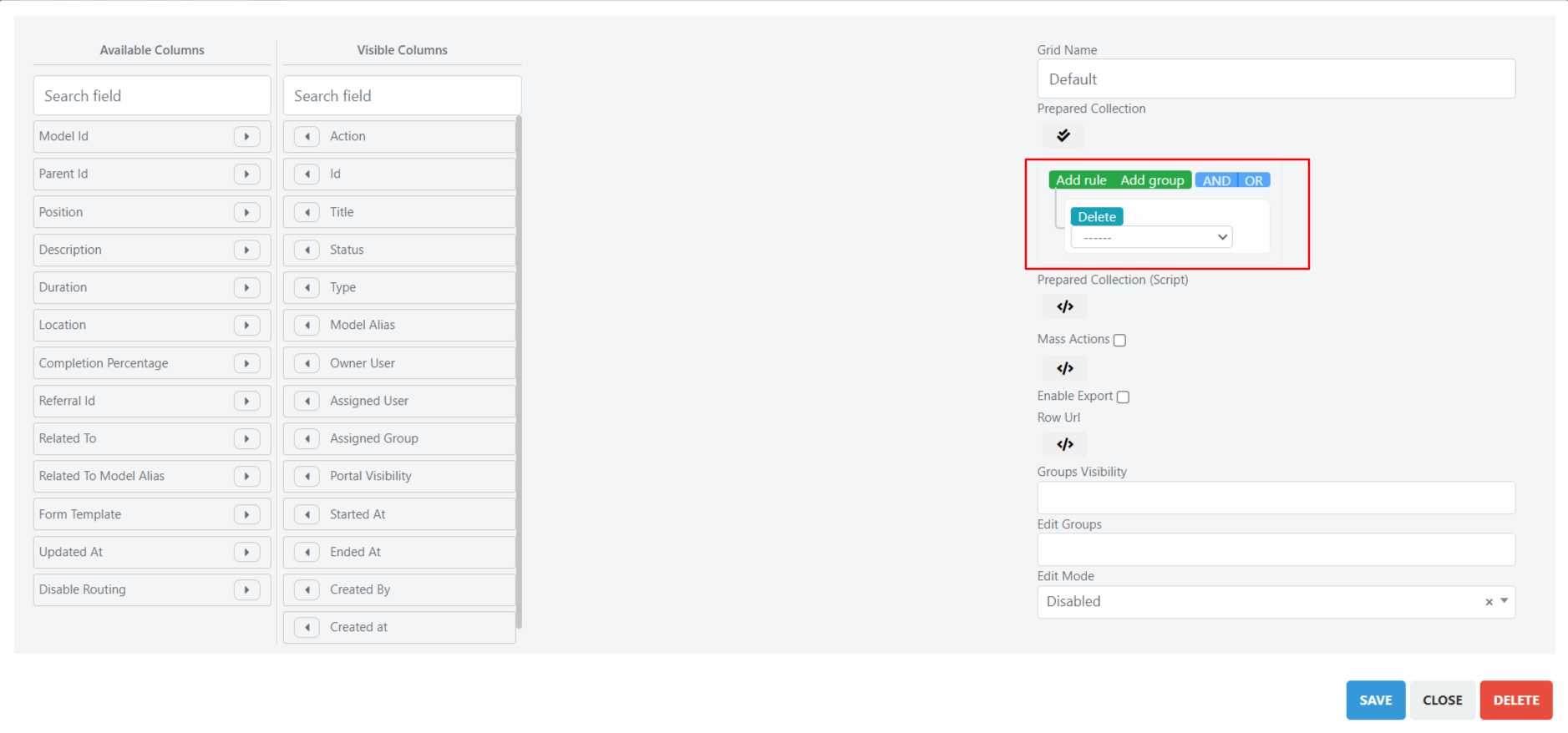
For example, you can view only the tasks that have been placed within Service Operations by setting the following condition in the Query Builder: Model equal DeepService -- Operation.

Mass Actions and Exports
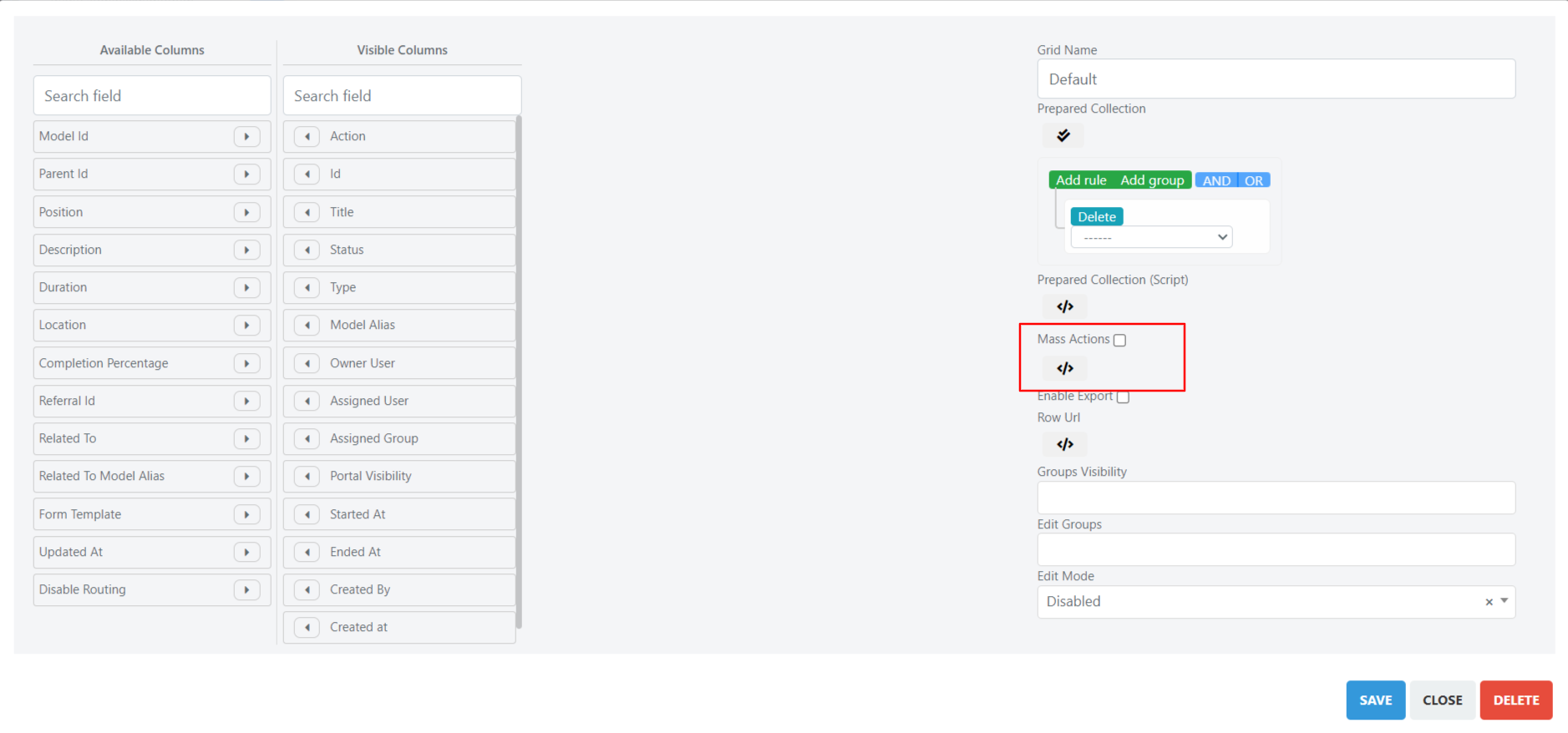
Through the Massive Actions checkbox, you can activate mass actions in the grid.
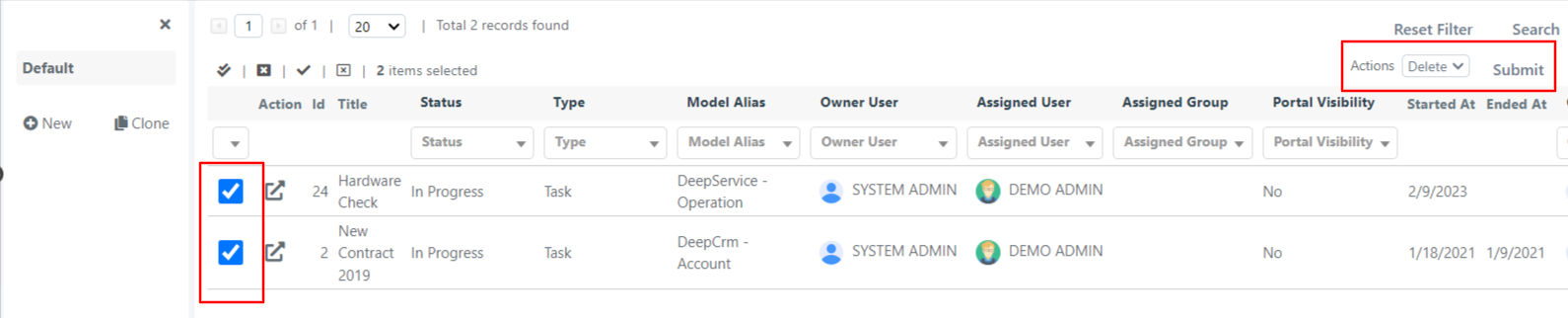
Mass actions allow you to modify one or more tasks through a grid selection. The mass action currently implemented by default is deletion.
Deletion through mass action will result in a physical deletion from the database. Deleted tasks can no longer be recovered.
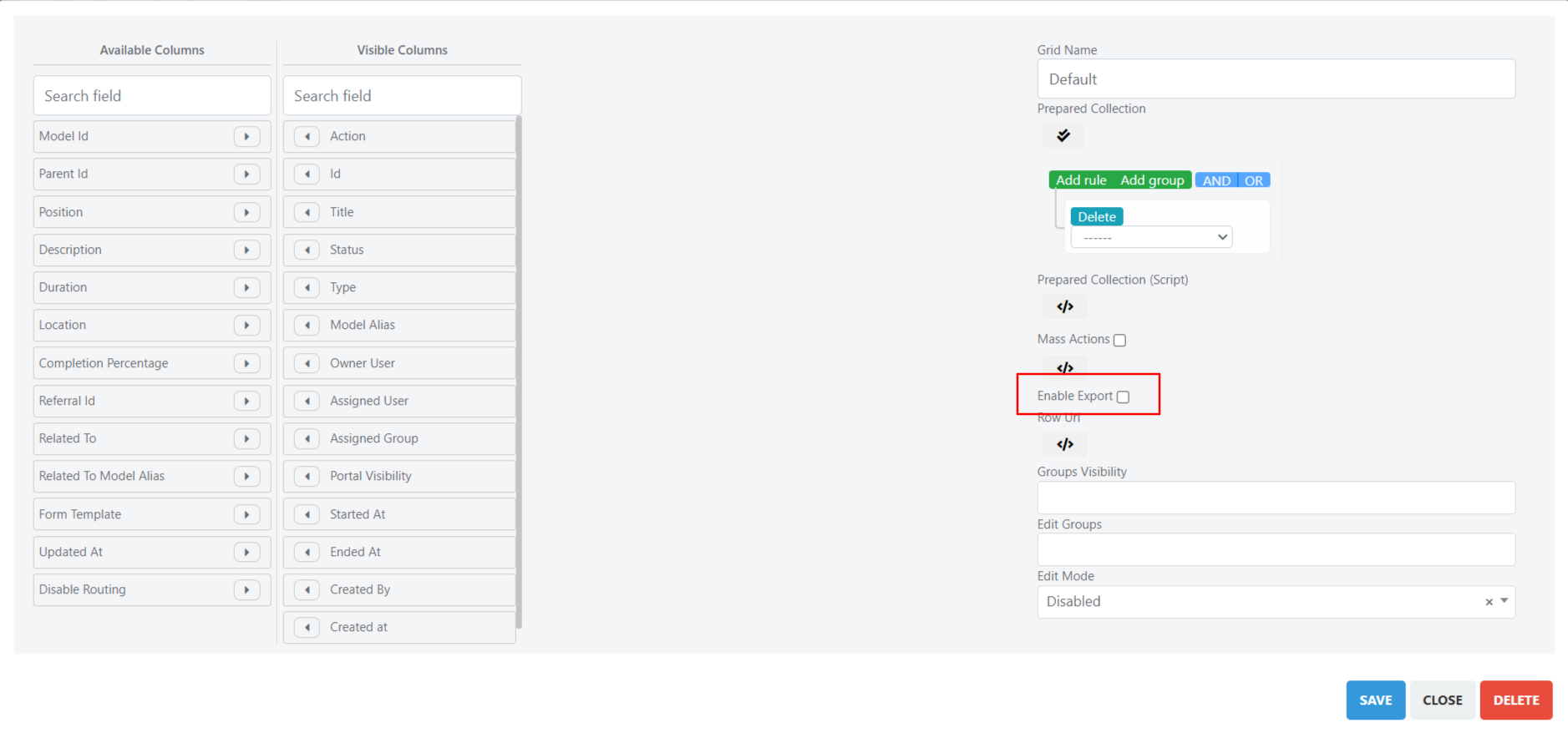
Through the Enable Export checkbox, you can enable the export of data displayed in the grid in XLSX or CSV format.
Once export is enabled, a field will appear in the grid that allows you to choose the format in which to extract the tasks, along with an export button.
The export will extract the data of the tasks shown in the grid in the desired format.
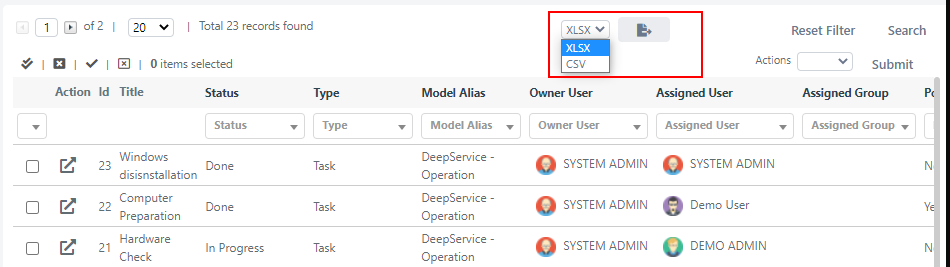
When you click the export button, a popup will ask whether you want to export only the tasks currently visible or all tasks.
Advanced Configuration
It can often be useful to set the same value on several different tasks. In these cases, mass actions are effective. This section explains how to configure custom mass actions for the global task grid.
The only mass action provided by default in the global task grid is the physical deletion of one or more tasks.
You can configure a custom mass action by accessing the grid editor. Below the Mass Action checkbox is the </> button that opens the custom PHP script area.
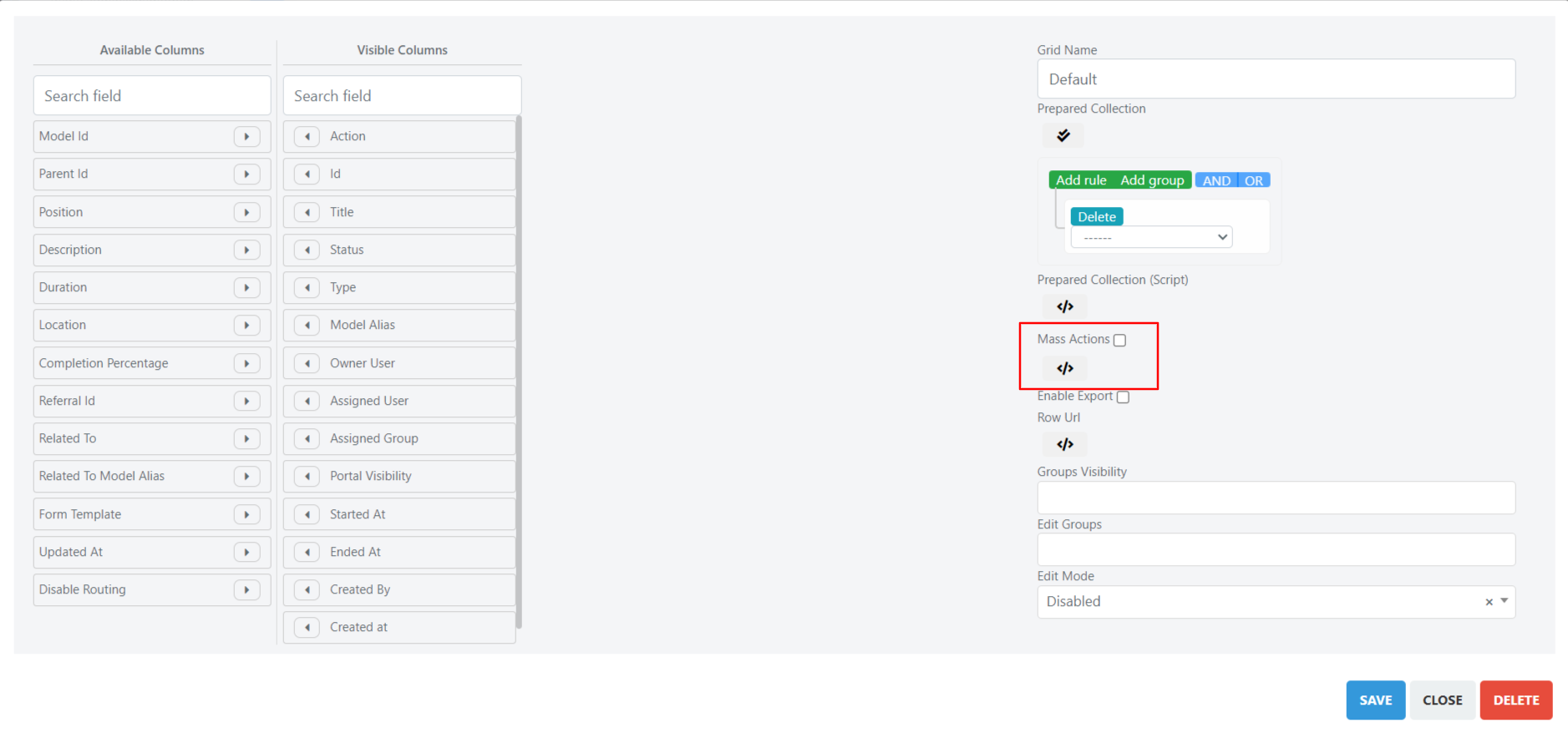
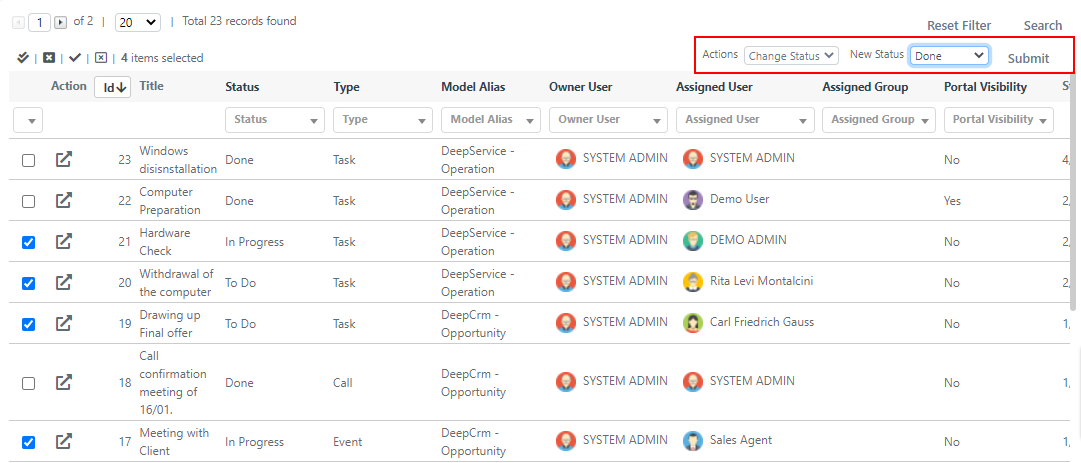
The following example shows the custom code that implements a mass action to change the status of one or more tasks. Insert the code directly into the custom PHP script area.
					// retrieve all states from the list task_task_status as associative arrays
$taskStatusArray = Deep::helper('deep_list')->loadListValues('task_task_status')->toOptionHash();

// initialize html component
$this->addMassActionItem('status', [
    'label' => 'Change Status',
    'additional' => array(
        'status' => array(
            'name'   => 'status',
            'type'   => 'select',
            'class'  => 'required-entry',
            'label'  => 'New Status',
            'disable_js_select' => true,
            'values' => $taskStatusArray,
        )
    ),
    //callback is the method that contains the logic of the action
    'callback' => function() {
        /** @var Deep_Grid_Model_Grid_Massaction_Callback $this */
        /** @var Mage_Core_Model_Resource_Db_Collection_Abstract $collection */
        $collection = $this->getGrid()->getModelInstance()->getCollection();

        //$this->getIds() returns the id of the selected tasks
        $collection->addFieldToFilter('entity_id', ['in' => $this->getIds()]);

        // $collection contains the instances of the selected tasks and we iterate on them
        foreach($collection as $task){
            //$this->getValue() contains the id of the new status, the selected one
            //set the new status
            $task->setStatus($this->getValue());
            //save the task
            $task->save();
        }
    }
]);
By entering this script, you can then select one or more tasks and change their status to the selected value.