Use the Flow Designer
The Flow Designer is the primary module for building and managing workflows in Deepser. It provides a visual drag-and-drop interface where you can define triggers, actions, and logic blocks to automate your business processes.
Accessing the Flow Designer
- Open your Deepser Backend.
- Click on the Flow module, then select Designer.
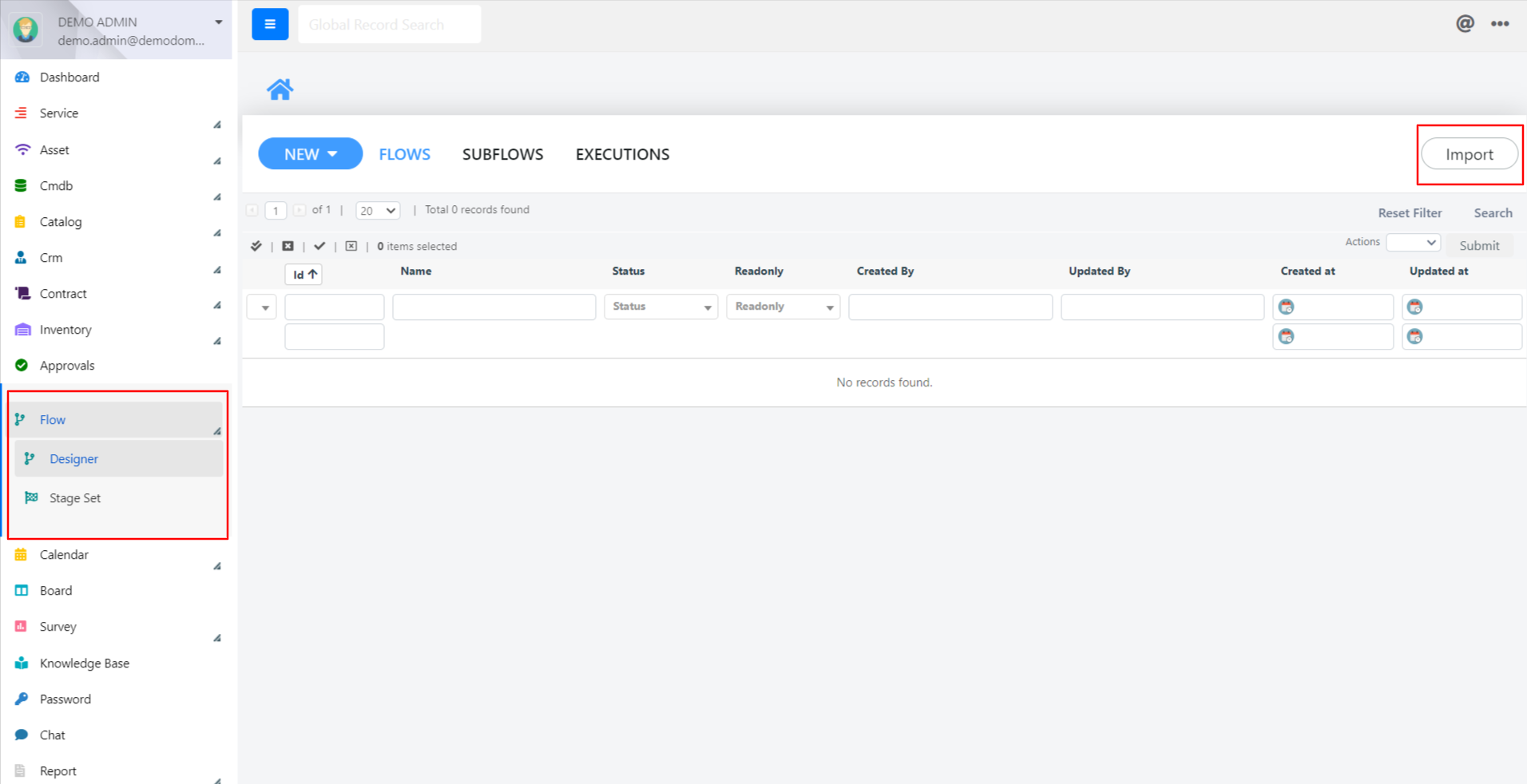
The following screen will open:
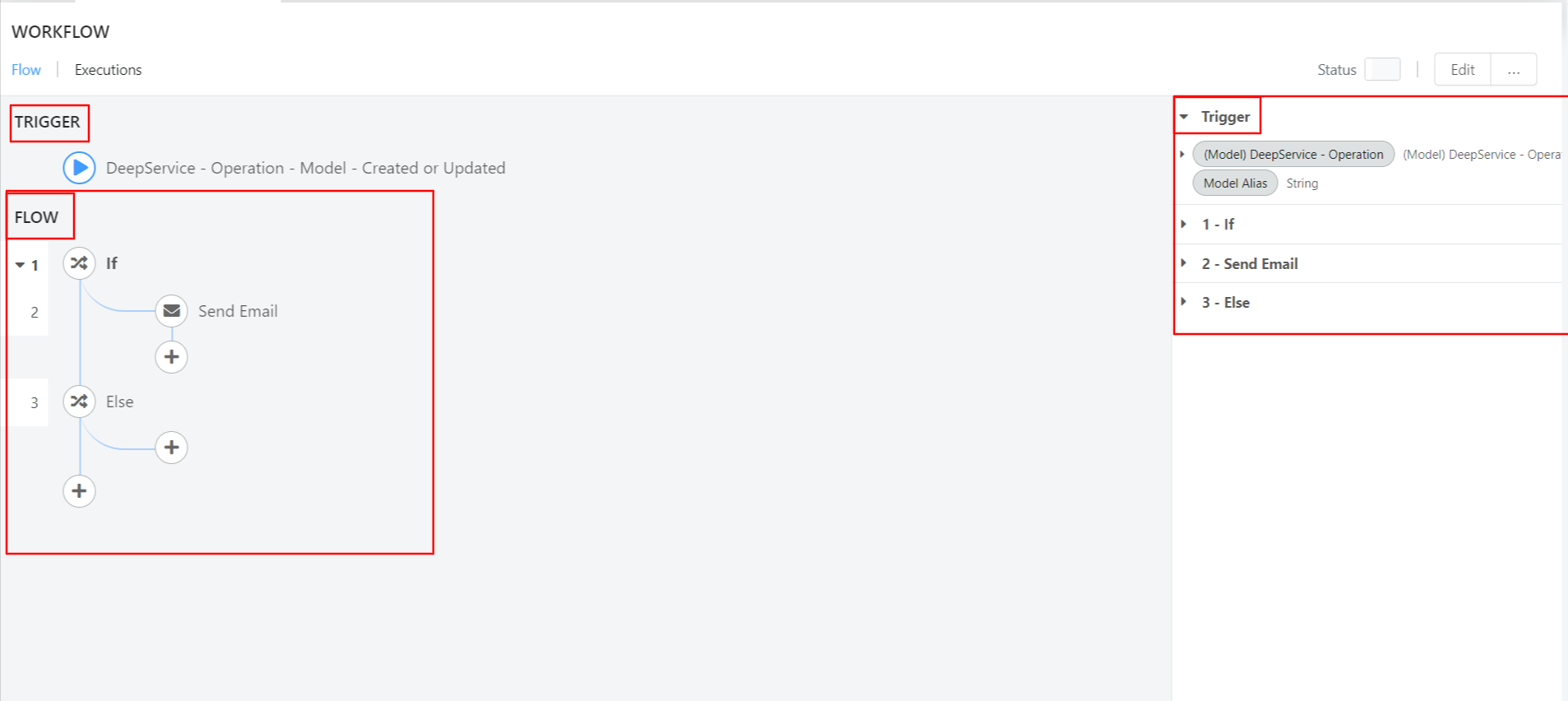
Designer Layout
The Flow Designer is divided into the following areas:
- Trigger section (upper area) -- The starting point that determines when the flow runs. For example, your flow might start when a Service Operation changes its status to "In Approval."
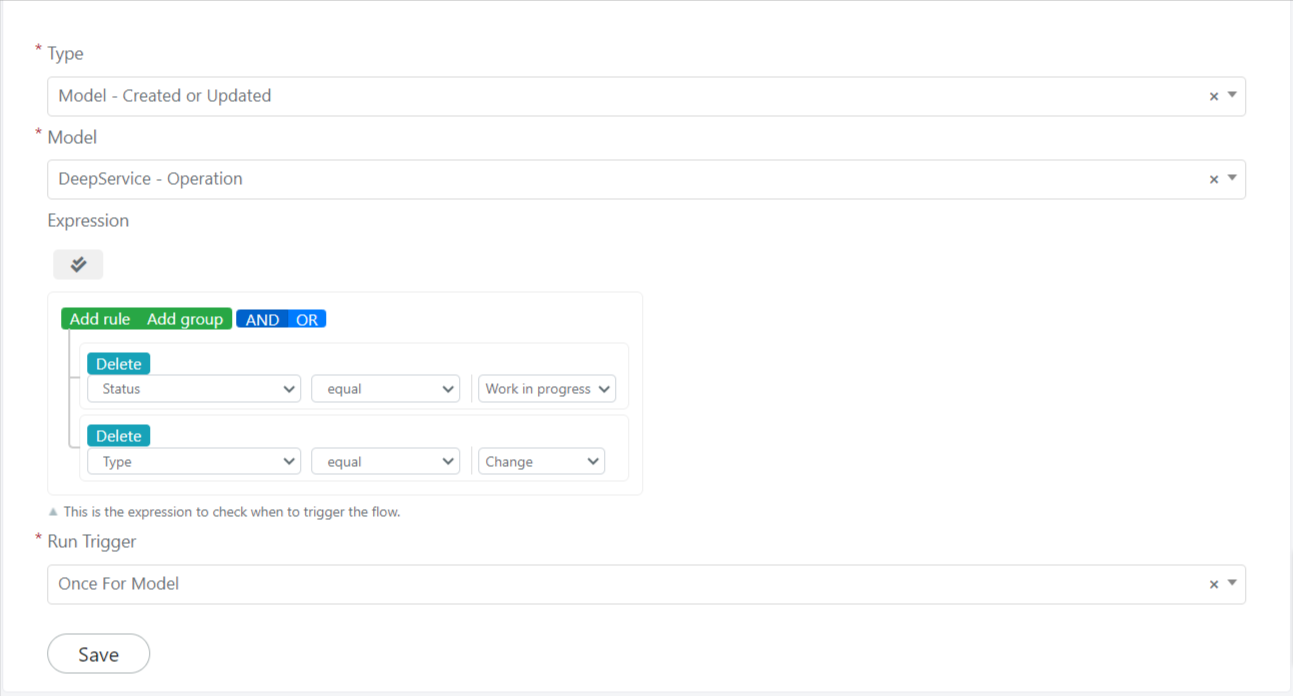
-
Flow section (lower area, inside a red square) -- The process logic itself, where you build the sequence of actions and conditions.
-
Variables panel (right side) -- Contains variables that can be dragged and dropped into the Trigger section and the Flow section.
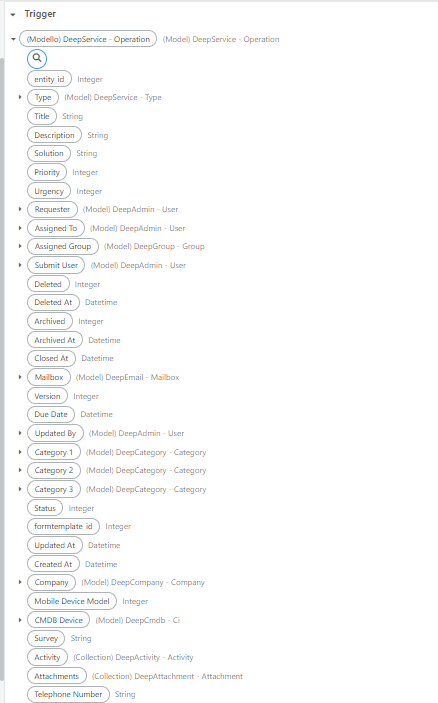
- Status button (top right) -- Enables or disables the flow process.
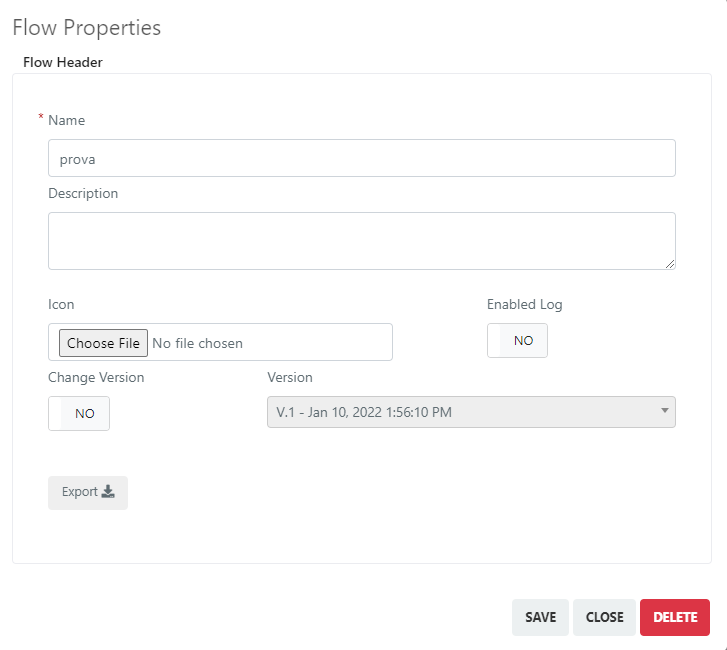
- Edit button (top right) -- Opens the flow properties.
Export and Import a Flow
An important flow property is the Export function. To export a flow:
- Click the Edit button to open the flow properties.
- Click the Export button.
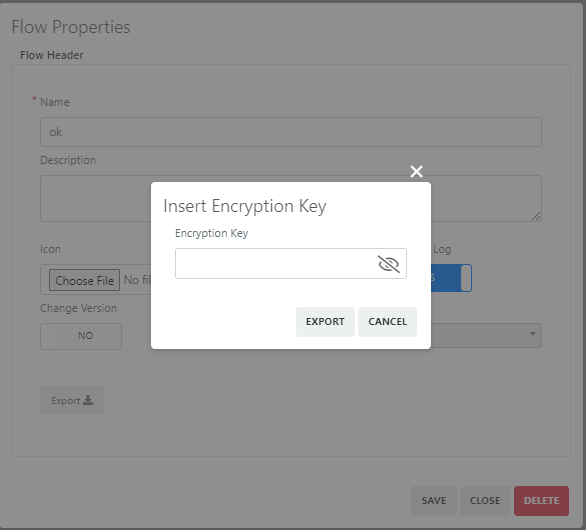
- Insert an encryption key and export the flow to a .txt file.
To import a flow, use the Import button on the main page of the Flow Designer module (see the first image above).
Duplicate a Flow
Deepser allows you to duplicate an existing flow to replicate a pre-configured process, saving time and ensuring consistency.
- Open the flow you want to duplicate.
- Click the Edit button in the top-right corner (next to the Status button).
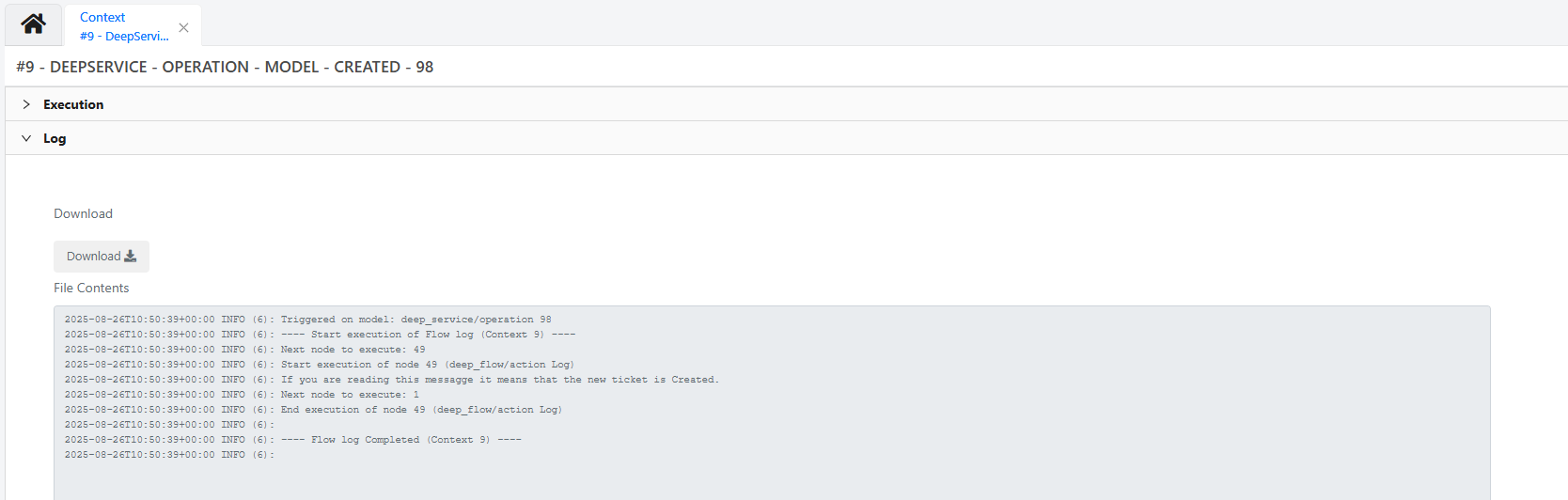
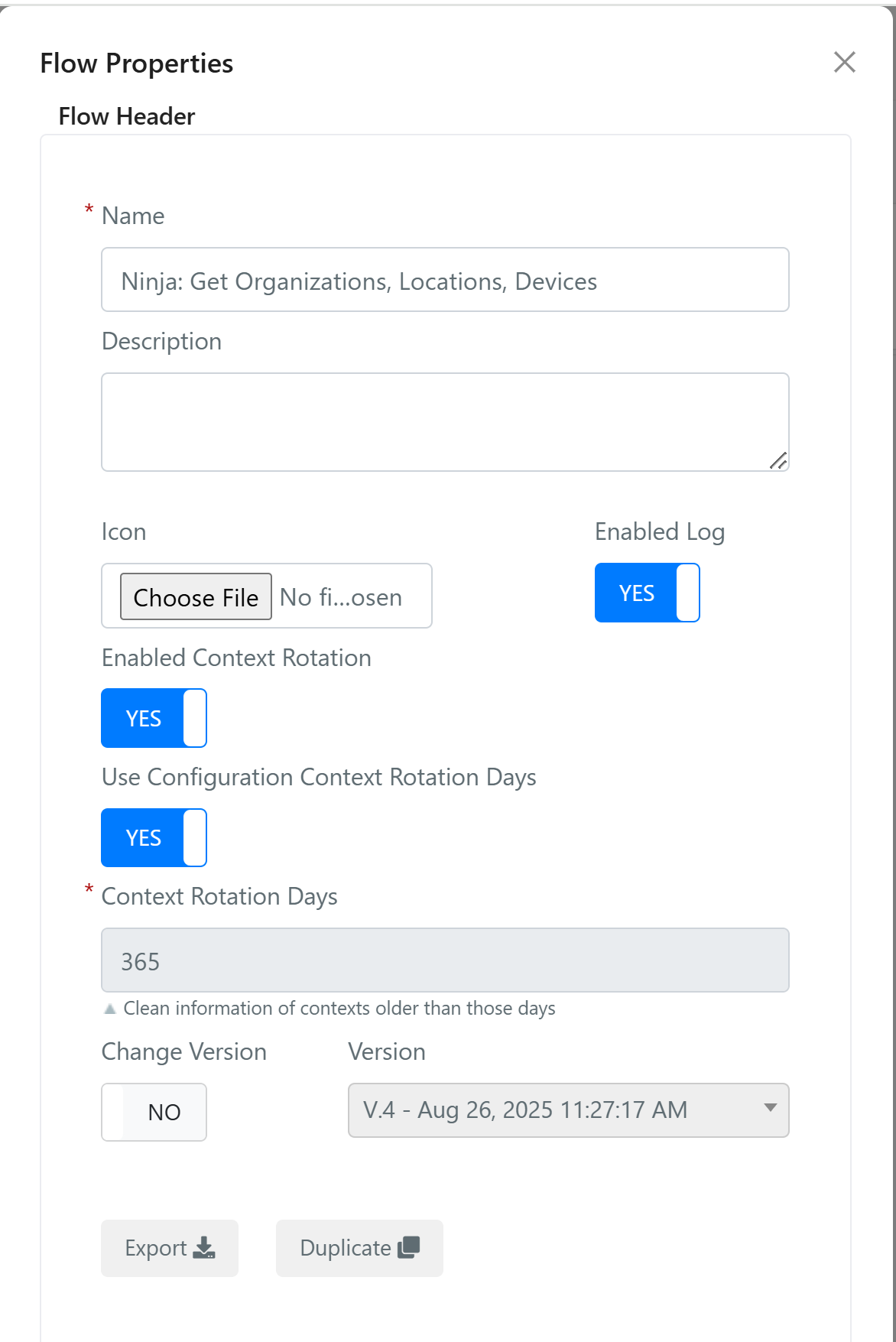
- Click the Edit button to open a new window. At the bottom of this window, click the Duplicate button.
-
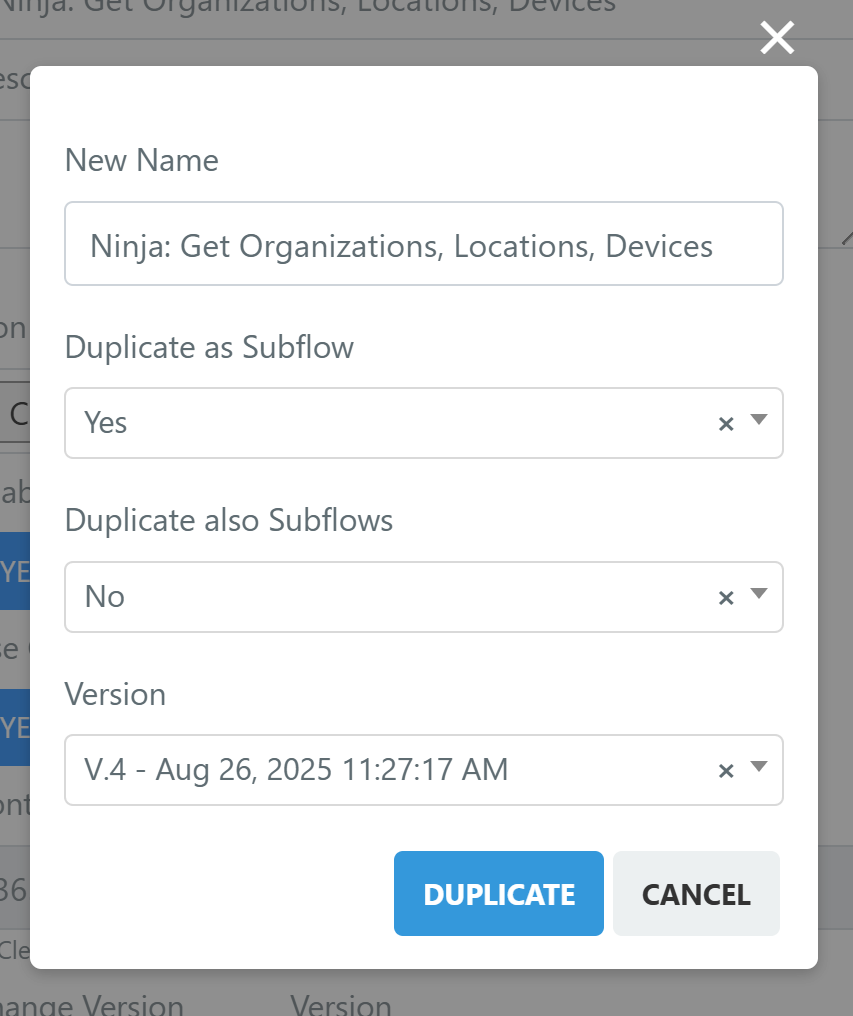
Configure the duplication options:
- New Name -- The name for the duplicated flow.
- Duplicate as Subflow -- Set to Yes to create a SubFlow instead of a standard flow.
- Duplicate also Subflows -- Include any referenced SubFlows in the duplication.
- Version -- Set the version number.
-
Click the blue DUPLICATE button to proceed.
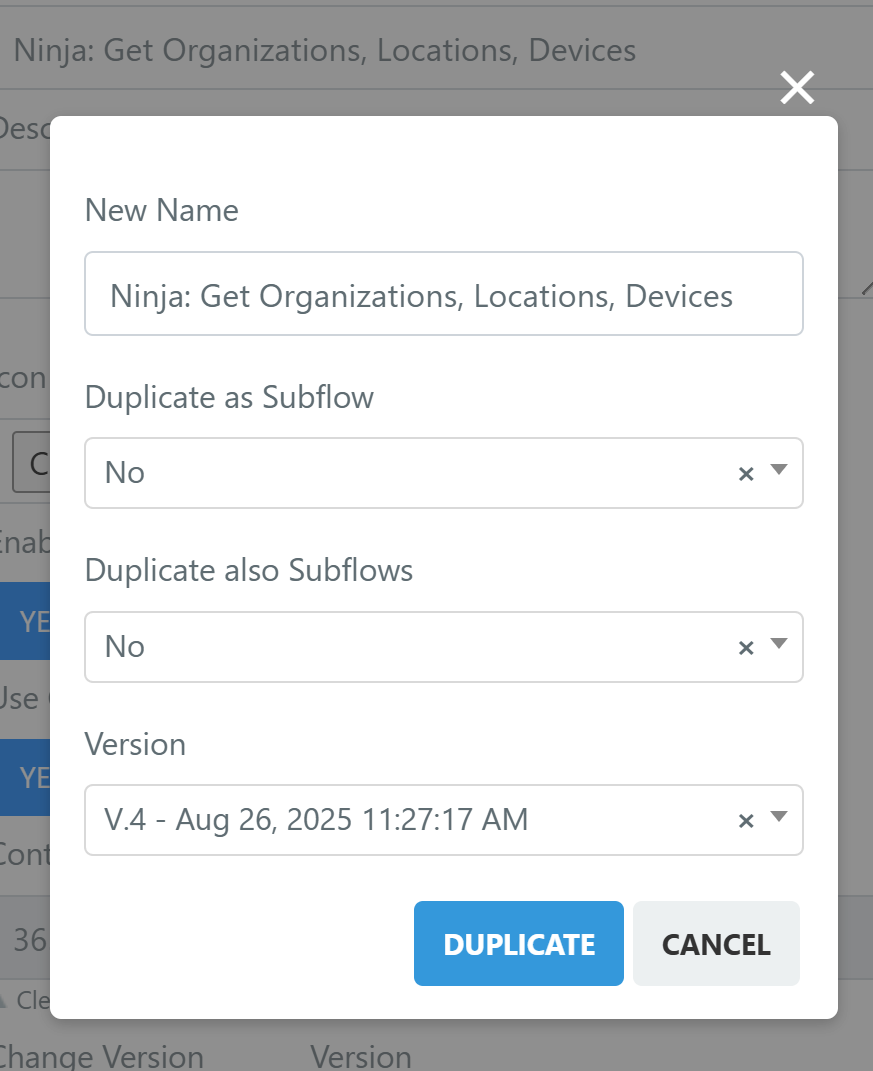
To duplicate as a Subflow, change the Duplicate as Subflow option to Yes before clicking DUPLICATE.
For details on available action nodes such as Log Action, Create Variable, and Delete Record, see Workflow Actions.
Related Articles
- Flow Triggers -- Configure when a flow runs
- Workflow Actions -- Available action blocks
- Workflow Logic -- Conditional and loop blocks
- Workflow Samples -- Complete flow examples