Configure Workflow Stage Sets
The Stage Set module allows you to divide a workflow into clearly defined steps. Each stage represents a phase in your process, making it easier to track progress and communicate status to stakeholders. For example, an approval workflow might include stages such as "In Approval," "Approved," and "Not Approved."
Create a Stage Set
- Open your Deepser Backend and click on the Flow module, then select Stage Set.
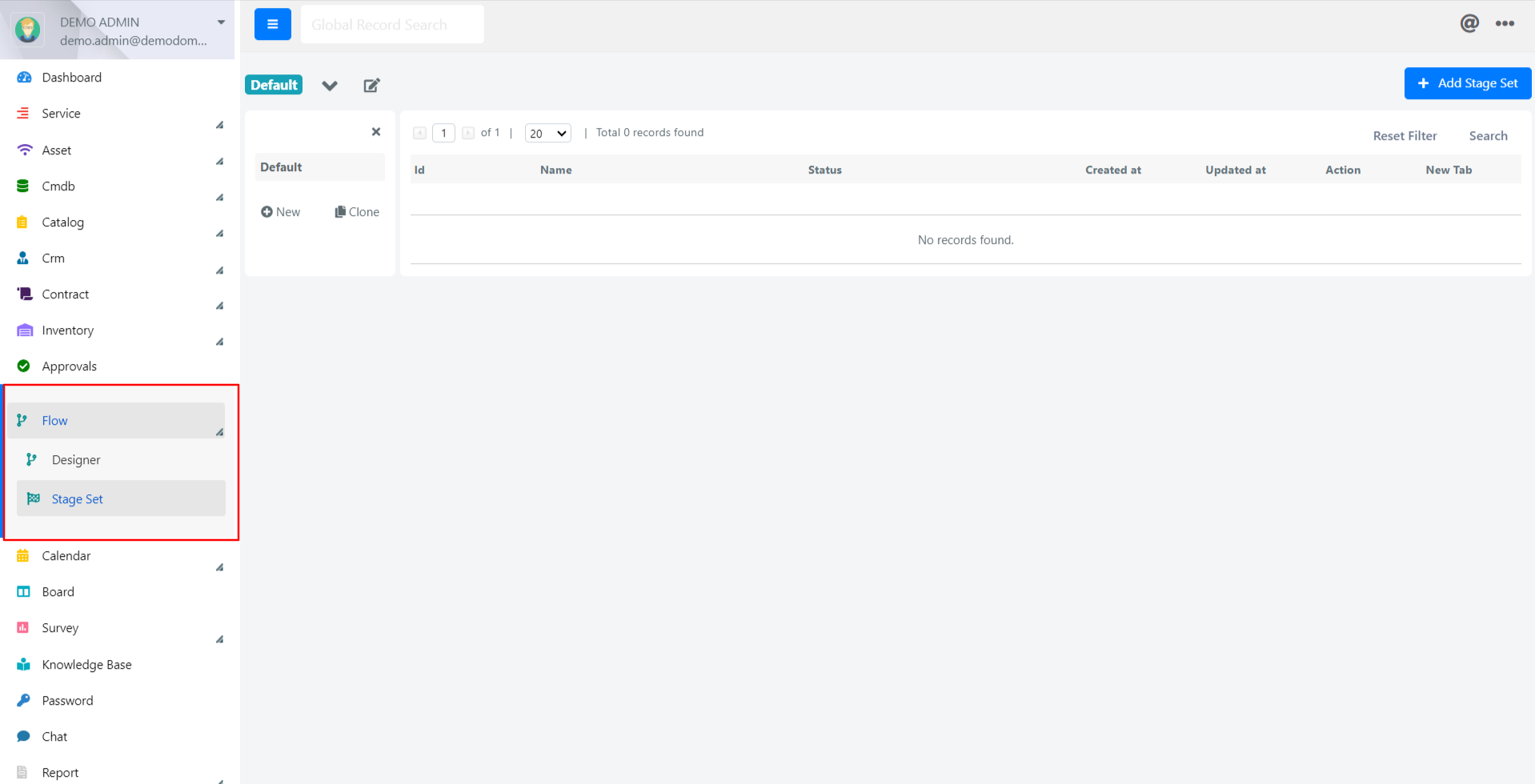
- The Stage Set list screen will open. Click the Add Stage Set button to create a new set.
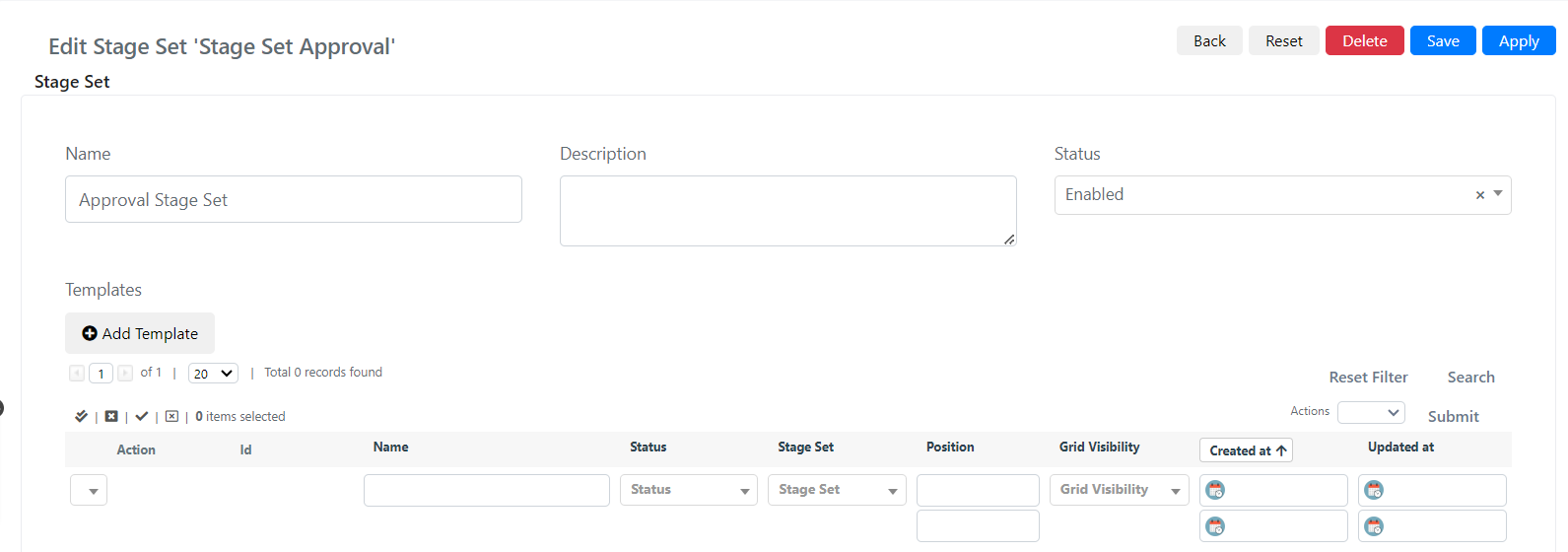
- Enter a Name for the Stage Set and click Save.
Add Stages to the Set
- Click the Add Template button located in the middle of the form template.
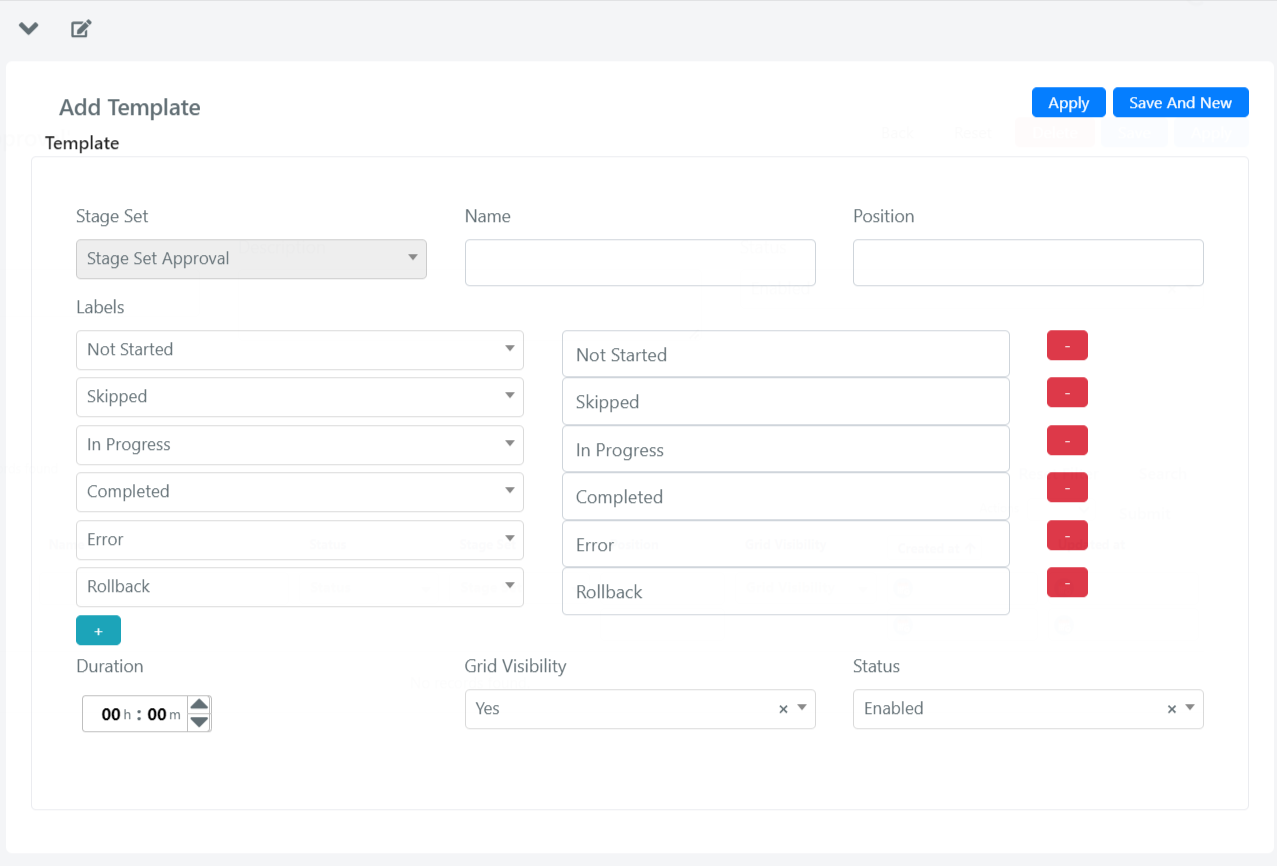
- Configure each stage using the fields described below, then click Save And New to add the next stage, or Save when finished.
Stage Template Fields
| Field | Description | Note |
|---|---|---|
| Name | Represents the name of the stage. | For example, "In Approval". |
| Labels | Represents the status labels that can occur during execution of the stage process. | The status "Completed" means the stage has been completed. The status "Skipped" means the stage was bypassed, and so on. |
| Duration | Represents the time reference for each stage. | Useful for tracking how long each phase should take. |
The final outcome will be:
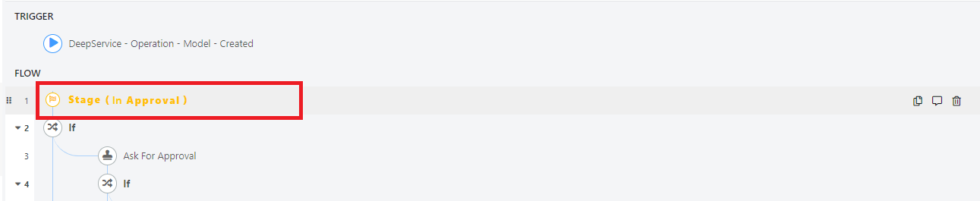
Import a Stage Set into a Flow
After configuring your Stage Set, you can import it into any flow via the Flow Designer. In the flow editor, click the three-dot menu in the upper right, select the Stage Set from the dropdown, and click Import. The stages will appear in the flow and can be referenced by Stage action blocks.
For a complete walkthrough, see Configure a Multi-Stage Approval Flow.
Related Articles
- Configure a Multi-Stage Approval Flow -- Use Stage Sets in a multi-stage approval workflow
- Workflow Actions -- Stage and Stage Error action blocks
- Use the Flow Designer -- Build and manage workflows