Monitor Workflow Executions
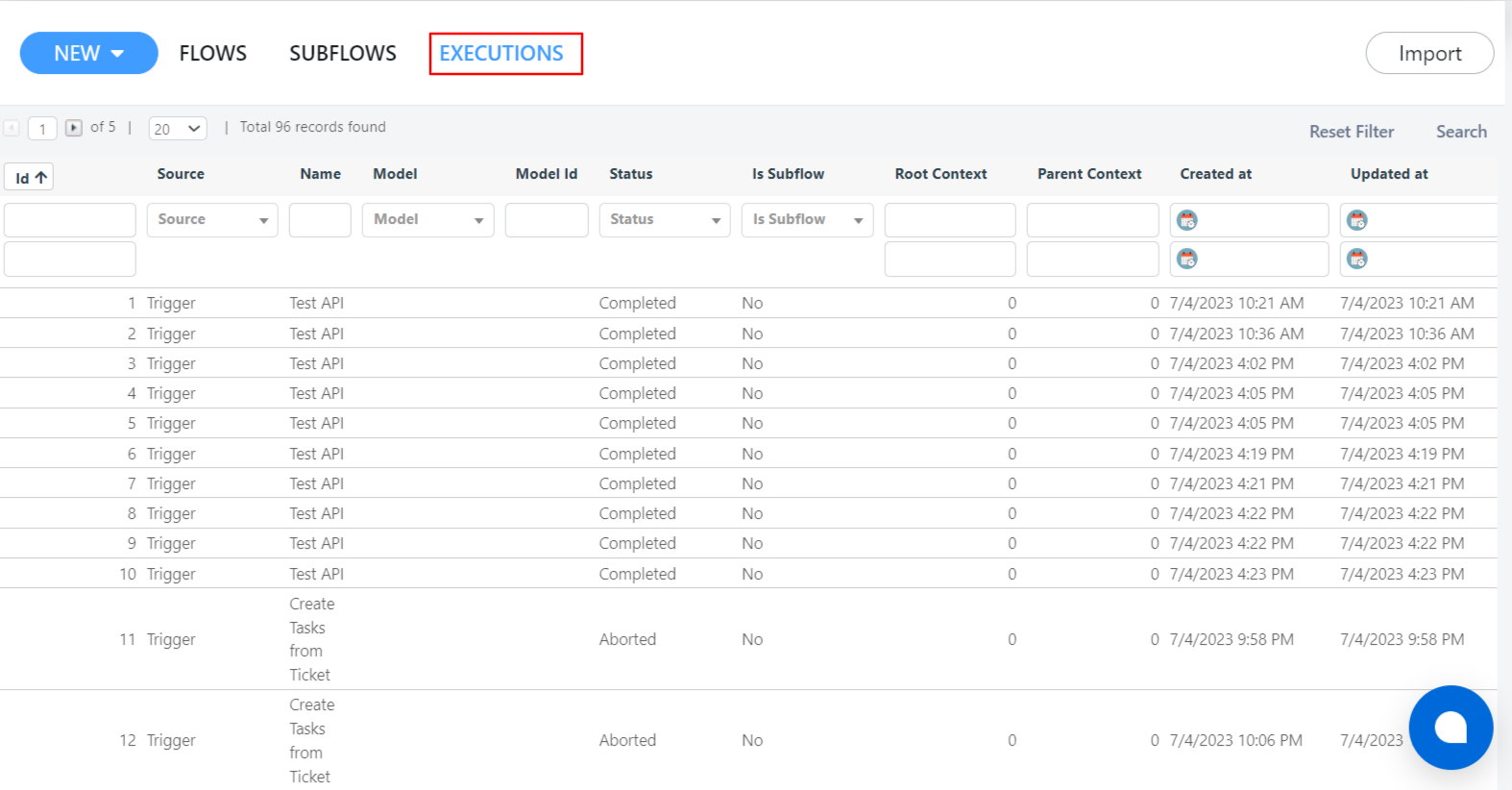
The Executions tab lets you review every run of a workflow, including its current status, completed steps, and any pending actions. This is essential for monitoring and troubleshooting your automated processes.
Accessing the Executions Tab
- Open your Deepser Backend.
- Click on the Flow module, then select Designer.
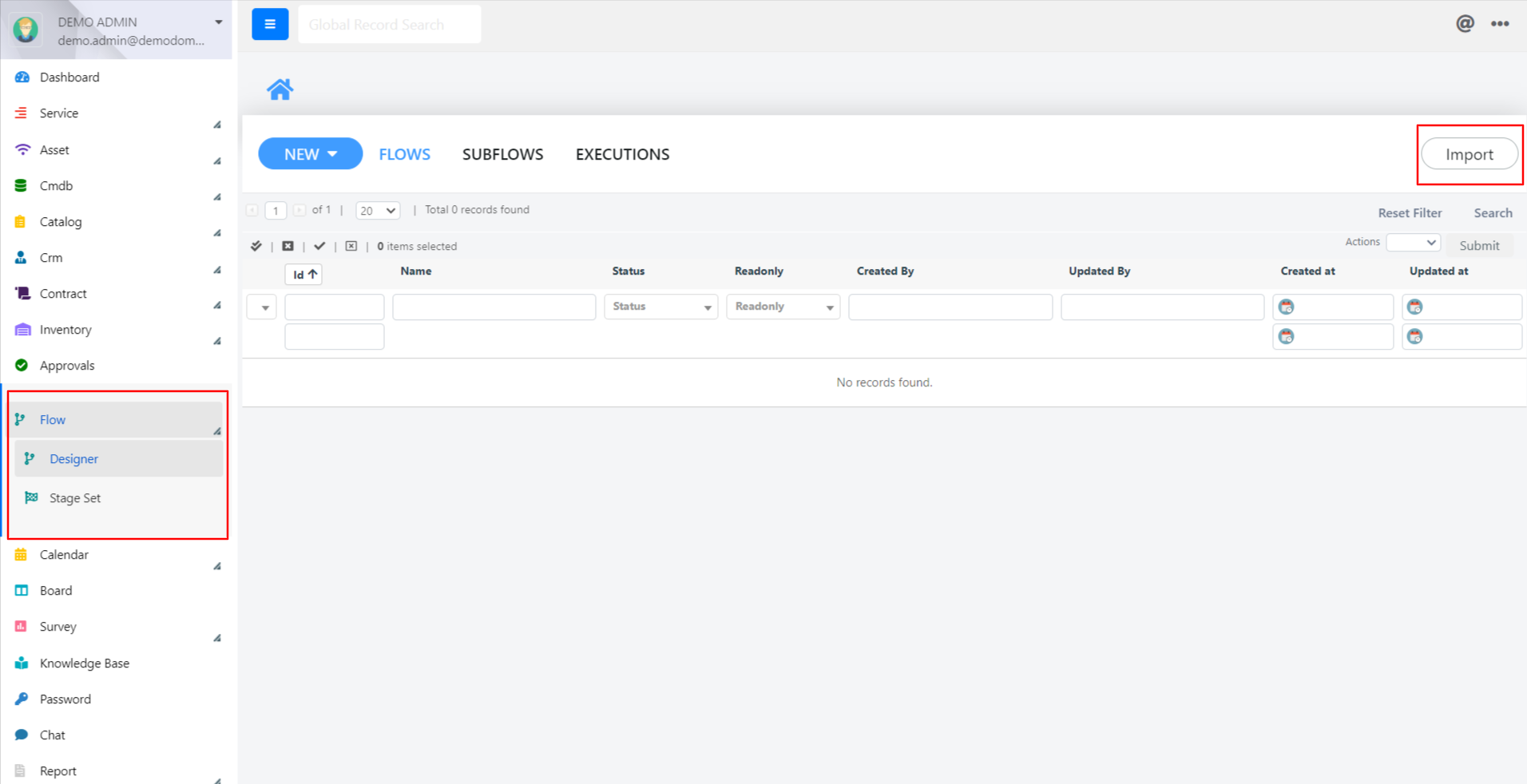
- Click the Executions tab located at the top right.
Understanding Execution Status
The Executions tab displays every execution of the selected flow. Each execution row shows a status indicator:
- Completed -- The flow has finished running all steps successfully.
- Waiting -- The flow is paused, typically waiting for an approval or rejection.
- Error -- The flow encountered a problem during execution.
In the example above, the flow "Flow Approval Multi Stage" has been executed twice. The first execution was completed, while the second execution has a status of "Waiting," meaning it is awaiting an approval decision.
Viewing Execution Details
Click on an execution row to view its details:
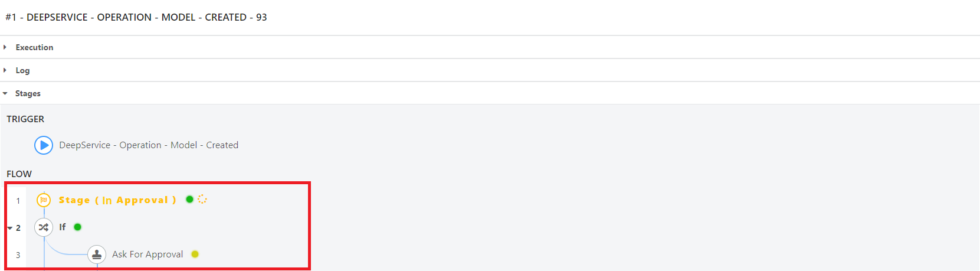
The detail view shows the specific stage and action block where the flow is currently paused or where it completed. This is particularly useful for identifying bottlenecks in approval workflows or diagnosing why a flow did not complete as expected.
Use the Executions tab regularly to verify that your workflows are running as expected and to identify any flows stuck in a "Waiting" state.
Related Articles
- Use the Flow Designer -- Build and manage workflows
- Workflow Actions -- Available action blocks
- Multi Stage Flow -- Configure multi-stage approvals